Sharp MX-B201D Specifikace Strana 70: Scanner driver settings
 1
 2
 3
 4
 5
 6
 7
 8
 9
 10
 11
 12
 13
 14
 15
 16
 17
 18
 19
 20
 21
 22
 23
 24
 25
 26
 27
 28
 29
 30
 31
 32
 33
 34
 35
 36
 37
 38
 39
 40
 41
 42
 43
 44
 45
 46
 47
 48
 49
 50
 51
 52
 53
 54
 55
 56
 57
 58
 59
 60
 61
 62
 63
 64
 65
 66
 67
 68
 69
 70
 71
 72
 73
 74
 75
 76
 77
 78
 79
 80
 81
 82
 83
 84
 85
 86
 87
 88
 89
 90
 91
 92
 93
 94
 95
 96
 97
 98
 99
 100
 101
 102
 103
 104
 105
 106
 107
 108
 109
 110
 111
 112
 113
 114
 115
 116
 117
SCANNER FUNCTIONS
69
Scanner driver settings
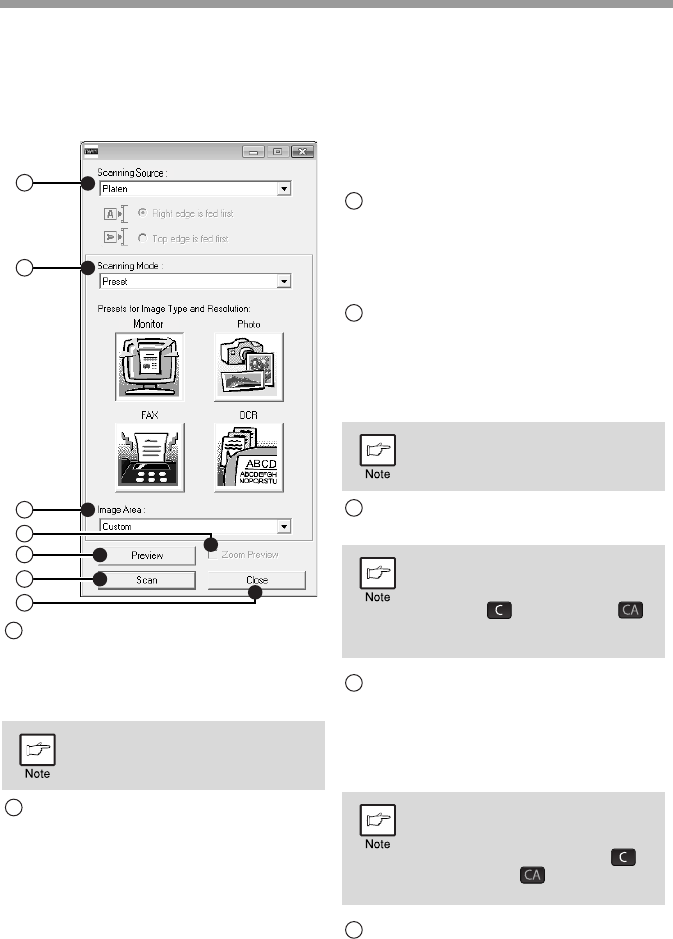
The scanner driver setup screen consists of the "Set-up screen", which lets you select
scan settings, and the "Preview screen", which shows the scanned image. For details
on the scan settings, click the [Help] button in the preview screen to display Help.
Set-up Screen
"Scanning Source" menu
Select the location where the original is
placed. Selections are [Platen]
(document glass), [SPF (Simplex)], [SPF
(Duplex-Book)] or [SPF (Duplex-Tablet)].
.
"Scanning Mode" menu
Select "Preset" or "Custom Settings"
("Standard" or "Professional" in some
regions) for the scanning mode.
The "Preset (or Standard)" screen lets
you select the original type as well as
monitor, photo, fax, or OCR according to
the purpose of scanning.
If you wish to change the default settings
for these four buttons, or select custom
settings such as the image type and
resolution before scanning, switch to the
"Custom Settings (or Professional)"
screen.
For details on the settings, click the
[Help] button in the preview screen to
display Help.
"Image Area" menu
Set the scanning area. To scan the
original size detected by the machine,
select [Auto]. The scanning area can
also be specified as desired in the
preview window.
[Zoom Preview] checkbox
When this is selected, the selected part
of the preview image will be enlarged
when the [Preview] button is clicked.
To return to the regular view, remove the
checkmark.
[Preview] button
Previews the document.
[Scan] button
([Scanning] in some regions)
Click to scan an original using the
selected settings. Before clicking the
[Scan] button, make sure the settings
are correct.
[Close] button
Click to close the scanner driver setup
screen.
On machines without an SPF,
this setting is fixed at [Platen].
1
2
3
4
5
6
7
1
2
[Zoom Preview] cannot be
used when [SPF] is selected in
the "Scanning Position" menu.
If [Preview] is canceled by
immediately pressing the [Esc]
key on your keyboard, or the
[C] key (
) or [CA] key (
)
on the machine, nothing will
appear in the preview screen.
To cancel a scanning job after
the [Scan] button is clicked,
press the [Esc] key on your
keyboard or the [C] key (
)
or [CA] key (
) on the
machine.
3
4
5
6
7
Soubor PDF · ·
Otázky k Sharp MX-B201D
K tomuto návodu zatím nejsou žádné otázky. Položte první.
Související produkty a manuály pro Tisk a skenování Sharp MX-B201D
- Tisk a skenování Sharp MX-M350U Průvodce nastavením
 (91 stránek)
- Tisk a skenování Sharp AR-208S Uživatelský manuál
 (104 stránek)
- Tisk a skenování Sharp M450U Průvodce nastavením
(93 stránek)
- Tisk a skenování Sharp MX-6200N Uživatelský manuál
 (12 stránek)
- Tisk a skenování Sharp AR-FX5 Uživatelský manuál
(6 stránek)
- Tisk a skenování Sharp MX-B201D Uživatelský manuál
(4 stránky)
- Tisk a skenování Sharp AR-M351U Uživatelský manuál
(12 stránek)
- Tisk a skenování Sharp AR-M455 Operation Specifikace
(183 stránek)
- Tisk a skenování Sharp MX-C300PL Uživatelský manuál

 (108 stránek)
- Tisk a skenování Sharp AJ-5030 Uživatelský manuál
(148 stránek)
- Tisk a skenování Sharp DX-B450P Instalační manuál
(28 stránek)
- Tisk a skenování Sharp MX-M350 Specifikace
(110 stránek)
- Tisk a skenování Sharp SF-2014 Uživatelský manuál
(6 stránek)
- Tisk a skenování Sharp AR-M450 Uživatelský manuál
(8 stránek)
- Tisk a skenování Sharp AR-M455 Operation Uživatelský manuál
(18 stránek)
- Tisk a skenování Sharp Z-845 Uživatelská příručka
(44 stránek)
- Tisk a skenování Sharp AR-RB1 Uživatelský manuál
(4 stránky)
- Tisk a skenování Sharp AL-2020 Uživatelský manuál
(42 stránek)
- Tisk a skenování Sharp MX-2700G Uživatelský manuál
(12 stránek)
- Tisk a skenování Sharp AR-M351U Uživatelský manuál
(7 stránek)