Sharp MX-B201D Specifikace Strana 101: Removing the software
 1
 2
 3
 4
 5
 6
 7
 8
 9
 10
 11
 12
 13
 14
 15
 16
 17
 18
 19
 20
 21
 22
 23
 24
 25
 26
 27
 28
 29
 30
 31
 32
 33
 34
 35
 36
 37
 38
 39
 40
 41
 42
 43
 44
 45
 46
 47
 48
 49
 50
 51
 52
 53
 54
 55
 56
 57
 58
 59
 60
 61
 62
 63
 64
 65
 66
 67
 68
 69
 70
 71
 72
 73
 74
 75
 76
 77
 78
 79
 80
 81
 82
 83
 84
 85
 86
 87
 88
 89
 90
 91
 92
 93
 94
 95
 96
 97
 98
 99
 100
 101
 102
 103
 104
 105
 106
 107
 108
 109
 110
 111
 112
 113
 114
 115
 116
 117
TROUBLESHOOTING AND MAINTENANCE
100
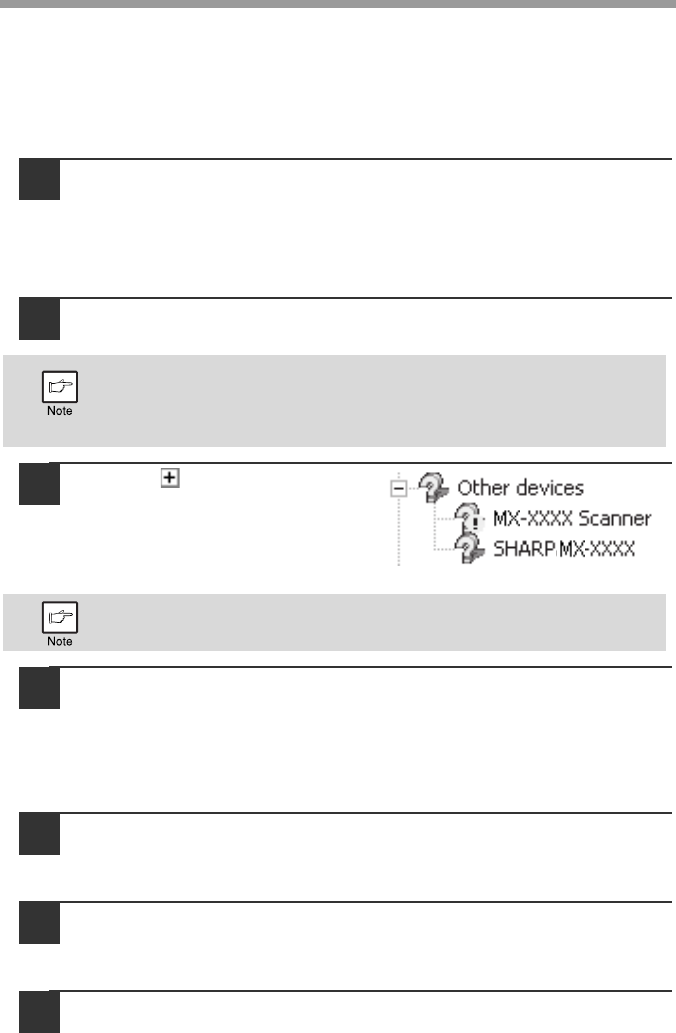
The MFP driver cannot be correctly installed by Plug and
Play (Windows 2000/XP/Vista/7)
In Windows 2000/XP/Vista/7, if the MFP driver cannot be correctly installed by Plug
and Play (for example, Plug and Play takes place without copying the required files
for the MFP driver installation), follow these steps to remove unneeded devices and
then install the MFP driver as explained in "INSTALLING THE SOFTWARE" (p.34).
1
Click the "start" button, click "Control Panel", and then click
"Performance and Maintenance".
• On Windows Vista/7, click the "Start" button, select "Control Panel", and
then click "System and Maintenance".
• On Windows 2000, click the "Start" button, select "Settings", and then
click "Control Panel".
2
Click "System", click the "Hardware" tab, and click the "Device
Manager" button.
3
Click the
icon beside "Other
devices".
If "MX-XXXX" and "SHARP MX-
XXXX" appear, select and delete
both of these items.
4
Install the software as explained in "INSTALLING THE
SOFTWARE".
Removing the software
If you need to remove the software, follow these steps.
1
Click the "start" button and then click "Control Panel".
On Windows 2000, click the "Start" button, select "Settings", and then click
"Control Panel".
2
Click "Add or Remove Programs".
• On Windows Vista/7, click the "Uninstall a program".
• On Windows 2000, double-click the "Add/Remove Programs" icon.
3
Select "SHARP MX-B201 Series MFP Driver" and Button
Manager from the list, and remove the software.
For more information, refer to your operating manual or to the help files for
your operating system.
• On Windows 2000, double-click the "System" icon, click the
"Hardware" tab, and click the "Device Manager" button.
• On Windows Vista/7, click the "Device Manager", and if a message
screen appears asking you for confirmation, click "Continue".
If "Other devices" does not appear, close the "Device Manager" window.
Soubor PDF · ·
Otázky k Sharp MX-B201D
K tomuto návodu zatím nejsou žádné otázky. Položte první.
Související produkty a manuály pro Tisk a skenování Sharp MX-B201D
- Tisk a skenování Sharp MX-M350U Průvodce nastavením
 (91 stránek)
- Tisk a skenování Sharp AR-208S Uživatelský manuál
 (104 stránek)
- Tisk a skenování Sharp M450U Průvodce nastavením
(93 stránek)
- Tisk a skenování Sharp MX-6200N Uživatelský manuál
 (12 stránek)
- Tisk a skenování Sharp AR-FX5 Uživatelský manuál
(6 stránek)
- Tisk a skenování Sharp MX-B201D Uživatelský manuál
(4 stránky)
- Tisk a skenování Sharp AR-M351U Uživatelský manuál
(12 stránek)
- Tisk a skenování Sharp AR-M455 Operation Specifikace
(183 stránek)
- Tisk a skenování Sharp MX-C300PL Uživatelský manuál

 (108 stránek)
- Tisk a skenování Sharp AJ-5030 Uživatelský manuál
(148 stránek)
- Tisk a skenování Sharp DX-B450P Instalační manuál
(28 stránek)
- Tisk a skenování Sharp MX-M350 Specifikace
(110 stránek)
- Tisk a skenování Sharp SF-2014 Uživatelský manuál
(6 stránek)
- Tisk a skenování Sharp AR-M450 Uživatelský manuál
(8 stránek)
- Tisk a skenování Sharp AR-M455 Operation Uživatelský manuál
(18 stránek)
- Tisk a skenování Sharp Z-845 Uživatelská příručka
(44 stránek)
- Tisk a skenování Sharp AR-RB1 Uživatelský manuál
(4 stránky)
- Tisk a skenování Sharp AL-2020 Uživatelský manuál
(42 stránek)
- Tisk a skenování Sharp MX-2700G Uživatelský manuál
(12 stránek)
- Tisk a skenování Sharp AR-M351U Uživatelský manuál
(7 stránek)