Sharp MX-B201D Specifikace Strana 34: ID CARD COPY
 1
 2
 3
 4
 5
 6
 7
 8
 9
 10
 11
 12
 13
 14
 15
 16
 17
 18
 19
 20
 21
 22
 23
 24
 25
 26
 27
 28
 29
 30
 31
 32
 33
 34
 35
 36
 37
 38
 39
 40
 41
 42
 43
 44
 45
 46
 47
 48
 49
 50
 51
 52
 53
 54
 55
 56
 57
 58
 59
 60
 61
 62
 63
 64
 65
 66
 67
 68
 69
 70
 71
 72
 73
 74
 75
 76
 77
 78
 79
 80
 81
 82
 83
 84
 85
 86
 87
 88
 89
 90
 91
 92
 93
 94
 95
 96
 97
 98
 99
 100
 101
 102
 103
 104
 105
 106
 107
 108
 109
 110
 111
 112
 113
 114
 115
 116
 117
33
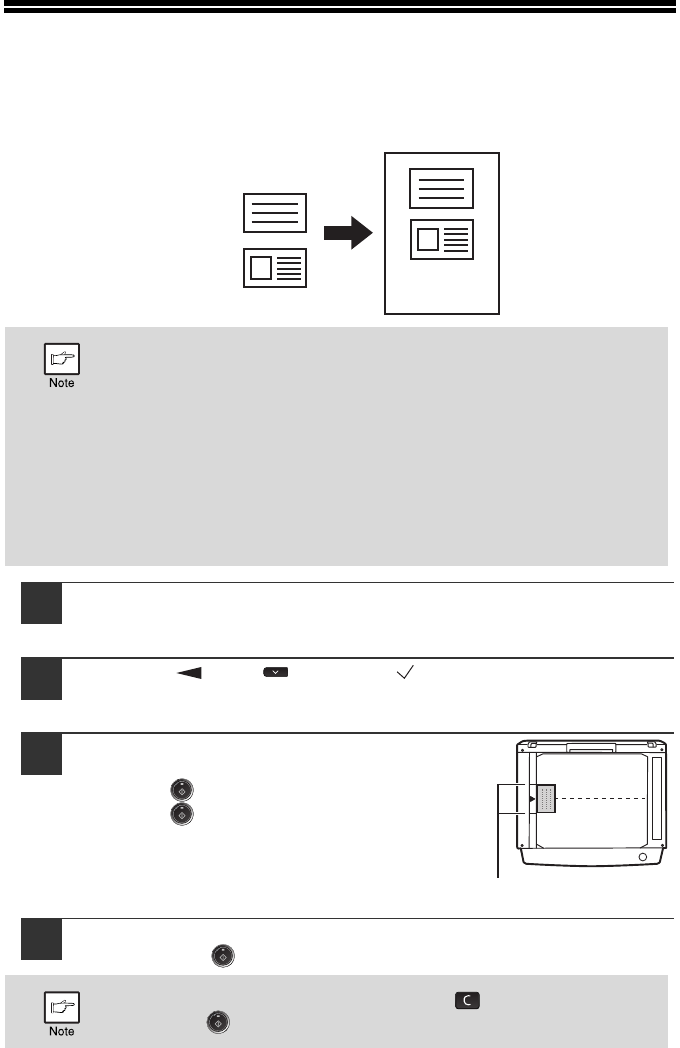
ID CARD COPY
You can copy the front and reverse sides of ID card onto a page through this
function.
The ID card print image is shown as follows.
1
Press the [E-SORT.SP.FUNC] key until "ID CARD COPY"
appears and the press the [OK] key.
2
Press the [
] key (
) to move "
" to the "ON" position and
then press the [OK] key.
3
Place the ID card on the document glass,
align with the ID card mark, and press the
[START] (
) key. When scan is finished,
[START] (
) key indicator will blink and
one side of the ID card is scanned into
memory. (In this case, print will start if
pressing READ-END (#) key.)
4
Turn and replace the ID card on the document glass, and press
the [START] (
) key. When scan is finished, copy will begin.
• ID card copy feature cannot be used in combination with two-sided
copy and sort functions.
• The following paper sizes can be used: A5R, A4and B5. (A5R can
only be used in bypass tray.)
• The image may cut off even if using standard paper size.
• In ID card copy mode, scan area and scan number (1 page) cannot
be changed. Scan area is:
X: 54 + 5 mm (margin),
Y: 86 + 10 mm (top margin 5 mm and bottom margin 5 mm).
• Only making a single copy is available (Number of copies cannot be
set.).
To cancel ID card copy, press the [CLEAR] (
) key and make sure the
[START] (
) key indicator is off.
Originals
Copies
Front
Back
ID CARD mark
Soubor PDF · ·
Otázky k Sharp MX-B201D
K tomuto návodu zatím nejsou žádné otázky. Položte první.
Související produkty a manuály pro Tisk a skenování Sharp MX-B201D
- Tisk a skenování Sharp MX-M350U Průvodce nastavením
 (91 stránek)
- Tisk a skenování Sharp AR-208S Uživatelský manuál
 (104 stránek)
- Tisk a skenování Sharp M450U Průvodce nastavením
(93 stránek)
- Tisk a skenování Sharp MX-6200N Uživatelský manuál
 (12 stránek)
- Tisk a skenování Sharp AR-FX5 Uživatelský manuál
(6 stránek)
- Tisk a skenování Sharp MX-B201D Uživatelský manuál
(4 stránky)
- Tisk a skenování Sharp AR-M351U Uživatelský manuál
(12 stránek)
- Tisk a skenování Sharp AR-M455 Operation Specifikace
(183 stránek)
- Tisk a skenování Sharp MX-C300PL Uživatelský manuál

 (108 stránek)
- Tisk a skenování Sharp AJ-5030 Uživatelský manuál
(148 stránek)
- Tisk a skenování Sharp DX-B450P Instalační manuál
(28 stránek)
- Tisk a skenování Sharp MX-M350 Specifikace
(110 stránek)
- Tisk a skenování Sharp SF-2014 Uživatelský manuál
(6 stránek)
- Tisk a skenování Sharp AR-M450 Uživatelský manuál
(8 stránek)
- Tisk a skenování Sharp AR-M455 Operation Uživatelský manuál
(18 stránek)
- Tisk a skenování Sharp Z-845 Uživatelská příručka
(44 stránek)
- Tisk a skenování Sharp AR-RB1 Uživatelský manuál
(4 stránky)
- Tisk a skenování Sharp AL-2020 Uživatelský manuál
(42 stránek)
- Tisk a skenování Sharp MX-2700G Uživatelský manuál
(12 stránek)
- Tisk a skenování Sharp AR-M351U Uživatelský manuál
(7 stránek)