Sharp MX-B201D Specifikace Strana 27: SORT COPY
 1
 2
 3
 4
 5
 6
 7
 8
 9
 10
 11
 12
 13
 14
 15
 16
 17
 18
 19
 20
 21
 22
 23
 24
 25
 26
 27
 28
 29
 30
 31
 32
 33
 34
 35
 36
 37
 38
 39
 40
 41
 42
 43
 44
 45
 46
 47
 48
 49
 50
 51
 52
 53
 54
 55
 56
 57
 58
 59
 60
 61
 62
 63
 64
 65
 66
 67
 68
 69
 70
 71
 72
 73
 74
 75
 76
 77
 78
 79
 80
 81
 82
 83
 84
 85
 86
 87
 88
 89
 90
 91
 92
 93
 94
 95
 96
 97
 98
 99
 100
 101
 102
 103
 104
 105
 106
 107
 108
 109
 110
 111
 112
 113
 114
 115
 116
 117
26
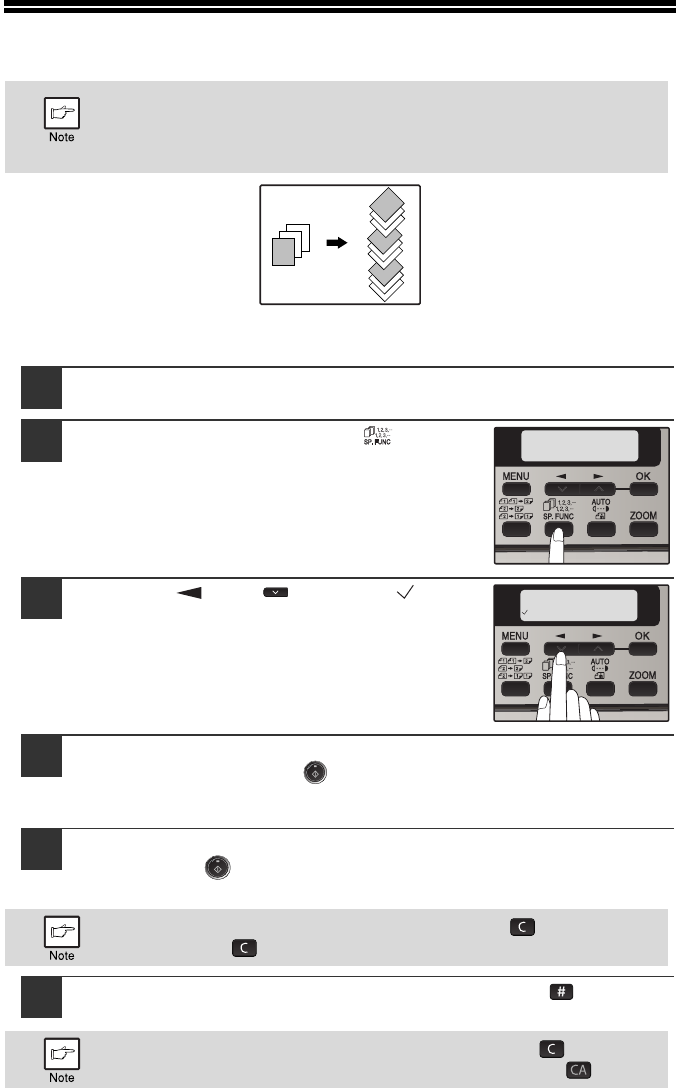
SORT COPY
Copies of multiple original pages can be sorted into sets.
Using the document glass
1
Place the first original. (p.17)
2
Press the [E-SORT/SP.FUNC (
)] key
until "SORT" appears and then press the
[OK] key.
3
Press the [
] key (
) to move "
" to
the "ON" position and then press the [OK]
key.
4
Select the number of copies and any other settings, and then
press the [START] key (
).
"[START] : NEXT SCAN [#] : START PRINT" appears and the original is
scanned into memory.
5
Replace the original with the next original, and then press the
[START] key (
).
Repeat step 5 until all originals have been scanned into memory.
6
When all originals have been scanned, press the [
] key.
The copies are delivered to the paper output tray.
The number of pages that can be scanned varies depending on the
original type (photo, text, etc.) and the amount of memory allocated to
the printer. The amount of memory allocated to the printer can be
changed with "MEM. FOR PRINTER" in the user programs. (p.76)
To clear the data in memory, press the [CLEAR] key (
). When the
[CLEAR] key (
) is pressed, the number of copies setting is also cleared.
• To cancel the sort copy job, press the [CLEAR] key (
).
• To cancel sort copy mode, press the [CLEAR ALL] key (
).
2
1
3
2
1
3
1
2 3
2
1
3
Sort copy
SPECIAL FUNCTION
SORT
SORT
ON
OFF
Soubor PDF · ·
Otázky k Sharp MX-B201D
K tomuto návodu zatím nejsou žádné otázky. Položte první.
Související produkty a manuály pro Tisk a skenování Sharp MX-B201D
- Tisk a skenování Sharp MX-M350U Průvodce nastavením
 (91 stránek)
- Tisk a skenování Sharp AR-208S Uživatelský manuál
 (104 stránek)
- Tisk a skenování Sharp M450U Průvodce nastavením
(93 stránek)
- Tisk a skenování Sharp MX-6200N Uživatelský manuál
 (12 stránek)
- Tisk a skenování Sharp AR-FX5 Uživatelský manuál
(6 stránek)
- Tisk a skenování Sharp MX-B201D Uživatelský manuál
(4 stránky)
- Tisk a skenování Sharp AR-M351U Uživatelský manuál
(12 stránek)
- Tisk a skenování Sharp AR-M455 Operation Specifikace
(183 stránek)
- Tisk a skenování Sharp MX-C300PL Uživatelský manuál

 (108 stránek)
- Tisk a skenování Sharp AJ-5030 Uživatelský manuál
(148 stránek)
- Tisk a skenování Sharp DX-B450P Instalační manuál
(28 stránek)
- Tisk a skenování Sharp MX-M350 Specifikace
(110 stránek)
- Tisk a skenování Sharp SF-2014 Uživatelský manuál
(6 stránek)
- Tisk a skenování Sharp AR-M450 Uživatelský manuál
(8 stránek)
- Tisk a skenování Sharp AR-M455 Operation Uživatelský manuál
(18 stránek)
- Tisk a skenování Sharp Z-845 Uživatelská příručka
(44 stránek)
- Tisk a skenování Sharp AR-RB1 Uživatelský manuál
(4 stránky)
- Tisk a skenování Sharp AL-2020 Uživatelský manuál
(42 stránek)
- Tisk a skenování Sharp MX-2700G Uživatelský manuál
(12 stránek)
- Tisk a skenování Sharp AR-M351U Uživatelský manuál
(7 stránek)