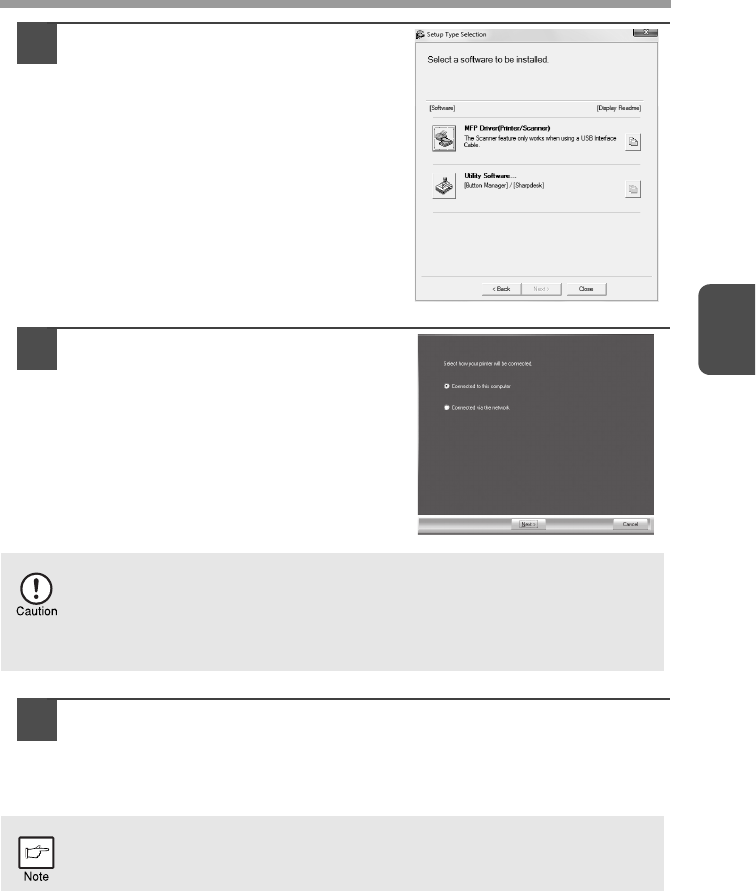
Sharp AL-2021 Specifikace Strana 17: Select "Connected to this computer" and click the "Next"
 1
 2
 3
 4
 5
 6
 7
 8
 9
 10
 11
 12
 13
 14
 15
 16
 17
 18
 19
 20
 21
 22
 23
 24
 25
 26
 27
 28
 29
 30
 31
 32
 33
 34
 35
 36
 37
 38
 39
 40
 41
 42
 43
 44
 45
 46
 47
 48
 49
 50
 51
 52
 53
 54
 55
 56
 57
 58
 59
 60
 61
 62
 63
 64
 65
 66
 67
 68
 69
 70
 71
 72
 73
 74
 75
 76
 77
 78
 79
 80
 81
 82
 83
 84
 85
 86
 87
 88
 89
 90
 91
3
17
8
Click the "MFP Driver" button.
Click the "Display Readme" button to
show information on packages that are
selected.
9
Select "Connected to this
computer" and click the "Next"
button.
Follow the on-screen instructions.
10
You will return to the window of step 8. If you wish to install
Button Manager or Sharpdesk, click the "Utility Software"
button.
If you do not wish to install the Utility Software, click the "Close" button and
go to step 12.
•
If you are using Windows Vista/7 and a security warning window
appears, be sure to click "Install this driver software anyway".
•
If you are running Windows 2000/XP and a warning message appears
regarding the Windows logo test or digital signature, be sure to click
"Continue Anyway" or "Yes".
After the installation, a message prompting you to restart your computer
may appear. In this case, click the "Yes" button to restart your computer.
Soubor PDF · ·
Otázky k Sharp AL-2021
K tomuto návodu zatím nejsou žádné otázky. Položte první.
Související produkty a manuály pro Multifunkční zařízení Sharp AL-2021
- Multifunkční zařízení Sharp MX-B402 Uživatelský manuál
 (50 stránek)
- Multifunkční zařízení Sharp FO-155 Specifikace

 (165 stránek)
- Multifunkční zařízení Sharp MX-4140N Instalační manuál
(19 stránek)
- Multifunkční zařízení Sharp JW-50FL Uživatelský manuál
(201 stránek)
- Multifunkční zařízení Sharp MX-4140N Uživatelský manuál
(12 stránek)
- Multifunkční zařízení Sharp CPD-3830 Uživatelský manuál
(12 stránek)
- Multifunkční zařízení Sharp CD600 - B/W - Fax Uživatelský manuál
(23 stránek)
- Multifunkční zařízení Sharp AR-810 Manuál s instrukcemi
(178 stránek)
- Multifunkční zařízení Sharp AL-1566 Specifikace
(116 stránek)
- Multifunkční zařízení Sharp AM-400 Specifikace
(162 stránek)
- Multifunkční zařízení Sharp AL-2051 Specifikace
(173 stránek)
- Multifunkční zařízení Sharp MX-5111N Uživatelský manuál
(12 stránek)
- Multifunkční zařízení Sharp AL-2021 Uživatelský manuál
(91 stránek)
- Multifunkční zařízení Sharp MX-C250 Instalační manuál
(20 stránek)
- Multifunkční zařízení Sharp AM-300 Specifikace
(167 stránek)
- Multifunkční zařízení Sharp AL-2060 Specifikace
(112 stránek)
- Multifunkční zařízení Sharp AL-1555 Series Uživatelský manuál
 (37 stránek)
- Multifunkční zařízení Sharp AL-2050 Specifikace
(116 stránek)
- Multifunkční zařízení Sharp AL-1552 Uživatelský manuál
(81 stránek)
- Multifunkční zařízení Sharp AR-168N Uživatelský manuál
 (108 stránek)