Sharp MX-4101N Specifikace Strana 43: The License Agreement window will
 1
 2
 3
 4
 5
 6
 7
 8
 9
 10
 11
 12
 13
 14
 15
 16
 17
 18
 19
 20
 21
 22
 23
 24
 25
 26
 27
 28
 29
 30
 31
 32
 33
 34
 35
 36
 37
 38
 39
 40
 41
 42
 43
 44
 45
 46
 47
 48
 49
 50
 51
 52
 53
 54
 55
 56
 57
 58
 59
 60
 61
 62
 63
 64
 65
 66
 67
 68
 69
 70
 71
 72
 73
 74
 75
 76
32
MAC OS X
7
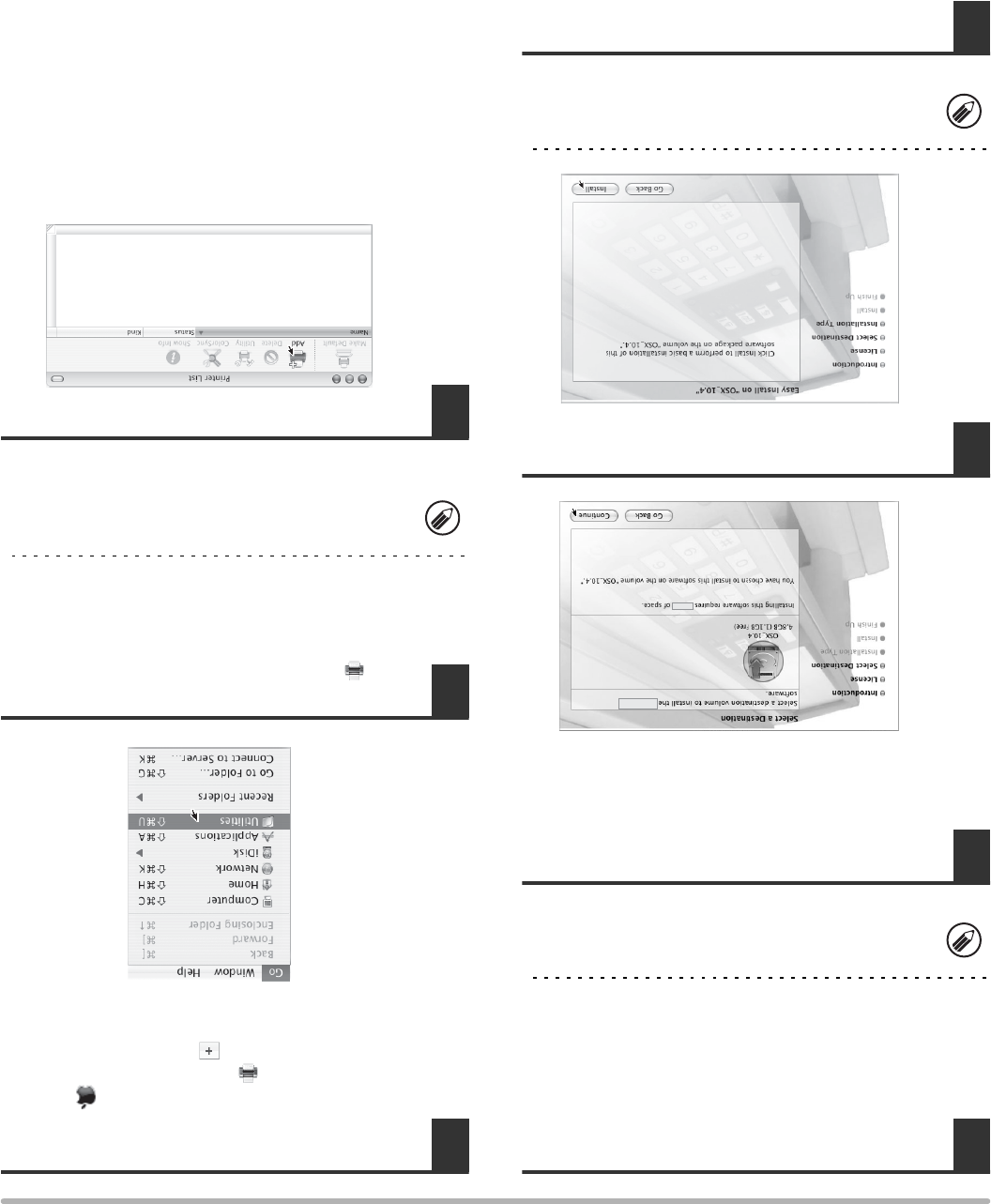
The License Agreement window will
appear. Make sure that you understand
the contents of the license agreement
and then click the [Continue] button.
A message will appear asking you if you agree to the
terms of the license. Click the [Agree] button.
8
Select the hard drive where the PPD file
will be installed and click the [Continue]
button.
Be sure to select the hard drive on which your operating
system is installed.
9
Click the [Install] button.
Installation begins.
10
When the message "The software was
successfully installed" appears in the
installation window, click the [Close]
button.
This completes the installation of the software. Next,
configure the printer driver settings.
11
Select [Utilities] from the [Go] menu.
• If you are using Mac OS X v10.5 to 10.5.1, click
[System Preferences] in the Apple menu (
) and
select [Print & Fax] (
). When the screen for adding a
printer appears, click the
button and go to step 14.
• If you are using Mac OS X v10.2.8, select
[Applications] from the [Go] menu.
12
Double-click the [Printer Setup Utility]
icon (
).
If you are using Mac OS X v10.2.8, double-click the
[Utilities] folder and then double-click the [Print Center]
icon.
13
Click [Add].
If the license appears in the different language,
change the language in the language menu.
If the "Authenticate" window appears, enter the
password and click the [OK] button.
If this is the first time you are installing a printer driver
on your computer, a confirmation message will
appear. Click the [Add] button.
Soubor PDF · ·
Otázky k Sharp MX-4101N
K tomuto návodu zatím nejsou žádné otázky. Položte první.
Související produkty a manuály pro Multifunkční zařízení Sharp MX-4101N
- Multifunkční zařízení Sharp JW-20FLT Uživatelský manuál
 (197 stránek)
- Multifunkční zařízení Sharp MX-C381 Specifikace
(148 stránek)
- Multifunkční zařízení Sharp MX-M260 Uživatelský manuál
 (160 stránek)
- Multifunkční zařízení Sharp MX-4101N Specifikace
(12 stránek)
- Multifunkční zařízení Sharp MX-M564N Uživatelský manuál
(8 stránek)
- Multifunkční zařízení Sharp MX-M564N Uživatelský manuál
(8 stránek)
- Multifunkční zařízení Sharp CPD-3830 Uživatelský manuál
(1 stránka)
- Multifunkční zařízení Sharp MX-2010U Uživatelský manuál
(12 stránek)
- Multifunkční zařízení Sharp MX-B381 Uživatelský manuál
(12 stránek)
- Multifunkční zařízení Sharp MX-7500N Uživatelský manuál
(30 stránek)
- Multifunkční zařízení Sharp AL-2021 Specifikace
(91 stránek)
- Multifunkční zařízení Sharp MX-B402 Uživatelský manuál
(50 stránek)
- Multifunkční zařízení Sharp FO-155 Specifikace

 (165 stránek)
- Multifunkční zařízení Sharp MX-4140N Instalační manuál
(19 stránek)
- Multifunkční zařízení Sharp JW-50FL Uživatelský manuál
(201 stránek)
- Multifunkční zařízení Sharp MX-4140N Uživatelský manuál
(12 stránek)
- Multifunkční zařízení Sharp CPD-3830 Uživatelský manuál
(12 stránek)
- Multifunkční zařízení Sharp CD600 - B/W - Fax Uživatelský manuál
(23 stránek)
- Multifunkční zařízení Sharp AR-810 Manuál s instrukcemi
(178 stránek)
- Multifunkční zařízení Sharp AL-1566 Specifikace
(116 stránek)