Sharp MX-4101N Specifikace Strana 41: Display printer information
 1
 2
 3
 4
 5
 6
 7
 8
 9
 10
 11
 12
 13
 14
 15
 16
 17
 18
 19
 20
 21
 22
 23
 24
 25
 26
 27
 28
 29
 30
 31
 32
 33
 34
 35
 36
 37
 38
 39
 40
 41
 42
 43
 44
 45
 46
 47
 48
 49
 50
 51
 52
 53
 54
 55
 56
 57
 58
 59
 60
 61
 62
 63
 64
 65
 66
 67
 68
 69
 70
 71
 72
 73
 74
 75
 76
34
MAC OS X
15
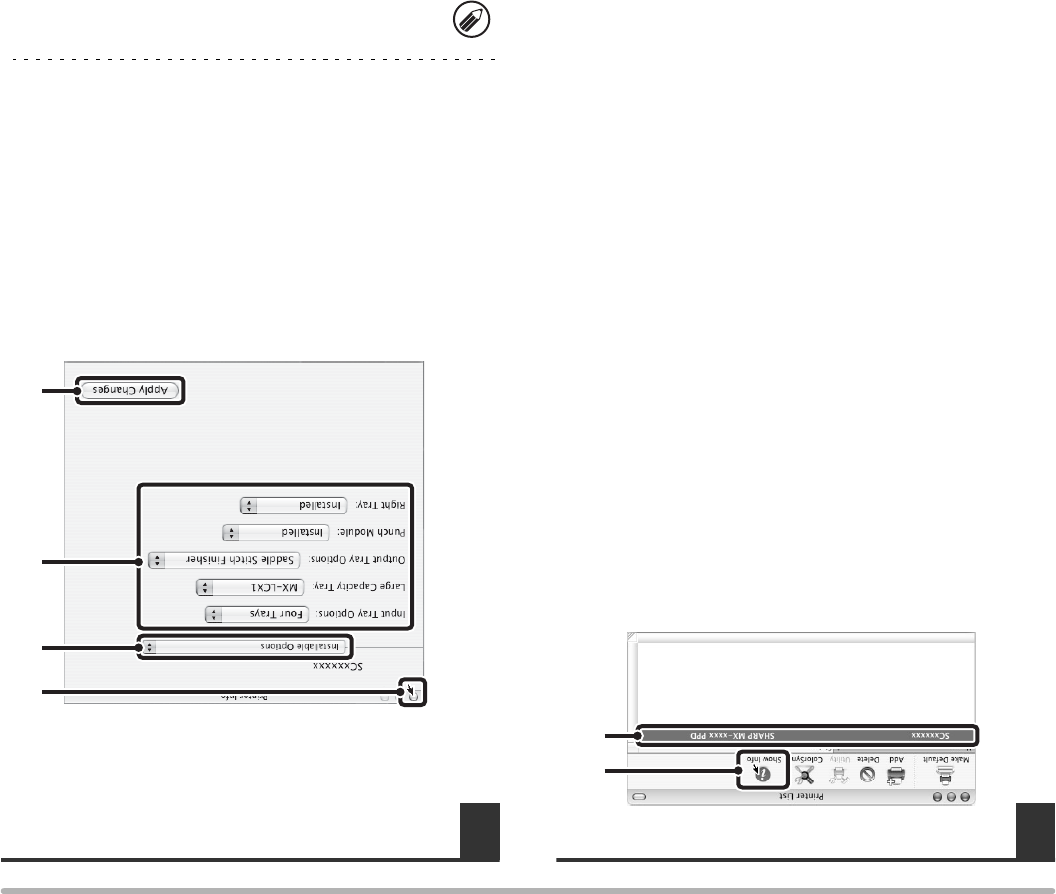
Display printer information.
(1) Click the machine's name.
If you are using Mac OS X v10.5 to 10.5.1, click the
[Options & Supplies] button, click the [Driver] tab
and go to step 16.
(2) Click [Show Info].
If you are using Mac OS X v10.2.8, select [Show
Info] from the [Printers] menu.
16
Select the machine configuration.
If you selected [Auto Select] in (3) of step 14, the
machine configuration is detected and automatically
configured. Check the configured settings to make sure
they are correct.
(1) Select [Installable Options].
If you are using Mac OS X v10.5 to 10.5.1, it does
not appear.
(2) Select the options that are installed on
the machine.
(3) Click the [Apply Changes] button.
If you are using Mac OS X v10.5 to 10.5.1, click the
[OK] button.
(4) Click to close the window.
This completes the configuration of the printer
driver.
(1)
(2)
You can check the options that are installed on the
machine by printing out the "All Custom Setting List" in
the system settings. (However, note that "Input Tray
Options" must be set to the number of trays on the
machine.) Follow these steps to print out the "All
Custom Setting List": Press the [SYSTEM SETTINGS]
key, touch the [List Print (User)] key, and then touch
the [Print] key of "All Custom Setting List".
(1)
(3)
(2)
(4)
Soubor PDF · ·
Otázky k Sharp MX-4101N
K tomuto návodu zatím nejsou žádné otázky. Položte první.
Související produkty a manuály pro Multifunkční zařízení Sharp MX-4101N
- Multifunkční zařízení Sharp JW-20FLT Uživatelský manuál
 (197 stránek)
- Multifunkční zařízení Sharp MX-C381 Specifikace
(148 stránek)
- Multifunkční zařízení Sharp MX-M260 Uživatelský manuál
 (160 stránek)
- Multifunkční zařízení Sharp MX-4101N Specifikace
(12 stránek)
- Multifunkční zařízení Sharp MX-M564N Uživatelský manuál
(8 stránek)
- Multifunkční zařízení Sharp MX-M564N Uživatelský manuál
(8 stránek)
- Multifunkční zařízení Sharp CPD-3830 Uživatelský manuál
(1 stránka)
- Multifunkční zařízení Sharp MX-2010U Uživatelský manuál
(12 stránek)
- Multifunkční zařízení Sharp MX-B381 Uživatelský manuál
(12 stránek)
- Multifunkční zařízení Sharp MX-7500N Uživatelský manuál
(30 stránek)
- Multifunkční zařízení Sharp AL-2021 Specifikace
(91 stránek)
- Multifunkční zařízení Sharp MX-B402 Uživatelský manuál
(50 stránek)
- Multifunkční zařízení Sharp FO-155 Specifikace

 (165 stránek)
- Multifunkční zařízení Sharp MX-4140N Instalační manuál
(19 stránek)
- Multifunkční zařízení Sharp JW-50FL Uživatelský manuál
(201 stránek)
- Multifunkční zařízení Sharp MX-4140N Uživatelský manuál
(12 stránek)
- Multifunkční zařízení Sharp CPD-3830 Uživatelský manuál
(12 stránek)
- Multifunkční zařízení Sharp CD600 - B/W - Fax Uživatelský manuál
(23 stránek)
- Multifunkční zařízení Sharp AR-810 Manuál s instrukcemi
(178 stránek)
- Multifunkční zařízení Sharp AL-1566 Specifikace
(116 stránek)