Sharp MX-2301N Specifikace Strana 88: SELECTING A SPECIAL MODE
 1
 2
 3
 4
 5
 6
 7
 8
 9
 10
 11
 12
 13
 14
 15
 16
 17
 18
 19
 20
 21
 22
 23
 24
 25
 26
 27
 28
 29
 30
 31
 32
 33
 34
 35
 36
 37
 38
 39
 40
 41
 42
 43
 44
 45
 46
 47
 48
 49
 50
 51
 52
 53
 54
 55
 56
 57
 58
 59
 60
 61
 62
 63
 64
 65
 66
 67
 68
 69
 70
 71
 72
 73
 74
 75
 76
 77
 78
 79
 80
 81
 82
 83
 84
 85
 86
 87
 88
 89
 90
 91
 92
 93
 94
 95
 96
 97
 98
 99
 100
 101
 102
 103
 104
 105
 106
 107
 108
 109
 110
 111
 112
 113
 114
 115
 116
86
SELECTING A SPECIAL MODE
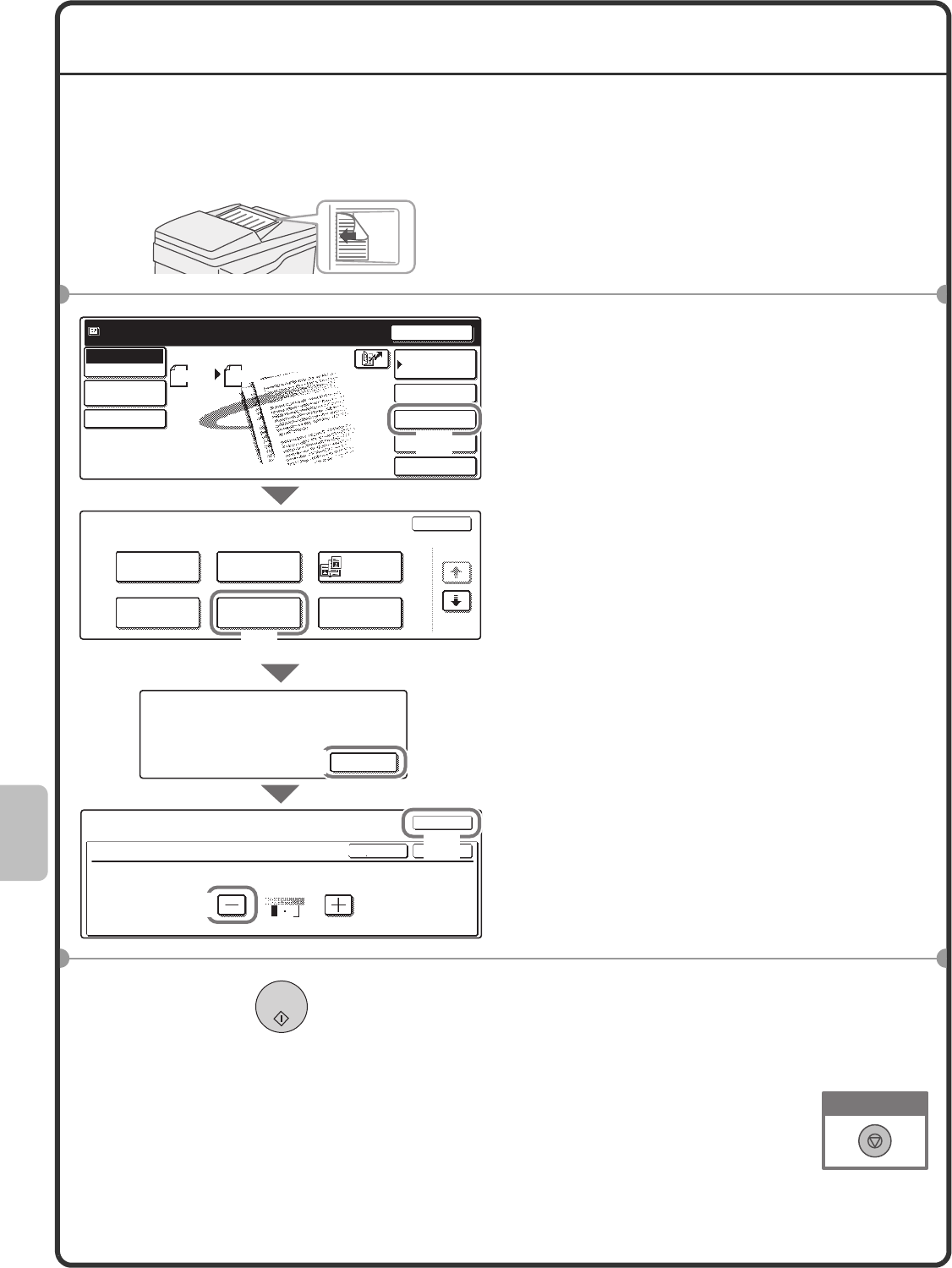
The procedure for selecting a special mode for the scanner function is explained below.
The settings that must be selected vary for each special mode, however, the general procedure is the same. The
procedure for selecting "Whitening faint colours in the image (Suppress Background)" is explained here as an example.
1
Place the originals.
When using the document glass, place the
original with the side to be scanned face down.
2
Select settings in the touch panel.
(1)
Touch the [Special Modes] key.
(2)
Touch the [Suppress Background]
key.
(3)
Read the displayed message and
touch the [OK] key.
(4)
Set the darkness of the background
that will remain with the [-] [+] keys.
3 levels are available. Touch the [-] key for
a lighter background. Touch the [+] key for
a darker background.
Here "1" is set for the lightest background.
(5)
Touch the [OK] key.
3
Select the destination and press the
[COLOUR START] key.
This function cannot be used when the colour
mode is set to [Mono2].
The side to be scanned must be face up!
Ready to send.
Resend
Special Modes
File
Quick File
Scan
Mode Switch
Send Settings
Job Detail
Settings
Address Book
Address Entry
Scan
Send
Auto
Scan
Special Modes
OK
1/2
Program
Timer
Erase
Dual Page
Scan
Card Shot
Suppress
Background
Special Modes
Suppress Background
Light areas of the original may be suppressed as background.
OK
OK
Cancel
1
3
A4
This function may not apply if
sent by Black & White [Start].
(Mono2 selection)
OK
(5)
(4)
(1)
(2)
(3)
Cancel scanning
Soubor PDF · ·
Otázky k Sharp MX-2301N
K tomuto návodu zatím nejsou žádné otázky. Položte první.
Související produkty a manuály pro Multifunkční zařízení Sharp MX-2301N
- Multifunkční zařízení Sharp MX-4101N Specifikace
 (76 stránek)
- Multifunkční zařízení Sharp JW-20FLT Uživatelský manuál
(197 stránek)
- Multifunkční zařízení Sharp MX-C381 Specifikace
(148 stránek)
- Multifunkční zařízení Sharp MX-M260 Uživatelský manuál
 (160 stránek)
- Multifunkční zařízení Sharp MX-4101N Specifikace
(12 stránek)
- Multifunkční zařízení Sharp MX-M564N Uživatelský manuál
(8 stránek)
- Multifunkční zařízení Sharp MX-M564N Uživatelský manuál
(8 stránek)
- Multifunkční zařízení Sharp CPD-3830 Uživatelský manuál
(1 stránka)
- Multifunkční zařízení Sharp MX-2010U Uživatelský manuál
(12 stránek)
- Multifunkční zařízení Sharp MX-B381 Uživatelský manuál
(12 stránek)
- Multifunkční zařízení Sharp MX-7500N Uživatelský manuál
(30 stránek)
- Multifunkční zařízení Sharp AL-2021 Specifikace
(91 stránek)
- Multifunkční zařízení Sharp MX-B402 Uživatelský manuál
(50 stránek)
- Multifunkční zařízení Sharp FO-155 Specifikace

 (165 stránek)
- Multifunkční zařízení Sharp MX-4140N Instalační manuál
(19 stránek)
- Multifunkční zařízení Sharp JW-50FL Uživatelský manuál
(201 stránek)
- Multifunkční zařízení Sharp MX-4140N Uživatelský manuál
(12 stránek)
- Multifunkční zařízení Sharp CPD-3830 Uživatelský manuál
(12 stránek)
- Multifunkční zařízení Sharp CD600 - B/W - Fax Uživatelský manuál
(23 stránek)
- Multifunkční zařízení Sharp AR-810 Manuál s instrukcemi
(178 stránek)