Sharp MX-2301N Specifikace Strana 108: Check details on the job
 1
 2
 3
 4
 5
 6
 7
 8
 9
 10
 11
 12
 13
 14
 15
 16
 17
 18
 19
 20
 21
 22
 23
 24
 25
 26
 27
 28
 29
 30
 31
 32
 33
 34
 35
 36
 37
 38
 39
 40
 41
 42
 43
 44
 45
 46
 47
 48
 49
 50
 51
 52
 53
 54
 55
 56
 57
 58
 59
 60
 61
 62
 63
 64
 65
 66
 67
 68
 69
 70
 71
 72
 73
 74
 75
 76
 77
 78
 79
 80
 81
 82
 83
 84
 85
 86
 87
 88
 89
 90
 91
 92
 93
 94
 95
 96
 97
 98
 99
 100
 101
 102
 103
 104
 105
 106
 107
 108
 109
 110
 111
 112
 113
 114
 115
 116
106
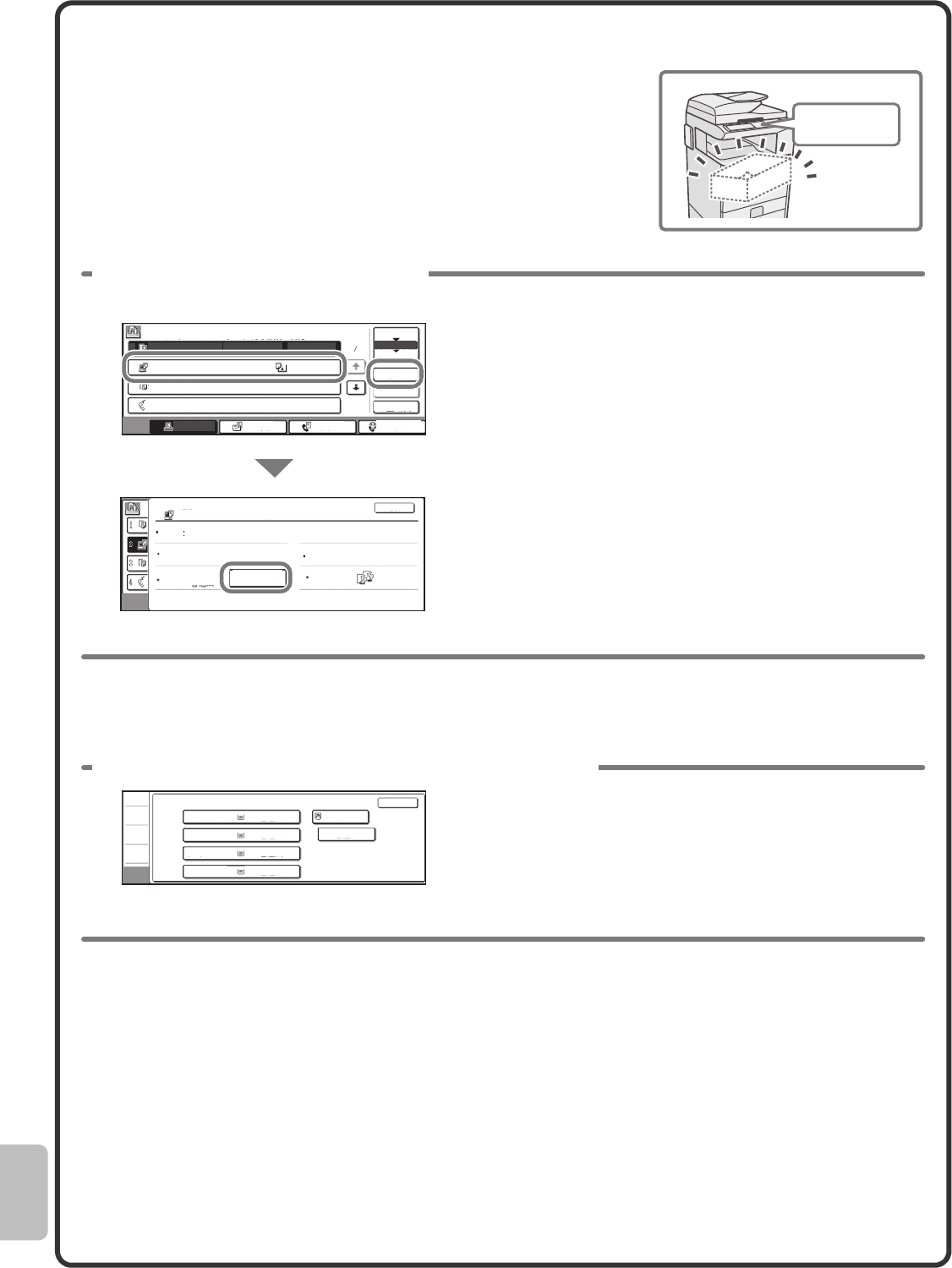
Changing the paper size used for a print job
When the size of paper specified for a print job is not loaded in any of the
machine's paper trays, follow the steps below to change the paper size.
Paper Empty
Computer01
020 / 000
Paper Empty
Copy
020 / 000
Waiting
1234567890
001 / 000
Waiting
Detail
Spool
Complete
Stop/Delete
Print Job
Job Queue
Sets / Progress
Status
Scan
Fax Job
Priority
Job Queue
Copy
I-Fax
1
1
020 / 001
Copying
2
3
4
1
OK
Detail
Computer01
file01
Data
020 / 000
Paper Empty
Colour / B/W: Full Colour
Output:
2-Sided Print:
1-Sided
Paper:
A5R
Plain
Paper Select
1 Check details on the job.
Press the [JOB STATUS] key on the operation panel to
display the job status screen.
Select the job whose status is [Paper Empty] and touch
the [Detail] key.
To delete the job, you can press the [Stop/Delete] key.
Check the paper size specified for the job in the detail
screen, and touch the [Paper Select] key.
Paper Select
OK
Plain
Plain
3.B4
Plain
2.B5
Plain
1.A4
4.A3
Plain
2 Change the paper size used for the job.
Select the paper size on which you wish to print the job
from the set paper sizes.
To avoid cutting off part of the image, select a paper size
that is larger than the paper size specified for the job.
Soubor PDF · ·
Otázky k Sharp MX-2301N
K tomuto návodu zatím nejsou žádné otázky. Položte první.
Související produkty a manuály pro Multifunkční zařízení Sharp MX-2301N
- Multifunkční zařízení Sharp MX-4101N Specifikace
 (76 stránek)
- Multifunkční zařízení Sharp JW-20FLT Uživatelský manuál
(197 stránek)
- Multifunkční zařízení Sharp MX-C381 Specifikace
(148 stránek)
- Multifunkční zařízení Sharp MX-M260 Uživatelský manuál
 (160 stránek)
- Multifunkční zařízení Sharp MX-4101N Specifikace
(12 stránek)
- Multifunkční zařízení Sharp MX-M564N Uživatelský manuál
(8 stránek)
- Multifunkční zařízení Sharp MX-M564N Uživatelský manuál
(8 stránek)
- Multifunkční zařízení Sharp CPD-3830 Uživatelský manuál
(1 stránka)
- Multifunkční zařízení Sharp MX-2010U Uživatelský manuál
(12 stránek)
- Multifunkční zařízení Sharp MX-B381 Uživatelský manuál
(12 stránek)
- Multifunkční zařízení Sharp MX-7500N Uživatelský manuál
(30 stránek)
- Multifunkční zařízení Sharp AL-2021 Specifikace
(91 stránek)
- Multifunkční zařízení Sharp MX-B402 Uživatelský manuál
(50 stránek)
- Multifunkční zařízení Sharp FO-155 Specifikace

 (165 stránek)
- Multifunkční zařízení Sharp MX-4140N Instalační manuál
(19 stránek)
- Multifunkční zařízení Sharp JW-50FL Uživatelský manuál
(201 stránek)
- Multifunkční zařízení Sharp MX-4140N Uživatelský manuál
(12 stránek)
- Multifunkční zařízení Sharp CPD-3830 Uživatelský manuál
(12 stránek)
- Multifunkční zařízení Sharp CD600 - B/W - Fax Uživatelský manuál
(23 stránek)
- Multifunkční zařízení Sharp AR-810 Manuál s instrukcemi
(178 stránek)