Sharp AR-650 Uživatelský manuál
Procházejte online nebo si stáhněte Uživatelský manuál pro Tiskárny Sharp AR-650. Sharp AR-650 User Manual Uživatelská příručka
- Strana / 181
- Tabulka s obsahem
- ŘEŠENÍ PROBLÉMŮ
- KNIHY

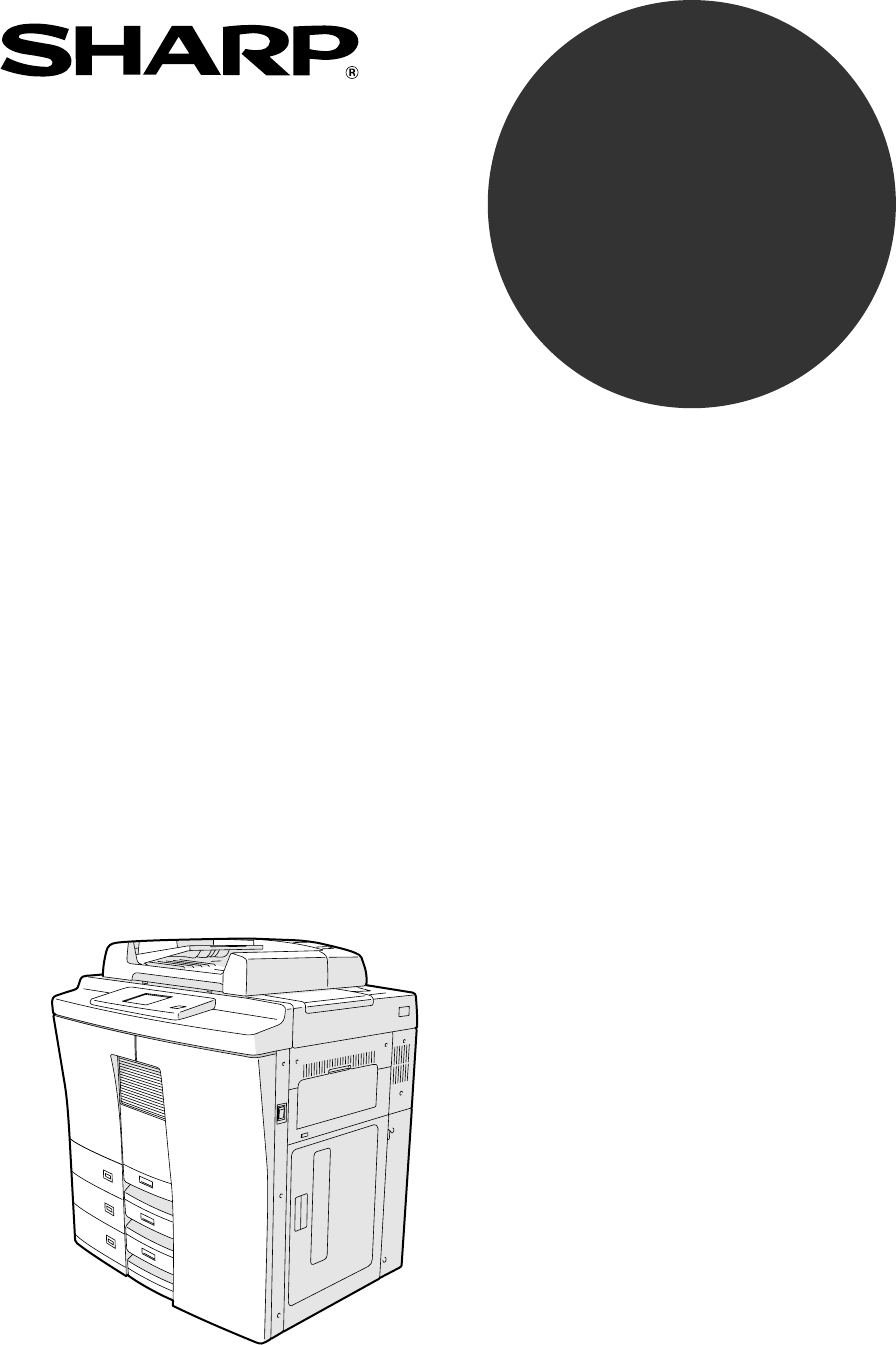
- DIGITAL COPYING MACHINE 1
- OPERATION MANUAL 1
- FOR YOUR RECORDS 2
- FCC NOTICE 3
- CONTENTS 5
- Features of the AR-650 copier 6
- TABLE OF CONTENTS 7
- TABLE OF CONTENTS (Cont.) 8
- PRECAUTIONS 10
- (Cont.) 10
- DESCRIPTION 11
- OF THE DIGITAL 11
- 1. NAMES OF MAIN COMPONENTS 12
- ALL CLEAR 15
- Message 16
- Reproduction Ratio 16
- Copy Quantity 16
- HOW TO MAKE COPIES 19
- Turning ON the Power Switch 20
- Auto Job Start Mode 21
- Insert the original 26
- Select the exposure 29
- Press the ZOOM ORG.→COPY key 31
- Select the copy size 31
- Using the Zoom Keys 36
- Press the 1→1 key 38
- Procedure 43
- 12. BYPASS COPYING 52
- . INTERRUPT COPYING 56
- 15. PRESETTING OF COPY MODES 57
- 16. ALL CLEAR KEY 58
- USING THE EDITING FUNCTIONS 59
- 1. IMAGE SHIFT COPYING 60
- 2. EDGE ERASE COPYING 62
- 3. DUAL-PAGE COPYING 64
- 4. X-Y ZOOM 65
- 5. TRIMMING/MASKING 66
- How to read areas 67
- 5. TRIMMING/MASKING (Cont.) 68
- 6. MIRROR IMAGE 70
- 7. NEGATIVE/POSITIVE REVERSAL 71
- 8. 2 IN 1 / 4 IN 1 73
- 8. 2 IN 1 / 4 IN 1 (Cont.) 74
- 9.ANNOTATION 77
- 9.ANNOTATION (Cont.) 78
- 10. PAGE NUMBER 79
- 10. PAGE NUMBER (Cont.) 80
- 11. MAGAZINE SORT 82
- 12. COVER SHEET COPYING 84
- Copying Procedure 85
- 13. SHEET INSERTION COPYING 88
- 13. SHEET INSERTION COPYING ( 90
- Setting Procedure 91
- 15. DOCUMENT STORAGE 93
- 15. DOCUMENT STORAGE (Cont.) 94
- USING THE SPECIAL FUNCTIONS 97
- 1. ACCOUNT NUMBER 98
- 2. JOB MEMORY 100
- Program menu 101
- 3. WEEKLY TIMER 103
- USING THE 105
- FUNCTIONS 105
- 5. SETTING THE DATE AND TIME 106
- CHANGE LANGUAGES key 109
- USING THE OPTIONAL FINISHER 111
- 2. NON-SORT COPYING 113
- 3. SORT COPYING 114
- OPTIONAL 115
- FINISHER 115
- 3. SORT COPYING (Cont.) 116
- 4. GROUP COPYING 118
- 4. GROUP COPYING (Cont.) 120
- 5. STAPLING 122
- Press the START key 123
- 5. STAPLING (Cont.) 124
- 6. HOLE PUNCHING MODE 126
- Copies exit onto the trays 127
- Place the originals 128
- STAPLE key 128
- WHEN THE 131
- GRAPHIC SYMBOLS 131
- 1. ADD PAPER SYMBOL 132
- 2. REPLACE TONER BAG SYMBOL 134
- 3. ADD TONER SYMBOL 136
- 3. ADD TONER SYMBOL (Cont.) 138
- Additional Explanation 139
- 4. CLEAR PAPER SYMBOL 140
- 5. CHECK ORIGINAL SYMBOL 151
- 7. SADDLE STITCHER JAM SYMBOL 156
- Finisher 158
- Saddle Stitcher (AR-FN9) 161
- 11. CALL SERVICE SYMBOL 169
- 12. PERIODIC MAINTENANCE 170
- MAINTENANCE 171
- 1. DAILY INSPECTION 172
- 2. SIMPLE TROUBLESHOOTING (1) 173
- 2. SIMPLE TROUBLESHOOTING (2) 174
- SPECIFICATIONS 175
- ACCESSORIES & 175
- 1. SPECIFICATIONS 176
- Staples loaded 178
- SHARP CORPORATION 180
- CORPORATION 181
- Jersey 07430-2135 181
- OF CANADA LTD 181
Shrnutí obsahu
DIGITAL COPYING MACHINEOPERATION MANUALMODELAR-650
612. GENERAL PRECAUTIONSHandle and use the copier gently and carefully.. Do not place anything on the paper cassettes or the original feed tray.. Neve
96Press the MEMORY1 (or,MEMORY2 ,MEMORY3 , MEMORY4 ) key.. The combination of copy modes is stored injob memory 1 (or, 2, 3, 4).. Stored combinations
97DESCRIPTIONOF THE DIGITALCOPIERUSING THESPECIALFUNCTIONSRecalling a Stored Combination of Copy ModesSelect the job memory function in theProgram men
98Press the key for the combination of copiersettings you want to recall.3Press the START key.. The original is copied in the combination ofsettings y
99DESCRIPTIONOF THE DIGITALCOPIERUSING THESPECIALFUNCTIONS3. WEEKLY TIMERThe weekly timer, which is incorporated in the copier, is a feature for turn
100How to Cancel the Operation of the Weekly TimerYou can cancel the operation of the weekly timer so that the copier can be turned ON and OFFas norma
101DESCRIPTIONOF THE DIGITALCOPIERUSING THESPECIALFUNCTIONS4. COPYING USING PAPER OF OTHER SIZESYou can make bypass copies with paper of non-American
1025. SETTING THE DATE AND TIMEDates and times can easily be set in the PROGRAM menu by entering the appropriate numberson the digital keys.Press the
103DESCRIPTIONOF THE DIGITALCOPIERUSING THESPECIALFUNCTIONS4Key in the number corresponding to theday of the week (1: Sun., 2: Mon. ~7: Sat.)and press
1046. CHANGING AUTOMATIC ENERGY SAVE TIME/ AUTOMATIC SHUTOFF TIME2Press the PROGRAM key to enter theProgram menu.Press the Next key on the PROGRAMpa
105DESCRIPTIONOF THE DIGITALCOPIERUSING THESPECIALFUNCTIONS7. CHANGE OF LANGUAGE ON THE DISPLAY PANELYou can change the language on the display panelP
7DESCRIPTIONOF THE DIGITALCOPIERDESCRIPTION OF THE DIGITAL COPIER
106MEMO
107USING THEOPTIONALFINISHERUSING THE OPTIONAL FINISHER
1081. NAMES OF THE MAIN COMPONENTSThere are 2 types of optional finishers (AR-FN8 andAR-FN9).Functions available differ depending on the type ofthe fi
109USING THEOPTIONALFINISHER2. NON-SORT COPYING12Place the original.. Place the original face down on the glass orface up on the original feed tray..
1103. SORT COPYINGPlace the originals.. Place the originals face up on the original feedtray. Check that SORT is displayed.When Using the Automatic
111USING THEOPTIONALFINISHER. Press the SORT key .Key in the copy quantity (sets) using thedigital keys.Select the desired copy size, exposure andrepr
1123. SORT COPYING (Cont.)1Select the sort mode.. Press the BASIC key to display the Basicmenu. Then press the NON-SORT NON-STAPLE key.When Placing th
113USING THEOPTIONALFINISHER7When the last original has finished beingscanned, press the FINISHED key.5When the first original has finished beingscann
1144. GROUP COPYINGWhen Using the Automatic Document Feeder1Select the group mode.. Press the BASIC key to display the Basicmenu. Then press the NON-S
115USING THEOPTIONALFINISHERKey in the copy quantity using the digitalkeys.. When group-copying from the originalfeed tray, you cannot vary the number
81. NAMES OF MAIN COMPONENTSCassetteControl panelAutomaticdocument feeder(ADF)GlassOriginal scaleRight-hand front doorLarge capacity feederUsed toner
1164. GROUP COPYING (Cont.)When Placing the Original on the Glass1Key in the desired copy quantity using thedigital keys.23Select the desired copy siz
117USING THEOPTIONALFINISHERCopies exit onto the trays.. When the finisher trays reach maximumcapacity, the following message appears:Finisher full: R
1185. STAPLINGUse this mode for automatic stapling of copied sets when the originals are placed in the automaticdocument feeder and the copier is set
119USING THEOPTIONALFINISHER5Press the START key.. The copies are automatically stapled aftereach set has been copied.. To add more originals, press t
1205. STAPLING (Cont.)When Placing the Original on the Glass1Press the desired mode keys.2Key in the copy quantity (sets) using thedigital keys.Select
121USING THEOPTIONALFINISHER98When the last original has finished beingscanned, press the FINISHED key.. Printing starts.6When the first original has
1226. HOLE PUNCHING MODEWith the optional punching unit attached to the optional finisher (AR-FN8, AR-FN9), you canhave your copies punched with holes
123USING THEOPTIONALFINISHERSelect the desired copy size, exposure andreproduction ratio.Press the START key.. To add more originals, press the CONTIN
1247. MAGAZINE SORT & SADDLE STITCHING MODEWhen the Magazine Sort mode is selected, copies are made so that they can be bound likemagazines are. W
125USING THEOPTIONALFINISHERKey in the copy quantity using the digitalkeys.. When group-copying from the originalfeed tray, you cannot vary the number
9DESCRIPTIONOF THE DIGITALCOPIER2. DESCRIPTION OF OPTIONAL EQUIPMENT1. Finisher (AR-FN8, AR-FN9)The finisher allows SORT, GROUP, STAPLE copying, MAGAZ
1267. MAGAZINE SORT & SADDLE STITCHING MODE (Cont.)1Perform steps 2 through 5 of the procedurefor "When Using the Automatic DocumentFeeder&qu
127WHEN THEGRAPHIC SYMBOLSFLASHMAINTE-NANCEWHEN THE GRAPHIC SYMBOLS FLASH
128When the paper supply in the selected cassette or large-capacity feeder runs out, the cassetteor large-capacity feeder on the display panel flashes
129WHEN THEGRAPHIC SYMBOLSFLASHMAINTE-NANCE1Adding Paper to the Large-Capacity FeederOpen the door of the large-capacity feeder.Note: If you want to a
130When the toner bag becomes full of used toner, theREPLACE TONER BAG symbol flashes andthis message appears:Dispose of usedtonerReplace the toner b
131WHEN THEGRAPHIC SYMBOLSFLASHMAINTE-NANCE4Close the opening with the cap provided.5Install the new toner bag in the copier.6Close the door and faste
132When the toner supply in the toner hopper becomeslow, the ADD TONER symbol flashes and thismessage appears:Add toner:Press HELPAdd the toner as de
133WHEN THEGRAPHIC SYMBOLSFLASHMAINTE-NANCE3Holding the toner cartridge upright, shakeit about 10 times.4Fit the edge of the cartridge base (whichhas
1346Knock both sides of the toner cartridge tomake the toner fall into the toner hopper.7Push the handle fully to the rear.8Remove the empty toner car
135WHEN THEGRAPHIC SYMBOLSFLASHAdditional ExplanationThe life of the toner cartridge (number of copies) varies depending on the following conditions.1
103. DESCRIPTION OF THE CONTROL PANEL Clip trayPut any paper clips re-moved from the originalshere. INTERRUPT keyWhen you want to makea copy of a di
1364. CLEAR PAPER SYMBOL1Lift the release lever to move the finisheraway from the copier.2Open the exit cover. : Misfeeding inside of the Copi
137WHEN THEGRAPHIC SYMBOLSFLASH3Remove the misfed paper.Close the exit cover.7Open the left-hand front door.6Hold the top of the right-hand front door
1384. CLEAR PAPER SYMBOL (Cont.)8Grip the lock lever to unlatch and move thelarge-capacity feeder to the right slowlyuntil it comes to a stop.If any
139WHEN THEGRAPHIC SYMBOLSFLASHIf any paper is misfed inside, remove it asshown.Open the cover to see if any paper is misfedin the fuser unit.12. If a
1404. CLEAR PAPER SYMBOL (Cont.)Reinstall the large-capacity feeder and latchit.Close the left-hand front door.Close the right-hand front door.14151
141WHEN THEGRAPHIC SYMBOLSFLASHOpen the exit cover.If a finisher is attached, first pull it awayfrom the copier.123If any paper is misfed in the exit
142Hold the top of the right-hand front dooras shown and open it.Grip the lock lever to unlatch it and movethe large-capacity feeder to the right slow
143WHEN THEGRAPHIC SYMBOLSFLASHPull the lock lever to the front until theautomatic duplexer comes to a stop.Push the lock lever and open the transport
144If any paper is misfed inside, remove it asshown.1516Close the transport unit cover.17Reinstall the automatic duplexer.18Reinstall the large-capaci
145WHEN THEGRAPHIC SYMBOLSFLASH : Misfeeding in Pedestal Cassette Feeding13524Hold the top of the right-hand front dooras shown and open it.Grip the
11DESCRIPTIONOF THE DIGITALCOPIER OPERATION GUIDE keyPressing the HELP keydisplays the appropriateoperation procedure.Pressing this key af
146 : Misfeeding from the Large-Capacity FeederOpen the large-capacity feeder door.1If any paper is misfed inside, remove it asshown.Close the large-
147WHEN THEGRAPHIC SYMBOLSFLASHWhen an original misfeed occurs in the automaticdocument feeder, the CHECK ORIGINALsymbol flashes and this message app
1481Remove the original carefully.Open the ADF exit cover and remove anyforeign matter such as bits of paper, paperclips, etc.Raise the automatic docu
149WHEN THEGRAPHIC SYMBOLSFLASHWhen a paper misfeed occurs in the optionalfinisher or hole punching unit, the MISFEED symbol flashes and this message
1506Open the upper cover of the finisher.Uppercover4Open the cover of the hole punching unit.5Rotate the blue knob to locate the arrowwithin the are
151WHEN THEGRAPHIC SYMBOLSFLASH7Lifting up the lever , or levers and ,remove the misfed paper.
1527. SADDLE STITCHER JAM SYMBOLOpen the lower cover of the finisher.123When a paper misfeed occurs in the saddle stitchingunit of the optional finish
153WHEN THEGRAPHIC SYMBOLSFLASH567Close the lower cover of the finisher.8Pushing the left-hand knob, turn itcounterclockwise.Remove the paper misfed o
1548. REPLACING STAPLES (OPTIONAL)When the staple cartridge runs out of staples, the REPLACE CARTRIDGE symbol flasheson the optional finisher and the
155WHEN THEGRAPHIC SYMBOLSFLASHPull out the staple cartridge.4Push down the upper lever and take outthe empty staple case.5Insert a new staple case in
12The Message Display panel shows operation status,error messages and function menus..Each function item displayed is shown in the form of a touch key
1568Set the staple cartridge.. Insert the cartridge until the claw catches it.Note: Repeat steps 1 to 11 if the test staplingis not performed and &quo
157WHEN THEGRAPHIC SYMBOLSFLASH12Saddle Stitcher (AR-FN9)1Open the lower cover of the finisher.Pull out the saddle stitcher to the frontslowly.Pull ou
158Reinstall the saddle stapler and saddlestitcher to their previous position.5Check that the finisher is attached to thecopier and Ledger, Legal, or
159WHEN THEGRAPHIC SYMBOLSFLASH9. REMOVING JAMMED STAPLES (OPTIONAL)When staples have jammed in the stapler unit of the optional finisher, the followi
160Pull out the staple cartridge.56Pull out the staple guide with the knob ()while pushing the blue lever ().Remove the jammed staples withsomething
161WHEN THEGRAPHIC SYMBOLSFLASHReinstall the stapler unit in its previousposition.9Close the front cover of the finisher.10
162Saddle Stitcher (AR-FN9)1Open the lower cover of the finisher.342Pull out the saddle stitcher to the frontslowly.Remove the empty staple case.Pull
163WHEN THEGRAPHIC SYMBOLSFLASH2Pushing down , pull up .5Remove the jammed staples and return .612Reinstall the staple case in its previousposition
16410. CLEARING ACCUMULATED PUNCHED PAPER BITSWhen paper bits punched from copies have accumulated to a certain level, the followingmessage appears.Pl
165WHEN THEGRAPHIC SYMBOLSFLASHWhen the CALL SERVICE symbol flashes, thefollowing message appears and copying is nolonger possible:Call for serviceT
13DESCRIPTIONOF THE DIGITALCOPIERThe graphic display shows the status of the copier. When one of the graphic symbols flashes,take the appropriate acti
16612. PERIODIC MAINTENANCENote: When the following message appears onthe message display:Time for periodic maintenancethis indicates that assistance
167MAINTE-NANCEMAINTENANCE
1681. DAILY INSPECTIONPower switch ON/OFF status. We recommend turning the power switch ONat startup every morning so that copies canbe made whenever
169MAINTE-NANCE2. SIMPLE TROUBLESHOOTING (1)Copier does not startCall forservice.YesIs the power cordplug firmly insertedin the outlet?Is the front co
1702. SIMPLE TROUBLESHOOTING (2)Copies are not clearCall forservice.YesNoAre images in theoriginal reproducedclearly?Is the transport beltor the glass
171SPECIFICATIONS,ACCESSORIES &OPTIONSSPECIFICATIONS, ACCESSORIES &OPTIONS
1721. SPECIFICATIONSDigital Copier AR-650Console typeFixed (originals referenced to left center)Indirect electrophotographic method2-component magneti
173SPECIFICATIONS,ACCESSORIES &OPTIONSOperator’s ManualOperator's Manual PocketDrumDrum CoverOriginal Feed TrayPacking list* Specifications a
1742. FINISHER SPECIFICATIONS (OPTIONAL)Tray Loading CapacityThe tray loading capacity is determined by the loading height in each mode.Units of mm ±7
NOTICEBE SURE TO ASK YOUR AUTHORIZED SHARP DEALER ABOUT THE WAR-RANTY THAT YOUR SELLING DEALER EXTENDS TO YOU. In order to assureyou, the end-user, o
144. DESCRIPTION OF THE GRAPHIC DISPLAY (Cont.) SADDLE STITCHER JAMSymbol This symbol flashes whenpaper is misfed in thesaddle stitcher. (See page152
PRINTED IN JAPANAR-650SHARP ELECTRONICS CORPORATIONSharp Plaza, Mahwah, New Jersey 07430-2135.SHARP ELECTRONICS OF CANADA LTD.335 Britannia Road East,
PRINTED IN JAPANCORPORATIONJersey 07430-2135.OF CANADA LTD.sauga, Ontario, L4Z 1W9ORATION.comDIGITAL COPYING MACHINEAR-650
15HOW TOMAKECOPIESHOW TO MAKE COPIES
❧❧❧❧❧❧❧❧❧❧❧❧❧❧❧❧❧❧❧❧❧❧❧❧❧❧❧❧❧❧❧❧❧❧❧❧❧❧❧❧❧❧❧❧❧❧❧❧❧❧❧❧❧❧❧❧❧❧❧❧❧❧❧❧❧❧❧❧❧❧❧❧❧❧❧❧❧❧❧❧❧❧❧❧❧❧❧❧❧❧❧❧❧❧❧❧❧❧❧❧❧❧❧❧❧❧❧❧❧❧❧❧❧❧❧❧❧❧❧❧❧❧❧❧❧❧❧❧❧❧❧❧➢➣➢➣➢➣➢➣➢➣➢➣➢➣➢➣➢➣
161231. TURNING ON THE POWER SWITCH / AUTO JOB STARTTurn ON the power switch.Turning ON the Power SwitchThe message “Wait Warming Up” appears.. Wait u
17HOW TOMAKECOPIESIf you set the desired copying modes and press the START key during warm-up, the copierautomatically starts copying when it becomes
181. TURNING ON THE POWER SWITCH / AUTO JOB START (Cont.)3Press the START key.. The message “Wait Warming Up. Auto start”appears. When the copier beco
19HOW TOMAKECOPIESThe Reversing Automatic Document Feeder automatically feeds and copies sheet paperoriginals placed on the feeding tray one at a time
20Copying in the Continuous Feed Mode2. USING THE REVERSING AUTOMATIC DOCUMENT FEEDER (Cont.)15Press the PROGRAM key on the displaypanel.. The menu on
21HOW TOMAKECOPIESTip: If you want to set more originals than themaximum number which can be set on theoriginal feed tray at one time, you may addorig
222. USING THE REVERSING AUTOMATIC DOCUMENT FEEDER (Cont.)5Align the slides on the original feed trayto the size of the original.. Set the slides a li
23HOW TOMAKECOPIESPress the PROGRAM key on the displaypanel.. The menu on the right appears.Press the MIXED ORIGINAL SIZES key.Press the SET key
24When the power switch is turned ON, the Automatic Paper Selection (APS) mode is set asthe default mode.In this mode, if you place an original on the
25HOW TOMAKECOPIESWhen Placing the Original on the Glass. After lifting the automatic document feeder,place the original on the glass face down withth
FCC NOTICEThis equipment has been tested and found to comply with the limits for a Class A digitaldevice, pursuant to Part 15 of the FCC Rules. These
263. COPYING IN THE AUTOMATIC PAPER SELECTION MODE (Cont.). If you press the ALL CLEAR key, all current copiersettings will be cleared and returned to
27HOW TOMAKECOPIES4. ACTUAL-SIZE COPYING BY SPECIFYING THE COPY SIZEWhen copying irregular-size originals such as newspapers and magazines, or origina
28When Placing the Original on the Glass. After lifting the automatic document feeder,place the original face down on the glass withthe bottom toward
29HOW TOMAKECOPIESThere are three methods available for enlargement and reduction copying.. Using Automatic Magnification Selection (AMS):After select
30. After lifting the automatic document feeder,place the original on the glass face down withthe bottom toward you and the left sidecentered against
31HOW TOMAKECOPIESSelecting the Original Size and the Copy Size2Press the ORIGINAL SIZE key of the samesize as the original to be copied.13Place the o
32When Placing the Original on the Glass561Using the Zoom Keys. After lifting the automatic document feeder,place the original on the glass face down
33HOW TOMAKECOPIES4Place the original, key in the copy quantity,and press the START key.
346. DUPLEXED COPIES FROM SINGLE-SIDED ORIGINALSWhen Using the Automatic Document FeederExample of Duplexed Copies from Single-Sided Originals1Press t
35HOW TOMAKECOPIES2Press the 1→2 key to select the functionof single-sided originals to duplexed copies.Note: If sheets of paper are left in the aut
EPA ENERGY STAR ® (MFD)EPA ENERGY STAR Program-The United States Environmental Protection Agency (EPA) has introduced a voluntary program, theENERGY S
366. DUPLEXED COPIES FROM SINGLE-SIDED ORIGINALS (Cont.)5When Placing the Original on the Glass. When originals are to be placed horizontally(Ledger,
37HOW TOMAKECOPIES3Select the desired copy size, exposure,reproduction ratio and copy quantity.4Place the first page of the originals (firstside).. Af
38Press the START key.Repeat steps 4 to 7 until all the originalsare copied.Press the FINISHED key after all theoriginals have finished being copied
39HOW TOMAKECOPIES7. DUPLEXED COPIES FROM TWO-SIDED ORIGINALSPlacing two-sided originals on the original feed tray and pressing the START key feeds on
40Select the desired copy size, reproductionratio, exposure and copy quantity.. The automatic paper selection mode is setas the default mode.354Place
41HOW TOMAKECOPIES8. SINGLE-SIDED COPIES FROM TWO-SIDED ORIGINALS1Example of Single-Sided Copies from Two-Sided OriginalsProcedurePress the BASIC key
425Select the desired copy size, exposure andcopy quantity.. The automatic paper selection mode is setas the default mode.4Place the originals.. After
43HOW TOMAKECOPIES9. DUPLEXED COPIES FROM BOOK ORIGINALSExample of Duplexed Copies from a Book Original1244321Single-sided copyExample ofduplex copyin
44Press the BASIC key to enter the Basicmenu.. The menu on the right appears.Press the 1→1 key.ProcedurePress the BOOK→2 key to select thefunction of
45HOW TOMAKECOPIESBOOK6Select the desired exposure, reproductionratio and copy quantity.Select the BOOK margin of IMAGE SHIFTif necessary.. See pag
1PREFACECONTENTSPRECAUTIONSPREFACEThank you for purchasing the Sharp Digital Copier AR-650. This Operator’s Manual describes thefollowing:• how to use
461Place the original and press the START key.. The copier automatically detects the densityof the original, and makes copies at theoptimum exposure.2
47HOW TOMAKECOPIES11. COPYING IN THE TEXT OR PHOTO MODEYou can select the copy mode (Photo/Text, Text or Photo) and produce clear copies matchedto the
4812. BYPASS COPYINGThe bypass copying mode is convenient in the following instances:• when the size of any of the paper cassettes installed in the co
49HOW TOMAKECOPIES3Place sheets of copy paper on the sheetbypass.The following message appears: Ready for bypass feeding. Paper from size Ledger to S
50In bypass copying by specifying the copy size, you can select the following copying modes:. Duplex copying . Document storage . Image shift . Sort c
51HOW TOMAKECOPIES4Key in the desired copy quantity.. After aligning the edges of the originals, setthem face up on the original feed tray andalign th
5214. INTERRUPT COPYINGThe Interrupt Copy is a convenient feature that allows the user to pause a job that is currentlybeing done. This mode allows fo
53HOW TOMAKECOPIESJOB PRESET is a feature that allows another job to be set while a current job is being done.You can preset the next copy modes durin
5416. ALL CLEAR KEYWhen you want to set the copy modes over again, or after a copy run has finished, pressingthe ALL CLEAR key returns the copier to t
55USING THEEDITINGFUNCTIONSUSING THE EDITING FUNCTIONS
2The copier is a plain paper digital copier.The copier scans originals and stores the resulting data in its memory as digital images. Thecopier allows
561. IMAGE SHIFT COPYINGYou can create margins on the copy, and you can specify the position of these margins oneither the right or the left side of t
57USING THEEDITINGFUNCTIONS45Place the originals on the original feed trayor on the glass.. After aligning the edges of the originals, setthem face up
582. EDGE ERASE COPYINGIf the edges of an original are torn or dirty, they are reproduced as black stains on the copy.In the edge erase mode, a white
59USING THEEDITINGFUNCTIONS3Place the original(s) on the original feedtray or on the glass.When Using the Automatic Document Feeder. After aligning th
603. DUAL-PAGE COPYINGThe facing pages of a book or magazine are copied one at a time onto two separate sheetsof paper at the same time. You need not
61USING THEEDITINGFUNCTIONS4. X-Y ZOOMThis function allows you to make copies of originals with the reproduction ratio of the X andY directions change
625. TRIMMING/MASKINGThis function allows you to trim or mask copies.You can trim originals (inside area only) by selecting the trimming mode, and you
63USING THEEDITINGFUNCTIONSX2X1Y2Y1Place the original.Place the original face up on the glass with its bottom edge towards you. Align the originalwit
645. TRIMMING/MASKING (Cont.)31ProcedureUsing the original scale and the front scale,read the values defining the desired areaas follows:. X1 • • Dis
65USING THEEDITINGFUNCTIONS43Specify the area of the original.. Key in the value X1 using the digital keys andpress the upper SET key. If you key i
3TABLE OF CONTENTS PREFACE ... 1 TAB
666. MIRROR IMAGEThis function allows you to make mirror-imaged copies.Example of mirror imageExample of mirror imageProcedure1Select the editing func
67USING THEEDITINGFUNCTIONS7. NEGATIVE/POSITIVE REVERSALThis function allows you to reverse the black areas on the original as white areas, or vicever
687. NEGATIVE/POSITIVE REVERSAL (Cont.)3Select the desired copy size, exposure,reproduction ratio and copy quantity.4Place the original(s) on the orig
69USING THEEDITINGFUNCTIONS8. 2 IN 1 / 4 IN 1This function allows you to reduce and copy two or more originals onto a single sheet. Reducingtwo sheets
70When using the automatic document feederProcedure138. 2 IN 1 / 4 IN 1 (Cont.)Place the originals on the original feed tray.. Place all the originals
71USING THEEDITINGFUNCTIONSSelect the type of original.. Press either the 1 SIDE or 2 SIDE key.45Select the desired copy size, exposure andcopy qu
72Select the type of original.. Press either the 1 SIDE or 2 SIDE key.3Select the desired copy size, exposureand copy quantity.Place the original
73USING THEEDITINGFUNCTIONS9.ANNOTATIONThis function allows you to print the date and time at either the top or bottom of the copy.1Example of annotat
74Select the desired copy size, exposure andcopy quantity.39.ANNOTATION (Cont.)When Using the Automatic Document FeederPlace the original(s) on the or
75USING THEEDITINGFUNCTIONSThis function allows you to print the page number at one of the following six locations on thecopy:Top leftTop centerTop ri
4 USING THE SPECIAL FUNCTIONS... 931. ACCOUNT NUMBER...
7610. PAGE NUMBER (Cont.)Select the page number position.. Select the print direction and position, thenpress the SET key.23Key in the start page nu
77USING THEEDITINGFUNCTIONSWhen the first original has finished beingcopied, place the next one and press theSTART key.6For all subsequent originals,
7811. MAGAZINE SORTThe magazine sort mode allows you to copy and sort originals so that the copies can be foldedin half along the inside as if you wer
79USING THEEDITINGFUNCTIONS. The optional finisher with a saddle stitcher(AR-FN9) allows you to staple the center ofthe paper automatically. Press the
80There are four modes in cover sheet copying allowing users to add a top cover and/or backcover to each set of copies, as listed below:. Adding a bla
81USING THEEDITINGFUNCTIONS. Adding a blank top and back cover. Adding a copied top coverCopying ProcedurePlace the originals.. Set the originals on t
8212. COVER SHEET COPYING (Cont.)3TOP BLANKTOP COPIEDBOTH BLANKTOP COPIEDBACK BLANK)))Select the desired COVER SHEET mode.. Adding a blanktop cover. A
83USING THEEDITINGFUNCTIONS7Key in the desired number of copies (orsets).. Select the desired reproduction ratio,exposure, etc. as required.8Press the
8413. SHEET INSERTION COPYINGThere are two modes in sheet insertion copying which inserts special sheets of paper (e.g. coloredpaper) at the specified
85USING THEEDITINGFUNCTIONSCopying Procedure1Place the originals.. Set the originals on the original feed tray withpage 1 facing upward and align the
5PREFACECONTENTSPRECAUTIONSPRECAUTIONS1. INSTALLATION321The copier should be installed by a qualified service technician.Note: The packing material s
8613. SHEET INSERTION COPYING (Cont.)Press the BLANK or COPIED key.. Inserting a blank specialsheet in front of thespecified page. Inserting a copied
87USING THEEDITINGFUNCTIONS14. SETTING A CASSETTE FOR COVER SHEET/SHEET-INSERTION COPYINGWhen two paper sources of the same size are available and you
88Resetting to the Previous SizeTo reset the cover sheet or sheet-insertion cassetteto the previous size cassette, proceed as follows.Press the PROGRA
89USING THEEDITINGFUNCTIONS15. DOCUMENT STORAGEThis function allows you to store the image of the originals on to the hard disk to be recalledand prin
903Select the desired exposure.4Place the original on the glass or the originalfeed tray and press the START key.515. DOCUMENT STORAGE (Cont.)Select t
91USING THEEDITINGFUNCTIONS3Select the number (location) containingthe document you want printed.. Press the desired number key.. If you press the TES
92MEMO
93DESCRIPTIONOF THE DIGITALCOPIERUSING THESPECIALFUNCTIONSUSING THE SPECIAL FUNCTIONS
941. ACCOUNT NUMBERIf the copier is set up so that account numbers can be used, you can make copies only afterentering the account number.When making
95DESCRIPTIONOF THE DIGITALCOPIERUSING THESPECIALFUNCTIONS2. JOB MEMORYYou can store and recall a combination of frequently used copy modes at any tim
Související produkty a manuály pro Tiskárny Sharp AR-650
 (799 stránky)
(655 stránky)
(88 stránky)
(118 stránky)
(121 stránky)
(46 stránky)
(47 stránky)
(28 stránky)
(88 stránky)
(2 stránky)
(849 stránky)
(32 stránky)
(84 stránky)
(52 stránky)
(140 stránky)
(58 stránky)
(2 stránky)
(6 stránky)
(116 stránky)
(144 stránky)
(799 stránky)
(655 stránky)
(88 stránky)
(118 stránky)
(121 stránky)
(46 stránky)
(47 stránky)
(28 stránky)
(88 stránky)
(2 stránky)
(849 stránky)
(32 stránky)
(84 stránky)
(52 stránky)
(140 stránky)
(58 stránky)
(2 stránky)
(6 stránky)
(116 stránky)
(144 stránky)
© 2020, manymanuals.cz. Všechna práva vyhrazena. | 0.021 s |
 Manymanuals.com
 Manymanuals.de
 Manymanuals.fr
 Manymanuals.it
 Manymanuals.pl
 Manymanuals.cz
 Manymanuals.es
 Manymanuals-pt.com
Komentáře k této Příručce