Sharp UX-460 Uživatelský manuál
Procházejte online nebo si stáhněte Uživatelský manuál pro Tiskárny Sharp UX-460. Sharp UX-460 User Manual Uživatelská příručka
- Strana / 152
- Tabulka s obsahem
- ŘEŠENÍ PROBLÉMŮ
- KNIHY

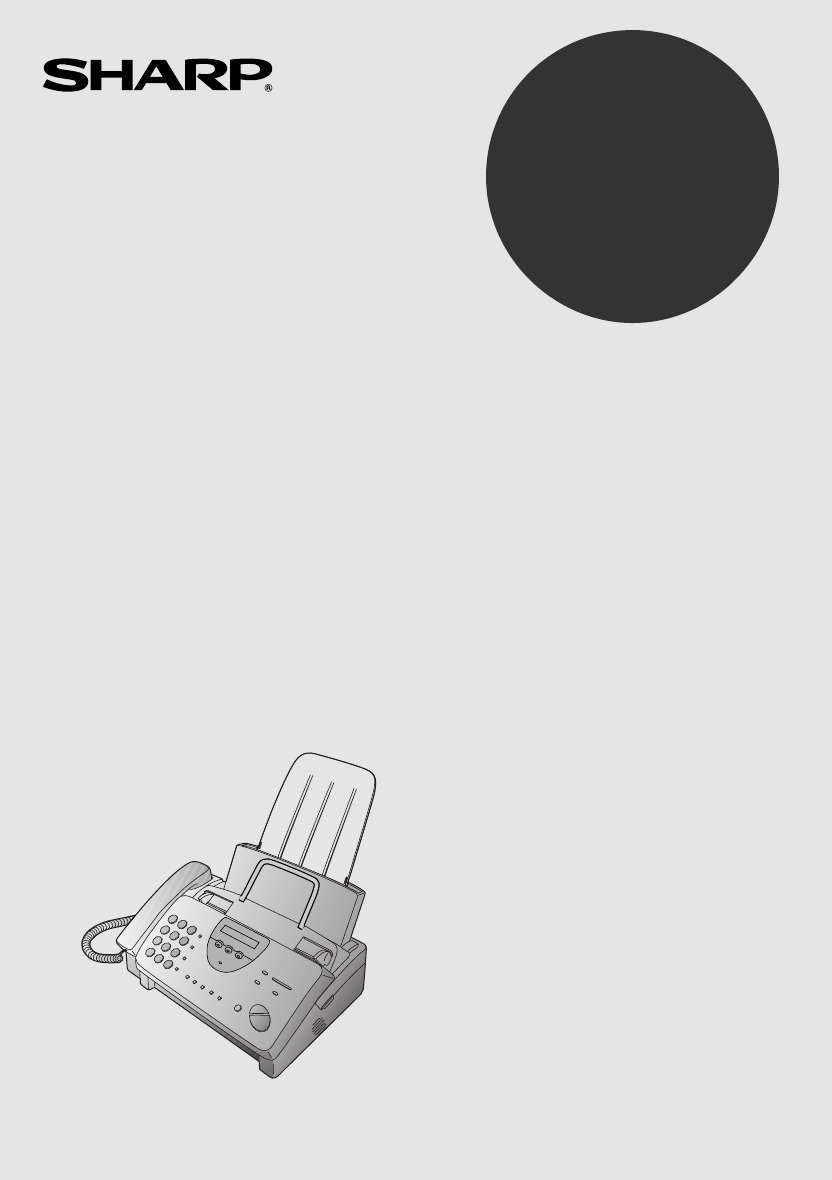
- UX-460 FACSIMILE 1
- ENERGY STAR 2
- Introduction 3
- Automatic feeding: 4
- Manual feeding: 4
- Important safety information 5
- Table of Contents 7
- Installation 9
- A Look at the Operation Panel 10
- 1. Installation 11
- Connections 13
- Power cord 15
- Telephone line cord 16
- Extension phone (optional) 18
- Loading the Imaging Film 19
- Loading Printing Paper 24
- Press these keys: 27
- The display will show: 27
- Setting the Date and Time 30
- Daylight Saving Time 32
- Selecting the Reception Mode 33
- Volume Adjustment 34
- Using the 36
- Answering Machine 36
- Recording an Outgoing Message 38
- 2. Answering 39
- Machine 39
- PLAY/SKIP 40
- Erasing received messages 41
- Using the REC/MEMO key 41
- Setting ICM time 43
- Fax reception on TAD failure 44
- OGM only mode 46
- Transfer Function 47
- 5 5 215 43 48
- T.A.D. SETTINGS 49
- TRANSFER FUNC 49
- Override Ringing 50
- Remote Operations 52
- Toll Saver 53
- Retrieving your messages 54
- Other remote operations 57
- Recording a "Memo" 59
- Documents 61
- Other restrictions 62
- Loading the Document 63
- Resolution and Contrast 65
- 3. Sending 67
- Using the REDIAL key 68
- Rapid keys 69
- SPEED DIAL key 69
- Step 3 or 71
- Rapid Key Dialing 73
- Speed Dialing 74
- Direct Keypad Dialing 75
- Using the HOLD/SEARCH key 76
- Automatic redialing 77
- Receiving 78
- Using TEL Mode 79
- Receiving Documents 83
- COPY/HELP 84
- 5. Making 85
- 6. Making 87
- Phone Calls 87
- Chain Dialing 88
- Making Telephone Calls 89
- How Caller ID operates 91
- Display messages 92
- Viewing the Caller ID list 92
- Priority Call 93
- Blocking voice calls 94
- RECEPTION 96
- MODE 96
- Broadcasting 97
- FUNCTION 100
- (Example) 101
- Cover Sheet 101
- Batch Page Numbering 102
- 7. Special 103
- Functions 103
- START/MEMORY 105
- Sending Documents From Memory 106
- RESOLUTION 106
- 01 02 03 107
- Requesting transmission 108
- Timer Operations 111
- Settings 113
- 01 to 15 114
- 00 to 10 114
- • Initial setting: 5 117
- • Initial setting: 1 117
- • Initial setting: 2 117
- 8. Option 117
- Printing 120
- Reports and Lists 120
- RECEIVER 121
- 9. Printing Lists 121
- Timer List 122
- Telephone Number List 122
- Passcode List 123
- Option Setting List 123
- Anti Junk Number List 124
- Caller ID List 124
- TAD Program List 125
- Message List 125
- Print Setup List 126
- Transaction Report 126
- Maintenance 127
- Scanning glass and rollers 130
- The housing 130
- Troubleshooting 131
- Distinctive Ring 133
- Fax print head 133
- Problems and Solutions 134
- General problems 135
- Messages and Signals 136
- Display Messages 137
- Audible signals 138
- Clearing Paper Jams 139
- Ordering parts 142
- FCC Regulatory Information 143
- Section 3. Ingredients 144
- REMOTE OPERATION CARD 149
- 1-800-BE SHARP 151
- SHARP ELECTRONICS CORPORATION 151
Shrnutí obsahu
OPERATION MANUALFACSIMILEMODELUX-460 1. Installation 2. Using the Answering Machine 3. Sending Documents 4. Receiving Documents 5.
A Look at the Operation PanelJKLSPEEDDIALREDIALSPEAKERHOLD/SEARCHREPEAT REC/MEMO PLAY/SKIPDELETESTOPCOPY/HELPSTART/MEMORYVOLUMEDOWN UPRECEPTIO
3Press 1 (YES) to turn on the coversheet function, or 2 (NO) to turn it off.The display will show:12YES NOorAUTO PRINT OUT4Press the STOP key to retur
3Select a message by entering a numberfrom 1 to 4:1: URGENT2: IMPORTANT3: CONFIDENTIAL4: PLS. DISTRIBUTE1(Example)4Dial the receiving machine andtrans
Batch Page NumberingYou can change the page numbering of the transmitted document fromsimple numbering ("P.01", "P.02", etc.) to b
Comments:•• If you need to cancel a batch number entry, remove the document from thefeeder or press the STOP key.•• If the number of pages actually tr
Blocking Reception of Unwanted FaxesThe Anti Junk Fax function allows you to block reception of faxesfrom parties which you specify. This saves paper
<P=002>4Enter the full number you want toblock (max. of 20 digits).(Example)5Press the START/MEMORY key.6Return to Step 3 to enter (or clear)ano
Sending Documents From MemoryWith this function, the original document is scanned immediately,stored in memory, and then transmitted once the connecti
3Enter the number of the receivingmachine using one of the followingmethods:•• Press a Rapid Key.•• Press the SPEED DIAL key andenter a Speed Dial num
Polling (Requesting a Fax Transmission)Polling allows you to call another fax machine and have it send adocument (previously loaded in its feeder) to
Being polled (polling standby)To let another fax machine poll your machine, simply set the receptionmode to FAX, and load the document(s) to be sent.
RECEPTION MODE keyPress this key to select the reception mode. An arrow in the displaywill point to the currently selected reception mode.RESOLUTION k
Storing and clearing fax numbers for polling permissionYou can store up to 10 fax numbers in your machine’s list of permittednumbers.1Press the keys s
Timer OperationsThe Timer function allows you to set a transmission and/or pollingoperation to be performed automatically at a time you specify. Onetr
7Enter the Speed Dial number of thereceiving fax machine.•• If this is a polling operation, go toStep 10.(Example)8Press the START/MEMORY key.9Adjust
Chapter8OptionSettingsThe option settings let you customize your fax to better suit your needs.An initial setting has been made for each option at the
Setting 2: NUMBER OF RINGS TO ANSWERThis option sets the number of rings the fax machine waits beforeanswering an incoming call in FAX reception mode.
Setting 5: TEL/FAX REMOTE NUMBERIf you hear a fax tone when you answer a call on a touch-tone extensionphone connected to the same line as the fax, yo
Setting 7: TRANSACTION REPORT PRINT SELECTThis sets the condition for printing out a Transaction Report. Enter anumber from 1 to 5 as follows:1 (ALWAY
Setting 9: DISTINCTIVE RINGThis sets the ring pattern to which your fax will answer if you subscribeto a distinctive ring service. Enter a number from
Setting 12: POLLINGPress 1 if you want to use Rapid Key 05/POLL as a polling key. Press 2if you want to use it as a regular Rapid Key.• Initial settin
Setting 14: AUTO COVER SHEETPress 1 (YES) to have the fax automatically generate a cover sheet andsend it as the last page of each transmission. Press
DELETE keyPress this key to erase recorded messages.STOP keyPress this key to cancel operations before they are completed.START/MEMORY keyPress this k
Chapter9PrintingReports and ListsYou can print out lists showing settings and information entered in thefax. You can also have the fax automatically p
♦ If Option Setting 15 (Auto Print Out) is set to YES, a report willbe automatically printed out whenever information on 30operations has accumulated.
COM.E-0 to COM.E-7 - A telephone line error prevented thetransaction. See Line Error in Chapter 11.CANCEL - Transmission was cancelled because the STO
Passcode ListThis list shows settings made for polling security, your name andfax/telephone number as entered in the machine, and a sample of theheade
Anti Junk Number ListThis list shows the numbers that are blocked by the Anti Junk function.Caller ID ListThis list shows information about your most
TAD Program ListThis list shows the settings and codes programmed for the answeringmachine.Message ListThis list shows information about the messages
Print Setup ListThis list shows the current status of the printing settings accessed bypressing the FUNCTION key and the 6 key.Transaction ReportThis
Chapter10MaintenanceFax print headClean the printing head frequently to assure optimum printingperformance.1Unplug the power cord.2Pull the paper rele
4Take the imaging film cartridge out of the print compartment andplace it on a sheet of paper.5Wipe the print head and roller with denatured alcohol.P
6Place the imaging film cartridge back in the print compartment.7Close the print compartment cover (press down on both sides tomake sure it clicks int
ConnectionsPoints to keep in mind when setting upDo not place the machine indirect sunlight.Do not place the machine nearheaters or air conditioners.K
Scanning glass and rollersClean the scanning glass and rollers frequently to ensure the quality oftransmitted images and copies. Open the operation pa
Chapter11TroubleshootingProblems and SolutionsIf you have any problems with your fax, first refer to the followingtroubleshooting guide. If you cannot
Dialing and transmission problemsProblem Check and remedyNo dial tone when you pickup the handset or press theSPEAKER key.•• Make sure the handset cor
Reception and copying problemsProblem Check and remedyThe fax machine doesn’treceive documentsautomatically.•• Make sure that the reception mode is se
The quality of copies is poorand/or black spots appear.•• Any dirt or material on the scanning glass willcause spots to appear on copies andtransmitte
General problemsProblem Check and remedyInformation cannot beprogrammed in the fax.•• Make sure the fax is plugged in and the imagingfilm and paper ha
Messages and SignalsDisplay messagesNote: If you have turned on the Caller ID function, see Caller ID inChapter 7 for display messages related to Call
LINE IS IN USEAn extension phone connected to the fax is beingused. Do not lift the fax’s handset or attempttransmission at this time, as this will in
RECALLINGThis appears if you attempt to send a fax byautomatic dialing and the line is busy or the receivingfax machine does not answer. Your fax mach
Clearing Paper JamsClearing a jammed documentIf the original document doesn’t feed properly during transmission orcopying, or DOCUMENT JAMMED appears
HandsetConnect the handset as shown and place it on the handset rest.♦ The ends of the handset cord are identical, so they will go intoeither jack.Mak
Clearing jammed printing paper1Pull the paper release plate forwardand remove the paper.2Open the operation panel (grasp thefinger hold and pull up),
4Close the print compartment cover(press down on both sides to make sureit clicks into place), and then close theoperation panel.5Reinsert the paper i
Ordering parts To order parts, contact the part distribution center located nearest you. Whenordering a part, use the part order number shown below.
FCC Regulatory InformationThis equipment complies with FCC rules, Part 68. On this equipment is a label that con-tains, among other information, the F
UX460U MSDS-Front 1/2SHARP Date Issued: Dec. 22,1998 MATERIAL SAFETY DATA SHEET MSDS No. B-1006 Section 1. Product Identification Product Code: UX-
UX300u MSDS-Front 2/2 SHARP Date Issued: Dec.22,1998 MATERIAL SAFETY DATA SHEET MSDS No. B-1006 Section 6. Physical Chemical Characteristics Boiling
IndexAActivity Report, 118Automatic printing, 117Anti junk fax, 102, 115Anti Junk Number List, 122Audible signals, 136Auto cover sheet, 117Automatic d
Loading printing paper, 22Loading the document, 61MMemorySending documents from, 104Substitute reception to, 81Message List, 123MessagesChecking date
TEL. LINE jack, 14TEL. SET jack, 16Tel/Fax Remote Number, 113Telephone line cord, 14Telephone Number List, 120Telephone, using as, 85Time, setting, 28
##REMOTE OPERATION CARD The card below is provided as a quick guide to remote operation. Cut itout and carry it with you when you go out. Remote Oper
Power cordPlug the power cord into a 120 V, 60 Hz, grounded (3-prong) ACoutlet.Caution!Do not plug the power cord into any other kind of outlet. This
#25##73#33##0#0###381828###091929#9 3##64#(Tel.#)#1 1#1 2REMOTE COMMANDS ••PLAYBACK Play messages. . . . . . . . . . Move backward/repeat. . . .
For product information or customer assistance, please visit http://www.sharp-usa.com onthe World Wide Web or call 1-800-BE SHARP.SHARP ELECTRONICS C
SHARP ELECTRONICS CORPORATIONSharp Plaza, Mahwah, New Jersey 07430-2135SHARP CORPORATIONPRINTED IN THAILAND(TINSE4007XHZZ)
Telephone line cordInsert one end of the line cord into the jack on the back of the machinemarked TEL. LINE. Insert the other end into a standard (RJ1
TraysAttach the paper tray extension.♦ Pull the paper release plate forward. Insert the paper trayextension horizontally into the notches in the paper
Extension phone (optional)If desired, you can connect an extension phone to the TEL. SET jackon the fax.1Remove the seal covering the TEL.SET jack.2Co
Loading the Imaging FilmYour fax uses a roll of imaging film to create printed text and images.The print head in the fax applies heat to the imaging f
WARNING FCC Regulations state that any unauthorized changes or modifications to this equipmentnot expressly approved by the manufacturer could void
If you are installing the imaging film for the firsttime, go to Step 6.3Remove the imaging film cartridge from the print compartment(grasp the handle
6Remove the new roll of imaging film from its packaging.•• Do not yet remove the band that holds the rolls together.7Insert the large gear into the gr
8Insert the large gear into the large holder on the imaging filmcartridge (make sure it clicks into place), and then insert the smallgear on the other
11Rotate the large gear toward you until the film is taut.12Close the print compartment cover (press down on both sides tomake sure it clicks into pla
Loading Printing PaperYou can load letter or legal size paper in the paper tray. The maximumnumber of sheets depends on the weight and size of the pap
4Push the paper release plate back down.If the paper releaseplate is not pusheddown, paper feederrors will result.Note: When receiving faxes or copyin
6Your fax has been set at the factory to print at normal contrast.Depending on the type of paper you have loaded, you may find thatyou obtain better p
Entering Your Name and Fax NumberBefore you can begin usingyour fax, you need to enteryour name and thetelephone number of yourfax. You also need to s
2Press the # key twice:The display will show:OWN NUMBER SET3Press the START/MEMORY key.START/MEMORYThe display will show:ENTER FAX #4Enter your fax nu
6Enter your name by pressing the number keys as shown in the chartbelow. Up to 24 characters can be entered.•• To enter two letters in succession that
IntroductionWelcome, and thank you forchoosing a Sharp facsimile!The features andspecifications of your newSharp fax are shown below.Automatic dialing
Setting the Date and TimeThe date and timeappear in the displayand reports, and areprinted at the top ofevery page you fax.213945 67803 keyFUNCTION ke
3Press the START/MEMORY key.START/MEMORY•• The currently set date will appear in the display.4Enter a two-digit number for the month ("01" f
9Press the START/MEMORY key to start the clock.START/MEMORYFUNCTION3The display will show:DAY LIGHT SAVING10Press the STOP key to return to the date a
Selecting the Reception ModeYour fax has three modes for receiving incoming calls and faxes:TEL mode:Select this mode when you want to receive both ph
Volume AdjustmentYou can adjust thevolume of the speaker,handset, and ringerusing the UP andDOWN keys.213945 6780DOWN keyUP keySpeaker1Press the SPEAK
Handset1Lift the handset.2Press the UP or DOWN key.Display:RECEIVER: HIGHRECEIVER: MIDDLE3When the display shows the desiredvolume level, replace the
Chapter2Using theAnswering MachineThe UX-460’s built-in answering machine allows you to receive bothvoice messages and fax transmissions while you are
3Press the START/MEMORY key.4Press 1 to select GENERAL. (If youare recording a message for theTransfer function explained later inthis chapter, press
To listen to or erase an outgoing messageTo listen to or erase an outgoing message, follow Steps 1 through 4 ofthe above procedure to select the messa
Operating the Answering MachineActivating the answering machineActivate the answering machine before you go out as follows:Press the RECEPTION MODE ke
Display 16-digit LCD displayRecording system Thermal transfer recordingPaper tray capacity(16- to 20-lb. paper)Letter: 60 sheetsLegal: 30 sheetsHalfto
Listening to received messagesWhen you return, the display will show the number of messagesrecorded. Listen to the messages as follows:1Press the PLAY
Erasing received messagesIt is important to erase received messages after you listen to them toensure that the memory does not become full.•• Erasing
Date and time of ICMsYou can check the date and time of your received messages bypressing the panel keys as shown below.♦ The dates and times are also
Optional Answering Machine SettingsSetting ICM timeIncoming messages (ICMs) are the messages which callers leave foryou on the built-in answering mach
STOPFax reception on TAD failureIf the memory for recording incoming messages becomes full whileyou are out, the answering machine will no longer be a
Calling Party Control detectionWhen a caller hangs up, the central telephone exchange will issue asignal called a Calling Party Control (CPC) signal.
OGM only modeIf needed, you can turn off recording of incoming messages. In thiscase, your outgoing message will play, but callers will not be able to
Transfer FunctionThe Transfer function is used to make the UX-460 automatically callyou at a specified number every time it receives an incoming messa
3Press the START/MEMORY key.4Enter a transfer number (max. of 32digits including pauses) by pressingthe number keys.5Press the START/MEMORY key andthe
Turning the Transfer function on and off1Press these keys:The display will show: T.A.D. SETTINGS2Press these keys:The display will show:TRANSFER FUNC3
Important safety information• Do not disassemble this machine or attempt any procedures not describedin this manual. Refer all servicing to qualified
STOPSTART/MEMORYOverride RingingThis function allows selected callers using a tone dial telephone tooverride the answering machine’s outgoing message
(Example)Overriding the answering machineYour callers should follow the steps below to override the answeringmachine.1Your caller calls the UX-460 fro
Remote OperationsYou can call the UX-460 from any touch-tone telephone and play backyour messages using the remote commands. You can also use thesecom
Toll SaverWhen you call the UX-460 to listen to your messages, it will answerafter two rings if it has received at least one message, or after fourrin
Retrieving your messagesNote: You can also access the UX-460 for remote operation when thereception mode is set to FAX. In this case, call the UX-460,
3While the messages are playing, youcan do any of the following:•• Repeat: To listen to a message asecond time, press "2" and "#"
•• Repeat playback: To listen to yourmessages again, press "7" and "#".•• Perform other operations: Youcan enter any of the comman
(Example)Other remote operationsAfter listening to your messages, you can do any of the operationsdescribed below by pressing the appropriate keys on
(Example)(Example)2When you hear a short beep, speakinto the telephone to record the newmessage.•• The message can be up to 15seconds long. After 15 s
Recording a new transfer message1Press "9", "3", and "#" on thetelephone.2When you hear a short beep, speak intothe tele
• Use caution when installing or modifying telephone lines.• Avoid using a telephone (other than a cordless type) during an electricalstorm. There may
OGM only modeTo turn on OGM only mode, press "1","1", and "#". (Your outgoing messagewill play, but callers will not be
Chapter3SendingDocumentsTransmittable DocumentsSize and weightThe size and weight of documents that you can load in the documentfeeder depend on wheth
Note: Letters or graphics on the edges of a document will not be scanned.5 mm4 mm4 mm5 mmLetters in theshaded area willnot be scanned.Other restrictio
Loading the DocumentUp to 10 pages can be placed in the feeder at one time. The pages willautomatically feed into the machine starting from the bottom
Removing a document from the feederIf you need toremove a documentfrom the feeder, openthe operation panel.Important:Do not try to remove a document w
<P=001>Resolution and ContrastIf desired, you can adjust the resolution and contrast before sending adocument. The default resolutionsetting is
<P=002>1Load the document(s).•• The document must be loadedbefore the resolution and contrastcan be adjusted.2Press the RESOLUTION key one ormor
Sending a Fax by Normal DialingWith Normal Dialing, you pick up the handset (or press theSPEAKER key) and dial by pressing the number keys.♦ If a pers
4Wait for the connection. Depending onthe setting of the receiving machine,you will either hear a facsimilereception tone or the other person willansw
Sending a Fax by Automatic DialingYou can dial a fax or telephone number by simply pressing a RapidKey, or by pressing the SPEED DIAL key and entering
Table of Contents1 Installation 7Unpacking Checklist . . . . . . . . . . . . . . . . . . . . . . . . . . . . . . . . . . . . . . . . 7A Look at the O
Storing fax and telephone numbers for Automatic Dialing1Press these keys:The display will show:FUNCTION3FAX/TEL # MODE2Press 1 to select SET.1The disp
6Enter the name of the party by pressing the number keys as shown inthe chart below. Up to 20 characters can be entered.•• If you don’t want to enter
Clearing numbers1Press these keys:The display will show:FUNCTION3FAX/TEL # MODE2Press 2 to select CLEAR.3Enter the Speed Dial number that you want to
Rapid Key DialingIf the number you want to dial has been stored for Automatic Dialingas a Speed Dial number from 01 to 05, you can dial it by pressing
Speed DialingSpeed Dialing can be used to dial any number that has been stored forAutomatic Dialing.1Load the document(s).The display will show:READY
Direct Keypad DialingYou can also enter a full number with the number keys and then pressthe START/MEMORY key to begin dialing. You can use thismethod
Using the HOLD/SEARCH keyIf you don’t remember the Rapid Key or Speed Dial number in whichyou have stored a particular fax number, you can search for
4Press the # key or the key to scrollthrough the names (numbers if youpressed 0). Stop when the desiredname appears in the display.•• If no names ha
Chapter4ReceivingDocumentsUsing FAX ModePress theRECEPTION MODEkey until the arrow inthe display points toFAX.RECEPTION MODEFAXTELTADWhen th
Using TEL ModePress theRECEPTION MODEkey until the arrow inthe display points toTEL.RECEPTION MODEFAXTELTADWhen the reception mode is set to
7 Special Functions 88Caller ID (Requires Subscription from Telephone Company). . . . . . . 88Distinctive Ring (Requires Subscription from Telephone
3If the other party first talks and then wants to send a fax, press theSTART/MEMORY key after speaking (press yourSTART/MEMORY key before the sender p
Comments:•• Your fax will not accept the signal to begin reception (5 ) if a document isloaded in its feeder.•• If you have set Option Setting 10 to N
Reception RatioThe fax has been set at the factory to automatically reduce the size ofreceived documents to fit the size of the printing paper. This e
4Press the STOP key.STOPSubstitute Reception to MemoryIn situations where printing is not possible, such as when your fax runsout of paper, the imagin
Chapter5MakingCopiesYour fax can also be used to make copies. Single and multiple copies(up to 99 per original) can be made, enabling your fax to doub
3Press 1 (MULTI COPY) if you do notwant the copies sorted. Press 2 (SORTCOPY) if you want the copies sorted.Example of threecopies each of threeorigin
Note: If you place a large number of originals in the feeder, the memorymay become full before all of them can be scanned (MEMORY IS FULLwill appear i
orSPEAKERChapter6MakingTelephone CallsYour fax can be used like a regular telephone to make and receivevoice calls.♦ To make or receive a phone call,
Comments:•• While the handset of the fax is lifted (off hook), an extension phoneconnected directly to the fax cannot be used to speak with the other
HoldYou can put the other party on hold during a conversation by pressingthe HOLD/SEARCH key. When this is done, they cannot hear you.You can put the
Chapter1InstallationUnpacking Checklist1. Installation Before setting up,make sure you haveall of the followingitems.If any are missing,contact your d
Chapter7SpecialFunctionsCaller ID (Requires Subscription from Telephone Company)If you subscribe to a caller identification service from your telephon
4Press 1 to select SET. (To clear apreviously programmed area code,press 2 and go to Step 7.)The display will show:21SETCLEARorENTER AREA CODE5Enter t
Display messagesOne of the following messages will appear while the fax rings if callerinformation is not available.NO SERVICE No caller information w
2Press the key to scroll through thelist from the most recent call, or the #key to scroll through the list from theoldest call.3If you want to dial
1Press the keys shown at right.PRIORITY CALL # will appear in thedisplay.2Press 1 to enter a number, or 2 to cleara number. (If you pressed 2, go to S
Distinctive Ring(Requires Subscription from Telephone Company)Important:•• To use distinctive ring, you must subscribe to a distinctive ringservice fr
3Press a number from 1 to 3 to select the ring pattern below thatmatches your second number’s ring pattern. Or, press 4 to have yourfax automatically
BroadcastingThis function allows you to send the same document to as many as 20different locations with just one operation. First store the document i
5Press the START/MEMORY key.Transmission will begin.•• A Transaction Report isautomatically printed out afterBroadcasting is completed. Checkthe "
Cover SheetYou can have the fax generate a cover sheet and send it as the lastpage of each of your fax transmissions.For the recipient’s nameto appear
Související produkty a manuály pro Tiskárny Sharp UX-460
 (112 stránky)
(116 stránky)
(100 stránky)
(248 stránky)
(178 stránky)
(2 stránky)
(12 stránky)
(104 stránky)
(146 stránky)
(8 stránky)
(55 stránky)
(148 stránky)
(2 stránky)
(84 stránky)
(56 stránky)
(80 stránky)
(112 stránky)
(52 stránky)
(11 stránky)
(112 stránky)
(116 stránky)
(100 stránky)
(248 stránky)
(178 stránky)
(2 stránky)
(12 stránky)
(104 stránky)
(146 stránky)
(8 stránky)
(55 stránky)
(148 stránky)
(2 stránky)
(84 stránky)
(56 stránky)
(80 stránky)
(112 stránky)
(52 stránky)
(11 stránky)
© 2020, manymanuals.cz. Všechna práva vyhrazena. | 0.023 s |
 Manymanuals.com
 Manymanuals.de
 Manymanuals.fr
 Manymanuals.it
 Manymanuals.pl
 Manymanuals.cz
 Manymanuals.es
 Manymanuals-pt.com
Komentáře k této Příručce