Sharp AL-1631 Specifikace Strana 42
- Strana / 100
- Tabulka s obsahem
- ŘEŠENÍ PROBLÉMŮ
- KNIHY


- AL-1641CS 1
- FOR YOUR PROTECTION 2
- CAUTIONS 3
- Cautions on handling 4
- Trademark acknowledgements 4
- For users in the USA 4
- For users in Canada 4
- CONTENTS 5
- INTRODUCTION 6
- PART NAMES 7
- OPERATION PANEL 8
- SETTING UP THE UNIT 9
- ACCESSORIES 10
- Lock Unlock 11
- Grasp here and turn in 11
- INSTALLING THE TD CARTRIDGE 12
- POWER ON 14
- Power off methods 15
- LOADING PAPER 16
- LOADING THE PAPER TRAY 17
- The multi-bypass tray 19
- Note for loading envelopes 20
- MFP driver 21
- Sharpdesk 21
- Button Manager 21
- BEFORE INSTALLATION 22
- INSTALLING THE SOFTWARE 23
- (Parallel interface) 30
- Start indicator 33
- ONLINE indicator 33
- Power save indicator 33
- SCANNER indicator 33
- USING THE PRINTER MODE 34
- How to print 35
- USING THE SCANNER MODE 36
- Click here 42
- HOW TO USE THE ONLINE MANUAL 45
- USING OTHER INSTALLED DRIVERS 46
- MAKING COPIES 48
- ORIGINAL PLACEMENT 49
- Using the SPF 50
- SET THE COPY QUANTITY 51
- Automatic exposure adjustment 52
- REDUCTION/ENLARGEMENT/ZOOM 53
- SELECTING THE TRAY 53
- SPECIAL FUNCTIONS 54
- TONER SAVE MODE 56
- USER PROGRAMS 57
- MAINTENANCE 59
- DRUM CARTRIDGE REPLACEMENT 60
- CLEANING THE UNIT 61
- Transfer charger 62
- TROUBLESHOOTING THE UNIT 63
- STATUS INDICATORS 64
- MISFEED REMOVAL 65
- B: Misfeed in the fusing area 67
- Roller rotating knob 68
- D: Misfeed in the SPF 69
- APPENDIX 70
- ABOUT SUPPLIES AND OPTIONS 72
- MOVING AND STORING THE UNIT 73
- SOFTWARE LICENSE 74
- 6. Limited Warranty on Media 75
- 8. Limitation of Liability 75
- 10. Complete Agreement 75
- If a Problem Occurs 76
- How Exchange is Obtained 76
- What You Must Do 76
- Model Specific Section 77
- MATERIAL SAFETY DATA SHEET 78
- INDEX BY PURPOSE 96
- WARNING: 99
- SHARP ELECTRONICS CORPORATION 100
- SHARP CORPORATION 100
Související produkty a manuály pro Kopírky Sharp AL-1631
 (130 stránky)
(89 stránky)
(187 stránky)
(104 stránky)
(12 stránky)
(54 stránky)
(28 stránky)
(98 stránky)
(110 stránky)
(12 stránky)
(80 stránky)
(188 stránky)
(311 stránky)
(148 stránky)
(40 stránky)
(4 stránky)
(18 stránky)
(100 stránky)
(76 stránky)
(220 stránky)
(130 stránky)
(89 stránky)
(187 stránky)
(104 stránky)
(12 stránky)
(54 stránky)
(28 stránky)
(98 stránky)
(110 stránky)
(12 stránky)
(80 stránky)
(188 stránky)
(311 stránky)
(148 stránky)
(40 stránky)
(4 stránky)
(18 stránky)
(100 stránky)
(76 stránky)
(220 stránky)
Grizzly G8183 manuales
Manuales del propietario y guías del usuario para Herramientas Grizzly G8183.
Ofrecemos 1 manuales en pdf Grizzly G8183 para descargar gratis por tipos de documentos: Manual de usuario
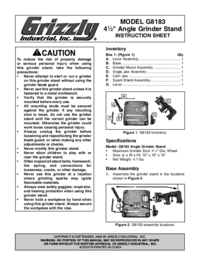
Tabla de contenidos
Más productos y manuales para Herramientas Grizzly
| Modelos | Tipo de documento |
|---|---|
| G1852 |
Manual de usuario
Grizzly G1852 User Manual,
27 paginas
|
| G8143 |
Manual de usuario
Grizzly G8143 User Manual,
16 paginas
|
| G1067Z |
Manual de usuario
Grizzly G1067Z User Manual,
28 paginas
|
| H8230 |
Manual de usuario
Grizzly H8230 User Manual,
20 paginas
|
| Paint Tank H8225 |
Manual de usuario
Grizzly Paint Tank H8225 User Manual,
2 paginas
|
| H8232 |
Manual de usuario
Grizzly H8232 User Manual,
5 paginas
|
| G6048 |
Manual de usuario
Grizzly G6048 User Manual,
17 paginas
|
| Power Feeder G4176 |
Manual de usuario
Grizzly Power Feeder G4176 User Manual,
3 paginas
|
| G8598 |
Manual de usuario
Grizzly G8598 User Manual,
17 paginas
|
| Power Feeder G7873 |
Manual de usuario
Grizzly Power Feeder G7873 User Manual,
32 paginas
|
| H8203 |
Manual de usuario
Grizzly H8203 User Manual,
2 paginas
|
| H7666 |
Manual de usuario
Grizzly H7666 User Manual,
24 paginas
|
| 4" |
Manual de usuario
Grizzly 4" User Manual,
24 paginas
|
| STILE AND RAIL SETS C1393-96 |
Manual de usuario
Grizzly STILE AND RAIL SETS C1393-96 User Manual,
2 paginas
|
| G0453PX |
Manual de usuario
Grizzly G0453PX User Manual,
72 paginas
|
| H7951 |
Manual de usuario
Grizzly H7951 User Manual,
28 paginas
|
| G7946 |
Manual de usuario
Grizzly G7946 User Manual,
28 paginas
|
| H6238 |
Manual de usuario
Grizzly H6238 User Manual,
3 paginas
|
| Wood Copy Attachment G2891 |
Manual de usuario
Grizzly Wood Copy Attachment G2891 User Manual,
28 paginas
|
| G7298 |
Manual de usuario
Grizzly G7298 User Manual,
28 paginas
|
© 2020, manymanuals.cz. Všechna práva vyhrazena. | 0.052 s |
 Manymanuals.com
 Manymanuals.de
 Manymanuals.fr
 Manymanuals.it
 Manymanuals.pl
 Manymanuals.cz
 Manymanuals.es
 Manymanuals-pt.com
Komentáře k této Příručce