Sharp DSR-PD150P Uživatelský manuál
Procházejte online nebo si stáhněte Uživatelský manuál pro Videokamery Sharp DSR-PD150P. Sharp DSR-PD150P User Manual Uživatelská příručka
- Strana / 172
- Tabulka s obsahem
- KNIHY

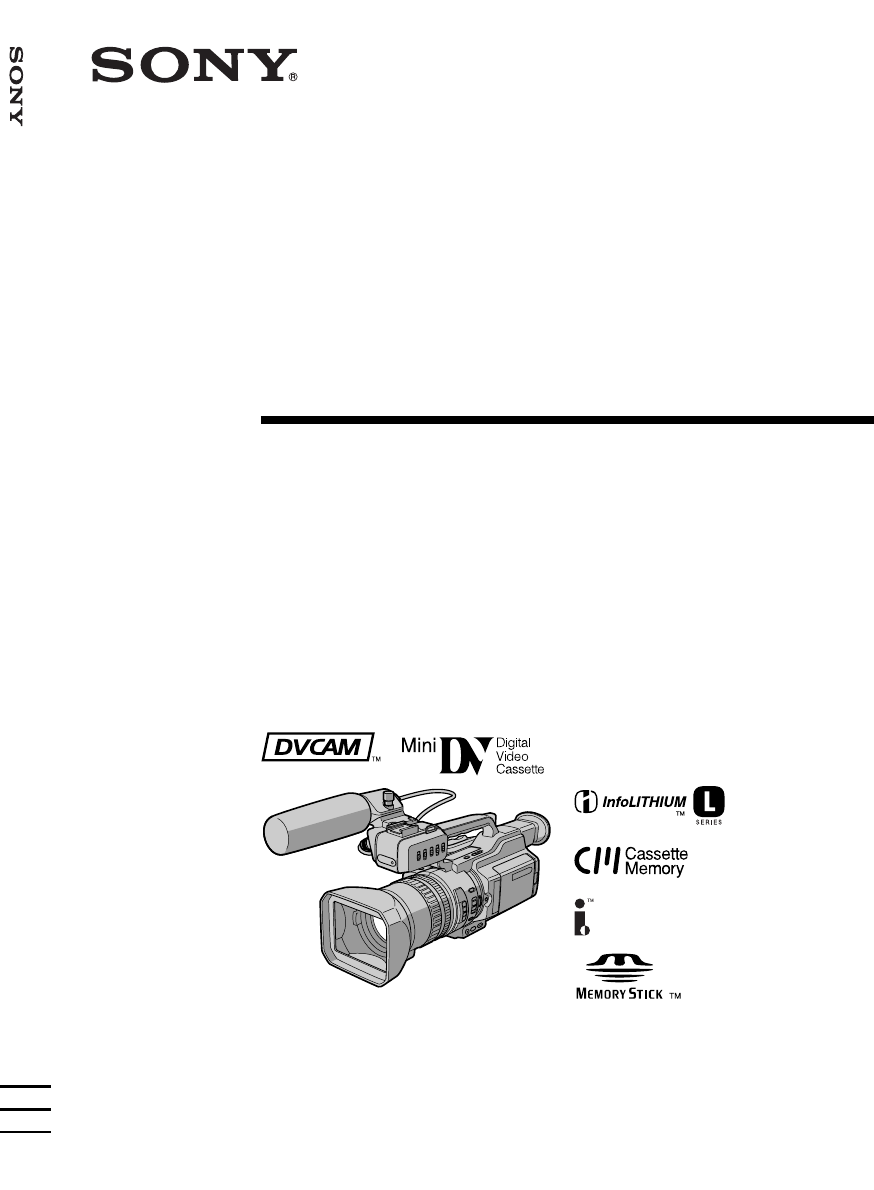
- Camcorder 1
- Table of contents 3
- Quick Start Guide 4
- Using this manual 6
- Checking supplied accessories 8
- Installing the battery pack 10
- Getting started 11
- Charging time 12
- Recording time 12
- Connecting to mains 14
- Recording a picture 16
- Recording 17
- – Basics 17
- Adjusting the LCD screen 18
- After recording 20
- Adjusting the viewfinder 20
- BACK LIGHT SPOT LIGHT 24
- Playing back a tape 26
- Playback 27
- Advanced Recording Operations 33
- To return to normal mode 34
- Using the wide mode 36
- To cancel the fader function 38
- To cancel the digital effect 40
- Adjusting the gain 44
- ND FILTER 46
- Adjusting the white balance 50
- – Sound recording level 52
- To focus in infinity 58
- Interval recording 60
- To stop searching 64
- Advanced Playback Operations 65
- Scanning photo 70
- Dubbing a tape 72
- Operation 1: Making Programs 77
- Erasing the last program 78
- Erasing all programs 79
- – Signal convert function 80
- Using the Remote Commander 81
- Audio dubbing 85
- Setting time values 89
- Setting the user bits value 92
- Switching the time value 93
- Superimposing a title 94
- Erasing a title 97
- Making your own titles 98
- Labeling a cassette 100
- To cancel erasing 102
- Changing the menu settings 104
- Customizing Your Camcorder 105
- Resetting the date and time 112
- ” Operations 113
- “Memory Stick 113
- 1 / 6 SFN 118
- Continuous shooting settings 120
- Before operation 122
- Still image 122
- PHOTO PHOTO 124
- S VIDEO LANC 126
- To cancel copying 128
- MEMORY PLAY 130
- 100–0002 130
- “Memory Stick” to tapes 132
- – SLIDE SHOW 134
- Deleting images 136
- Compatibility on playback 140
- Additional Information 141
- Usable cassettes 142
- About i.LINK 144
- Troubleshooting 146
- In the playback mode 146
- Warning indicators 152
- Using your camcorder abroad 154
- Maintenance information 156
- AC power adaptor 158
- Battery pack 158
- Notes on dry batteries 158
- Specifications 160
- Quick Reference 161
- Display window 168
- Quick Function Guide 170
- Printed on recycled paper 172
Shrnutí obsahu
3-060-817-34 (1)DigitalCamcorderOperating InstructionsBefore operating the unit, please read this manual thoroughly,and retain it for future reference
10Step 2 Preparing the power supplyInstalling the battery packInstall the battery pack to use your camcorder outdoors.(1) Lift up the viewfinder.(2)
100Labeling a cassetteIf you use a tape with cassette memory, you can label a cassette. The label canconsist of up to 10 characters and is stored in c
Editing101Labeling a cassetteTo change the label you have madeInsert the cassette to change the label, and operate in the same way as you do to make a
102Erasing the cassette memory dataYou can erase data stored in cassette memory, each item’s data can be erased separately.You can also erase all item
Editing103Erasing the cassette memory dataErasing all the data in cassette memory(1) Set the POWER switch to VCR or CAMERA.(2) Press MENU to display t
104— Customizing Your Camcorder —Changing the menu settingsTo change the mode settings in the menu settings, select the menu items with the SEL/PUSH E
105Customizing Your CamcorderChanging the menu settingsTo make the menu display disappearPress MENU.Menu items are displayed as the following icons: T
106Icon/item AUTO SHTRPROG. SCAND ZOOM16:9WIDESTEADYSHOTFRAME RECINT. RECWINDModez ONOFFz OFFONz OFF24×48×z OFFONz ONOFFz OFFONONz OFFSETCH1CH2Meaning
107Customizing Your CamcorderChanging the menu settingsIcon/itemCH SELECTAUDIO MIXA/VtDV OUTNTSC PBLCD B. L.LCD COLOURVF B.L.GUIDEFRAMEModez CH1, CH2C
108Changing the menu settingsIcon/itemCONTINUOUSQUALITYPRINT MARKPROTECTSLIDE SHOWDELETE ALLFORMATPHOTO SAVEModez OFFONMULTI SCRNz SUPER FINEFINESTAND
109Customizing Your CamcorderChanging the menu settingsIcon/itemCM SEARCHTAPE TITLETITLE DSPLTITLEERASEITEM ERASEERASE ALLREC MODEAUDIO MODEModez ONOF
11Getting startedStep 2 Preparing the power supplyCharging the battery packUse the battery pack after charging it.Your camcorder operates only with t
110Changing the menu settingsIcon/itemqREMAINDATA CODEMIC NRAUDIO SETCLOCK SETLTR SIZELOGO INSWORLD TIMEModez AUTOONz DATE/CAMDATEz ONOFF——z NORMAL2×—
111Customizing Your CamcorderChanging the menu settingsIcon/itemBEEPCOMMANDERDISPLAYDATE RECREC LAMPCOLOUR BARVIDEO EDITEDIT SETHRS METERModeMELODYz N
112Resetting the date and timeThe date and time are set at the factory. Set the time according to the local time in yourcountry. If you do not use you
113“Memory Stick” Operations— “Memory Stick” Operations —Using a “Memory Stick” – introductionYou can record and play back still images on the “Memory
114Using a “Memory Stick” – introductionNotes on image data compatibility•Image data files recorded on a “Memory Stick” by your camcorder conform to t
115“Memory Stick” OperationsUsing a “Memory Stick” – introductionInserting a “Memory Stick”Insert the “Memory Stick” with the Sony logo pointing towar
116Using a “Memory Stick” – introductionSelecting the image quality modeYou can select the image quality mode in still picture recording. The default
117“Memory Stick” OperationsUsing a “Memory Stick” – introductionDifferences in image quality modeRecorded images are compressed in JPEG format before
118Recording still images on a “MemoryStick” – Memory Photo recordingYou can record still images on a “Memory Stick.”Before operationInsert a “Memory
119“Memory Stick” OperationsRecording still images on a “Memory Stick” – Memory PhotorecordingWhile you are recording a still imageYou can neither tur
12Step 2 Preparing the power supplyNotes•Prevent metallic objects from coming into contact with the metal parts of the DC plug ofthe AC power adaptor
120Recording still images on a “Memory Stick” – Memory Photorecording(1) Set the POWER switch to MEMORY. Make sure that the LOCK switch is set tothe r
121“Memory Stick” OperationsSuperimposing a still image in a “MemoryStick” on a moving picture – MEMORY MIXYou can superimpose a still image you have
122Before operationInsert a recorded “Memory Stick” and a tape to be recorded into your camcorder.(1) Set the POWER switch to CAMERA.(2) Press MEMORY
123“Memory Stick” OperationsSuperimposing a still image in a “Memory Stick” on a movingpicture – MEMORY MIXItems to be adjustedM. CHROM The colour (bl
124Recording an image from a tape as a stillimageYour camcorder can read moving picture data recorded on a tape and record it as astill image on a “Me
125“Memory Stick” OperationsRecording an image from a tape as a still imageTitles that are already recorded on tapesYou cannot record the titles on a
126S VIDEO LANCDVRecording an image from a tape as a still imageWhen recording the image through the DV IN/OUT jack: Signal flowi.LINK cable (DV con
127“Memory Stick” OperationsCopying still images from a tape – PhotosaveUsing the search function, you can automatically take in only still images fro
128Copying still images from a tape – Photo saveTo cancel copyingPress MENU.When the memory of the “Memory Stick” is full“MEMORY FULL” appears on the
129“Memory Stick” OperationsViewing a still picture – Memory PhotoplaybackYou can play back still images recorded on a “Memory Stick.” You can also pl
13Getting startedNumbers in parentheses “( )” indicate the time using a normally charged battery.You cannot use the NP-500/510/710 battery pack on yo
130Viewing a still picture – Memory Photo playbackScreen indicators during still image playbackOn data file name•When the hyphen is indicated between
131“Memory Stick” OperationsViewing a still picture – Memory Photo playbackA red B mark appears above the image that is displayed before changing to t
132Copying an image recorded on a“Memory Stick” to tapesYou can copy still images or titles recorded on a “Memory Stick” and record them to atape.Befo
133“Memory Stick” OperationsCopying an image recorded on a “Memory Stick” to tapesNote on the index screenYou cannot record the index screen.Image dat
134Playing back images continuously– SLIDE SHOWYou can automatically play back images in sequence. This function is useful especiallywhen checking rec
135“Memory Stick” OperationsPreventing accidental erasure– Image protectionTo prevent accidental erasure of important images, you can protect selected
136Deleting imagesYou can delete images stored in a “Memory Stick.”Deleting selected imagesBefore operationInsert a “Memory Stick” into your camcorder
137“Memory Stick” OperationsDeleting imagesDeleting all the imagesYou can delete all the unprotected images in a “Memory Stick.”Before operationInsert
138Deleting imagesTo cancel deleting all the images in the “Memory Stick”Select RETURN in step 5, then press the SEL/PUSH EXEC dial.
139“Memory Stick” OperationsWriting a print mark – Print markYou can specify the recorded still image to be printed out. This function is useful forpr
14Step 2 Preparing the power supplyConnecting to mainsWhen you use your camcorder for a long time, we recommend that you power it frommains using the
140— Additional Information —Compatibility of DVCAM and DV formatsDVCAM format is developed as a more reliable and higher end format than consumerDV f
Additional Information141Compatibility of DVCAM and DV formatsCompatibility on editing using DV connectorsWhen this digital camcorder is connected to
142Usable cassettesSelecting cassette typesYou can use the mini DVCAM cassette* and mini DV cassette* in thiscamcorder. You cannot use any other
Additional Information143Usable cassettesAudio modeFs32K (12-bit) mode: The original sound can be recorded in channels 1 and 2, and thenew sound in ch
144About i.LINKYour camcorder is equipped with the DV input/output connector based on i.LINK(IEEE1394) standard.This section explains the specificatio
Additional Information145TroubleshootingIf you run into any problem using your camcorder, use the following table totroubleshoot the problem. If the p
146TroubleshootingSymptomSome tiny white spotsappear on the LCD screen orin the viewfinder.The click of the shutter doesnot sound.The image is not bri
Additional Information147TroubleshootingSymptomDisplaying the recordeddate, date search functiondoes not work.The new sound now beingadded, or that ha
148TroubleshootingSymptomThe cassette cannot beremoved from the holder.The % and Z indicatorsflash and no functionsexcept for cassette ejectionwork. i
Additional Information149TroubleshootingSymptomThe photo save functiondoes not work.OthersSymptomThe title is not recorded.The cassette label is notre
15Getting startedStep 3 Inserting a cassette(1) Install the power source (p. 10).(2) While pressing the small blue button on the EJECT switch, slide
150TroubleshootingSymptomThe Remote Commandersupplied with yourcamcorder does not work.The input picture does notappear on the LCD screen orin the vie
Additional Information151C:21:00Self-diagnosis displayYour camcorder has a self-diagnosis displayfunction.This function displays the current condition
152Warning indicators and messagesIf indicators and messages appear on the LCD screen or in the viewfinder, check thefollowing:See the page in parenth
Additional Information153Warning indicators and messages100-0001 “(Warning indicators) Memory Stick” file error*Slow flashing:•File is broken.•File ha
154Using your camcorder abroadUsing your camcorder abroadYou can use your camcorder in any country or area with the AC power adaptorsupplied with your
Additional Information155Maintenance information andprecautionsMoisture condensationIf your camcorder is brought directly from a cold place to a warm
156Maintenance information and precautionsRemoving Dust from Inside the ViewfinderBefore cleaning, remove the sticker below the viewfinder lens adjust
Additional Information157Maintenance information and precautionsCharging the vanadium-lithium battery in your camcorderYour camcorder is supplied with
158Maintenance information and precautions•Do not let sand get into your camcorder. When you use your camcorder on a sandybeach or in a dusty place, p
Additional Information159If batteries are leaking•Wipe off the liquid in the battery compartment carefully before replacing the batteries.•If you touc
16MEMORYCAMERAVCROFF(CHG)POWER5240minREC 00:00:00:01DVCAM32KPOWEROFF(CHG)CAMERAMEMORYVCR314OPENLOCKCamera recording lampsMicrophoneREC START/STOP— Rec
160SpecificationsSupplied accessoriesSee page 8.AC power adaptorPower requirements100 - 240 V AC, 50/60 HzPower consumption23 WOutput voltageDC OUT: 8
161Quick Reference— Quick Reference —Identifying the parts and controls1 INDEX MARK button (p. 63)2 Zoom ring (p. 21)3 Focus ring (p. 58)4 ND FILTER s
162Identifying the parts and controlsqh Speakerqj LCD screen (p. 18)qk LCD BRIGHT buttons (p. 19)ql VOLUME buttons (p. 26)w; MEMORY PLAY button (p. 12
163Quick ReferenceRECSTOP PLAYREW FF PAUSESLOWAUDIO DUBehegejekelr;raeg Video control buttons (p. 26, 29, 83)C SLOW (slow playback) AUDIO DUB (dubbing
164CH1•CH2REC CHSELECTINPUTLEVEL+48VINPUTLEVEL+48VCH1LINEMICONOFFLINEMICATTMICATTMICONOFFINPUT1 INPUT2rfrsrdrgrhrjrkREC CHSELECTINPUTLEVEL+48VINPUT2Id
165Quick ReferenceIdentifying the parts and controlsrlt;tatstdtktly;yaysydyfygyhyjyktftgthtjFastening the grip strapFasten the grip strap firmly.rl Ho
166Identifying the parts and controlsyl Carrying handleu; Remote sensorua Camera recording lamp (p. 16)us CUSTOM PRESET button (p. 56)ud Viewfinder le
167Quick ReferenceIdentifying the parts and controlsRemote CommanderThe buttons that have the same name on the Remote Commander as on your camcorderfu
168Identifying the parts and controlsTo prepare the Remote CommanderInsert two R6 (size AA) batteries by matching the + and – polarities on the batte
169Quick ReferenceIdentifying the parts and controlsOperation indicators1 Cassette memory indicator (p. 142)2Remaining battery time indicator (p. 22)3
Recording – Basics17Recording a pictureNote on the recording formatYour camcorder records and plays back both in the DVCAM format and in the DVformat
170Quick Function GuideFunctions to adjust exposure (in the recording mode)•Shooting backlit subjects•In spotlight, such as at the theater or a formal
171Quick ReferenceIndexA, BA/V connecting cable... 31, 72, 81Accessory shoe ... 166AC power adaptor ..
Sony Corporation Printed in Japanhttp://www.sony.net/Printed on recycled paper
18180°90°180°OPENAdjusting the LCD screenThe LCD panel is opened up to 90 degrees and it rotates about 90 degrees to theviewfinder side and about 180
Recording – Basics19Recording a pictureAdjusting the brightness of the LCD screenTo adjust the brightness of the LCD screen, press LCD BRIGHT + or –.T
2Welcome!Congratulations on your purchase of this Sony Digital camcorder.With your Digital camcorder, you can capture life’s precious moments with sup
201423After recording(1) Set the POWER switch to OFF (CHG).(2) Close the LCD panel.(3) Eject the cassette.(4) Remove the battery pack.Adjusting the vi
Recording – Basics21WTTWTWRecording a pictureUsing the zoom featureTo zoom with the zoom leverPress the power zoom lever a little for a slower zoom. P
22Recording a pictureUsing the digital zoom – Zoom greater than 12×Zoom greater than 12× is performed digitally, if you set D ZOOM to 24× or 48× in th
Recording – Basics23Recording a pictureTime codeThe time code indicates the recording or playback time, “00:00:00:00” (hours : minutes :seconds : fram
24Recording a pictureSpot lightThis function prevents people’s faces, for example, from appearing excessively whitewhen shooting subjects lit by stron
Recording – Basics25END SEARCHEDITSEARCHChecking the recording– END SEARCH / EDITSEARCH / Rec ReviewYou can use these buttons to check recorded pictur
26— Playback – Basics —Playing back a tapeYou can monitor the playback picture on the LCD screen. If you close the LCD panel,you can monitor the playb
27Playback – BasicsPlaying back a tapeWhen monitoring on the LCD screenYou can turn the LCD panel over and move it back to the camcorder body with the
28Playing back a tapeUsing the data code functionYour camcorder automatically records not only images on the tape but also therecording data (date/tim
29Playback – BasicsPlaying back a tapeVarious playback modesTo operate video control buttons, set the POWER switch to VCR.To view a still picture (pla
3Table of contentsQuick Start Guide ... 4Getting startedUsing this manual ...
30Note on DV-formatted tapesYou can play back DV-formatted tapes on this camcorder if the tape is recorded in SPmode. “DV SP” appears on the LCD scree
31Playback – BasicsS VIDEOVIDEOAUDIOINAUDIOCH1/CH2S VIDEOVIDEODV IN/OUTAUDIO CH1/CH2Viewing the recording on TVConnect your camcorder to your TV or VC
32— Advanced Recording Operations —Recording a still image on a tape – Tape Photo recordingYou can record still images on tapes with all the pixels in
33Advanced Recording OperationsRecording a still image on a tape – Tape Photo recordingPrinting the still imageYou can print a still image by using a
34Shooting with all the pixels – PROG. SCANTo import moving images to your PC to view still images, we recommend you record inprogressive mode. To use
35Advanced Recording OperationsUsing the guide frameYou can easily make the picture be on a horizontal line using the guide frame. Theguide frame is n
36Using the wide modeYou can record a 16:9 wide picture to watch on a 16:9 wide-screen TV (16:9WIDE).Black bands appear on the LCD screen or in the vi
37Advanced Recording OperationsUsing the fader functionYou can fade the picture in or out to give your recording a professional appearance.MONOTONEWhe
38Using the fader function(1) When fading in [a]In standby mode, press FADER until the desired fader indicator flashes.When fading out [b]In recording
39Advanced Recording OperationsUsing special effects – Digital effectYou can add special effects to recorded pictures using the various digital functi
4Quick Start GuideQuick Start GuideThis guide introduces you to the basic way of recording/playback. See the pages in parentheses“( )” for more infor
40Using special effects – Digital effect(1) In standby or recording mode, press DIGITAL EFFECT. The digital effectindicator appears.(2) Turn the SEL/P
41Advanced Recording OperationsUsing special effects – Digital effectNotes•The following functions do not work in digital effect mode:– Fader– Tape Ph
42Shooting with manual adjustmentUnder normal conditions, this unit automatically makes various adjustments as itshoots. However, you can adjust the f
43Advanced Recording OperationsShooting with manual adjustmentAdjusting the irisAdjust the iris manually depending on the depth of field.(1) Set the A
44Adjusting the gain(1) Set the AUTO LOCK selector to the center (auto lock release) position whilethe camcorder is in standby, recording, or memory m
45Advanced Recording OperationsAdjusting the shutter speed(1) Set the AUTO LOCK selector to the center (auto lock release) position whilethe camcorder
46Using the ND filterUsing the ND filter (the ND filter 1 setting corresponds to 1/4 of the quantity of lightand the ND filter 2 setting corresponds t
47Advanced Recording OperationsShooting with the zebra patternYou can set the camcorder to display a zebra pattern (diagonal stripes) in the portion o
48Releasing the SteadyShot functionWhen the SteadyShot function is working, the camcorder compensates for camera-shake.You can release the SteadyShot
49Advanced Recording OperationsAdjusting the AE shiftYou can adjust the AE shift in accordance with shooting conditions and a subject.(1) Press AE SHI
5Quick Start GuideRecording a picture (p. 16)ViewfinderWhen the LCD panelis closed, use theviewfinder placingyour eye against itseyecup.1 Remove the h
50Adjusting the white balanceWhite balance adjustment makes white subjects look white and allows more naturalcolour balance for camera recording. Norm
51Advanced Recording OperationsIf you have selected in step 3When you set the white balance to one-push white balance mode, the setting is lockedand
52Adjusting the recording level manually– Sound recording levelYou can adjust the recording sound level. Use headphones to monitor the sound whenyou a
53Advanced Recording OperationsAdjusting the recording level manually– Sound recording levelTo adjust the recording level automaticallySet AGC CH1 to
54Connecting an optional externalmicrophoneYou can get your desired audio quality, connecting multiple microphones or anoptional microphone to your ca
55Advanced Recording OperationsWhen the wind is blowing hardSet CH1 or CH2 of WIND to ON in the menu settings according to the input (p. 104).We recom
56Presetting the adjustment for picturequality – Custom presetYou can preset the camcorder to record the picture with the desired picture quality.When
57Advanced Recording OperationsPresetting the adjustment for picture qualityItems to be adjustedItemCOLOUR LVLSHARPNESSWB SHIFTAGC LIMITRESETTo cancel
58Focusing manuallyYou can gain better results by manually adjusting the focus in the following cases:•The autofocus mode is not effective when shooti
59Advanced Recording OperationsInterval recordingYou can make a time-lapse recording bysetting the camcorder to automatically recordand standby sequen
6— Getting started —Using this manualAs you read through this manual, buttons and settings on your camcorder are shown incapital letters.e.g. Set the
60Interval recording(6) Turn the SEL/PUSH EXEC dial to select ON, then press the dial.(7) Press MENU to erase the menu display. The interval recording
61Advanced Recording OperationsFrame by frame recording – Cut recordingYou can make a recording with a stop-motion animated effect using cut recording
62Superimposing the date and time on apictureYou can superimpose the date/time indication directly on the picture, besides the date/time display as da
63Advanced Recording OperationsMarking an IndexIf you mark an index at the scene you want to search for, you can easily search for thescene later (p.
64— Advanced Playback Operations —Searching for a recording by index – Index searchYou can automatically search for the point where an index is marked
65Advanced Playback OperationsSearching for a recording by index – Index searchIn the mark•The bar in the mark indicates the present point on the
66Searching the boundaries of recordedtape by title – Title searchIf you use a tape with cassette memory, you can search for the boundaries ofrecorded
67Advanced Playback OperationsSearching a recording by date– Date searchYou can automatically search for the point where the recording date changes an
68Searching a recording by date – Date searchNoteIf one day’s recording is less than two minutes, your camcorder may not accurately findthe point wher
69Advanced Playback OperationsSearching for a photo – Photo search/Photo scanYou can search for a still picture you have recorded on a tape (photo sea
7Getting startedUsing this manualNote on TV colour systemsTV colour systems differ from country to country.To view your recordings on a TV, you need a
70Searching for a photo – Photo search/Photo scanSearching for a photo without using cassette memory(1) Set the POWER switch to VCR.(2) Set CM SEARCH
71Advanced Playback OperationsPlaying back a tape with digital effectsDuring playback, you can process a scene using the digital effect functions: STI
72— Editing —Dubbing a tapeUsing the A/V connecting cableConnect your camcorder to the VCR using the A/V connecting cable supplied withyour camcorder.
Editing73Dubbing a tapeConnect using an S video cable (not supplied) to obtain high-quality picturesWith this connection, you do not need to connect t
74Dubbing only desired scenes – Digitalprogram editingYou can duplicate selected scenes (programs) for editing onto a tape without operatingthe VCR. S
Editing75Dubbing only desired scenes- Digital program editingPreparation 2: Adjusting the synchronization of the VCRYou can adjust the synchronization
76Dubbing only desired scenes- Digital program editing(10)Turn the SEL/PUSH EXEC dial to select “CUT-IN,” then press the dial.(11)Turn the SEL/PUSH EX
Editing77Dubbing only desired scenes- Digital program editingOperation 1: Making Programs(1)Insert the tape for playback into your camcorder, and inse
78Dubbing only desired scenes- Digital program editing(6)Press the SEL/PUSH EXEC dial, or MARK on the Remote Commander.The CUT-IN point of the first p
Editing79Dubbing only desired scenes- Digital program editingErasing all programs(1)Select VIDEO EDIT in the menu settings. Turn the SEL/PUSH EXEC di
8Checking supplied accessoriesMake sure that the following accessories are supplied with your camcorder.12 34567890qa1 Wireless Remote Commander (1)(p
80Using with an analog video unit and a PC– Signal convert functionYou can convert the analog input signal to the digital signal and output it from th
Editing81Recording video or TV programsUsing the A/V connecting cableYou can record a tape from another VCR or a TV program from a TV that has video/a
82Recording video or TV programsIf your VCR is a monaural typeConnect with a VCR using the audio cable (monaural y stereo) (not supplied).Connect usin
Editing83Recording video or TV programsUsing an i.LINK cable (DV connecting cable)Simply connect the i.LINK cable (DV connecting cable) (not supplied)
84Recording video or TV programsYou can connect only one VCR using the i.LINK cable (DV connecting cable)When you dub a picture in digital formThe col
Editing85Audio dubbingYou can record an audio sound to add to the original sound on a tape by connectingaudio equipment or a microphone. If you connec
86Dubbing with the AUDIO CH1/CH2 jacksNotes•You can dub a sound only on a tape recorded in Fs32K mode of the DVCAM format.•When dubbing with the INPUT
Editing87Audio dubbingAdding an audio sound on a recorded tape(1) Insert the recorded tape into your camcorder.(2) Set the POWER switch to VCR on your
88Notes•New sound cannot be recorded on a tape already recorded in Fs48K mode (p. 109).•New sound cannot be recorded on a tape already recorded in the
Editing89Setting time valuesThe camcorder uses two types of time values: time code values and user bits.The time value is displayed on the LCD screen,
9Getting startedStep 1 Installing the microphoneInstall the supplied microphone. Be sure to connect the microphone plug to the INPUT1connector.(1) At
90(10)Turn the SEL/PUSH EXEC dial to select SET, then press the dial.(11)Turn the SEL/PUSH EXEC dial to select TC RUN, then press the dial.(12)Turn th
Editing91Making the time code continuous at back space editingSet TC MAKE to REGEN in the menu settings to make the time code continuous whenthe recor
92Setting the user bits valueYou can set the user bits as eight-digit hexadecimal values (base 16) to have the date,time, scene number, and other info
Editing93Switching the time valuePress TC/U-BIT. Each time you press TC/U-BIT, the time value changes between thetime code and user bits.TC: Displays
94Superimposing a titleIf you use a tape with cassette memory, you can superimpose the title whilerecording or after recording. When you play back the
Editing95Superimposing a titleIf you set the write-protect tab to lockYou cannot superimpose or erase the title. Slide the write-protect tab to releas
96Superimposing a titleTitle setting•The title colour changes as follows:WHITE y YELLOW y VIOLET y RED y CYAN y GREEN y BLUE•The title size changes as
Editing97Superimposing a titleErasing a title(1) Set the POWER switch to VCR or CAMERA.(2) Press MENU to display the menu.(3) Turn the SEL/PUSH EXEC d
98Making your own titlesYou can make up to two titles and store them in cassette memory. Each title canhave up to 20 characters.(1) Press TITLE in the
Editing99Making your own titlesTo change a title you have storedIn step 3, select CUSTOM1 SET or CUSTOM2 SET, depending on which title you wantto chan
Související produkty a manuály pro Videokamery Sharp DSR-PD150P
 (91 stránky)
(80 stránky)
(72 stránky)
(91 stránky)
(80 stránky)
(72 stránky)
 (140 stránky)
(123 stránky)
(76 stránky)
(92 stránky)
(103 stránky)
(72 stránky)
(88 stránky)
(84 stránky)
(112 stránky)
(72 stránky)
(111 stránky)
(63 stránky)
(124 stránky)
(140 stránky)
(123 stránky)
(76 stránky)
(92 stránky)
(103 stránky)
(72 stránky)
(88 stránky)
(84 stránky)
(112 stránky)
(72 stránky)
(111 stránky)
(63 stránky)
(124 stránky)
 (128 stránky)
(120 stránky)
(53 stránky)
(128 stránky)
(120 stránky)
(53 stránky)
© 2020, manymanuals.cz. Všechna práva vyhrazena. | 0.017 s |
 Manymanuals.com
 Manymanuals.de
 Manymanuals.fr
 Manymanuals.it
 Manymanuals.pl
 Manymanuals.cz
 Manymanuals.es
 Manymanuals-pt.com
Komentáře k této Příručce