Sharp SCL901 Uživatelský manuál
Procházejte online nebo si stáhněte Uživatelský manuál pro Videokamery Sharp SCL901. Sharp SCL901 User Manual Uživatelská příručka
- Strana / 76
- Tabulka s obsahem
- ŘEŠENÍ PROBLÉMŮ
- KNIHY


- Video Camcorder 1
- Safety Instructions 2
- Contents 6
- Contents (continued) 7
- Notices regarding the LENS 8
- OF PROPERLY 10
- Features 12
- Front View 13
- Side View 14
- Rear View 15
- OSD in CAMERA mode 16
- OSD in PLAYER mode 16
- OSD (On Screen Display) 17
- Preparing 20
- Basic Recording 27
- Advanced Recording 34
- Playing back a Tape 57
- USB interface (SCL907 only) 62
- Maintenance 66
- Using Your Camcorder Abroad 67
- Troubleshooting 68
- Specifications 72
- Warranty (SEA Users Only) 75
- ELECTRONICS 76
Shrnutí obsahu
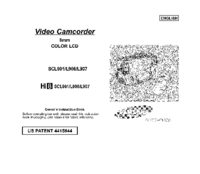
ENGLISHVideo Camcorder8mmCOLOR LCDSCL901/L906/L907Owner’s Instruction BookBefore operating the unit, please read this instructionbook thoroughly, and
Notices and Safety InstructionsNotices regarding the battery packENGLISH6✤ Make sure that the battery pack is charged before recording outdoors.✤ To p
Notices and Safety InstructionsNotices with Recording or Playback by using LCDENGLISH7✤ To protect against tape and head-drum wear, your camcorder wil
Getting to Know Your CamcorderFeaturesENGLISH8Your camcorder has many features for recording and playing back.MULTI OSD LANGUAGEYou can select the app
Getting to Know Your CamcorderFront ViewENGLISH1. Lens (see page 68)2. REC SEARCH (REW) REC SEARCH works in STANDBY mode. (see page 24)REW works i
ENGLISHGetting to Know Your Camcorder1014. MENU ON/OFF (see page 26)MENU ON/OFF works in CAMERA and PLAYER mode.15. ENTER (MF) (see page 26)ENTER work
Getting to Know Your CamcorderRear ViewENGLISH1125. ZOOM (see page 30)26. Cassette Compartment27. Hooks for Shoulder Strap (see page 17)28. AUDIO/VID
Getting to Know Your CamcorderOSD (On Screen Display)ENGLISH12✤ You can turn the OSD on/off by setting the Display menu on/off.✤ The TITLE, DATE/TIM
Getting to Know Your CamcorderOSD (On Screen Display)ENGLISH13j. Time (see page 42)Indicates the time you are recording.k. Title (see page 44)Indicate
Make sure that the following basic accessories are supplied with your camcorder.Basic Accessories1. AC Power Adapter. (AA-E8 TYPE) (see page 18)2. AC
Getting to Know Your CamcorderRemote Control (SCL906/L907 only)ENGLISH15Description of Buttons1. Start/Stop (see page 23)2. Self Timer3. Still (see p
ENGLISHSafety InstructionsNotices and Safety InstructionsRISK OF ELECTRICSHOCKDO NOT OPENCAUTION: TO REDUCE THE RISK OF ELECTRIC SHOCK, DO NOTREMOVE C
ENGLISHPreparing161. Set power switch to CAMERAmode.2. Press Self Timer button until the appropriate indicator is displayed on the LCD: WAIT-10S/SEL
ENGLISHPreparing17✤ The lithium battery maintains the clock function, title and preset contents of the memory; even if the battery pack or AC powerada
PreparingConnecting the Power SourceENGLISH18✤ There are two ways to connect power source.- Using the AC Power Adapter : used for indoor recording.- U
How long will the battery last for recording?✤ Depends on how often you are likely to use the zoom feature during recording.Recharging the Battery Pac
ENGLISH20PreparingUsing the Battery PackBattery TypeSB-L110ASB-L320Approximately90 minutesApproximately120 minutesSB-L160Approximately130 minutesAppr
PreparingENGLISH21Battery Level Display✤ The battery level display indicates the amount of power remaining in the battery pack.1. Fully charged2. 10~4
ENGLISH22PreparingInserting and Ejecting a Cassettea. SAVEb. REC✤ There are several cassette types, depending on:- Color system used - Recording/playb
ENGLISH23Basic RecordingMaking Your First RecordingPlease make these preparations before recording. Did you connect a power source? (Battery Pack or
Basic Recording24ENGLISHb. To stop recording, press the red START/STOP button again. When Recording stops, STBY should be displayed on the LCD.When a
While recording, it is very important to hold the camcorder correctly. For stable recording, fix the LENS COVER firmly by clipping it on the hand
ENGLISHNotices and Safety Instructions9. VENTILATION: Slots and openings in the cabinet are provided forventilation to ensure reliable operation of th
ENGLISH26Basic RecordingAdjusting the LCD✤ Your camcorder is equipped with a 2.5 inch color Liquid Crystal Display (LCD) screen, which allows you to v
ENGLISH27Basic RecordingAdjusting Focus of the VIEWFINDER9. Turn the UP/DOWN dial to adjust the LCD color setting.10. Press ENTER. For further adjust
ENGLISH28Basic RecordingPlaying back a tape on the LCD✤ You can monitor the playback picture on the LCD Screen.✤ Make sure that the battery pack is in
ENGLISH29Basic RecordingAdjusting the LCD during PLAYThe LCD adjustment method in PLAYER mode is identical to step number 4 of page 26, except the pow
ENGLISH30Advanced Recording Zooming In and Out✤ Zoom works in CAMERAmode only.✤ Zooming is a recording technique that lets you change the size of the
ENGLISH31Advanced Recording Digital Zoom✤ Digital Zoom works in CAMERAmode only.✤ Zooms more than 22x are performed digitally.✤ The picture quality de
Advanced Recording ENGLISH32✤ The DIGITAL ZOOM feature is explained on page 31.1. Set the power switch to CAMERA mode. (see page 18)2. Press the MENU
Advanced Recording EASY Mode (for Beginners)ENGLISH33✤ Even a beginner can easily make a recording using the EASY mode. The EASY mode only operates i
ENGLISH34Advanced Recording CUSTOM - Creating your own customized recording settings✤ You can customize the settings and save them for future use. Th
Advanced Recording DIS (Digital Image Stabilizer, SCL906/L907 only)ENGLISH35✤ The DIS function works in CAMERAmode only.✤ DIS (Digital Image Stabilize
ENGLISHNotices and Safety Instructions14. LIGHTNING:For added protection of this CAMCORDER during alightning storm when it is left unattended and unus
Advanced Recording ENGLISH36✤ The MF/AF function works in the CAMERAmode only.✤ In most situations, it is better to use the Automatic Focus feature, a
Advanced Recording ENGLISH37BLC BLC works in the CAMERA mode.Back lighting exists when the subject is darker than the background:- The subject is plac
PROGRAM AE (Automatic Exposure)Advanced Recording ENGLISH38✤ The PROGRAM AE function works in the CAMERA mode only.✤ The PROGRAM AE modes allow you to
Advanced Recording ENGLISH39Setting the PROGRAM AE(Automatic Exposure) mode1. Set the power switch to CAMERA mode. (see page 18)2. Press the P.AE bu
ENGLISH40Advanced Recording DSE (Digital Special Effects) in CAMERA mode✤ The digital effects enable you to give a creative look to your recording by
Advanced Recording ENGLISH41Selecting and recording DSE effects 1. Set the power switch to CAMERAmode. (see page 18)2. Press the DSE button, STROBE or
ENGLISH42Advanced Recording Setting and Recording the DATE/TIME✤ Setting and recording the date/time feature works in the CAMERAmode only.✤ You can re
ENGLISH43Advanced Recording 7. Press ENTER. The month to be reset will blink.8. Turn the UP/DOWN dial to set the desired month.9. Press ENTER. The
ENGLISH44Advanced Recording Selecting and Recording a Title✤ Selecting and recording a TITLE is possible in the CAMERA mode only.✤ The TITLE feature a
ENGLISH45Advanced Recording 6. Turn the UP/DOWN dial to select the appropriate language. You may select languages among ENGLISH/FRANÇAIS/DEUTSCH/ ITA
ENGLISHNotices and Safety Instructions22. To prevent damage which may result in fire or shockhazard, do not expose this appliance to rain or moisture.
ENGLISH46Fade In and OutAdvanced Recording ✤ The FADE function works in CAMERA mode only.✤ You can give your films a professional look by using specia
ENGLISH47Snap Shot (SCL906/L907 only)✤ With the SNAP SHOT feature, your camcorder functions like a regular film camera, allowing you to take single st
ENGLISH48White BalanceAdvanced Recording ✤ WHITE BALANCE is a recording function that preserves the unique color of the object in any recording condit
ENGLISH49Selecting OSD LanguageAdvanced Recording 1. Press the MENU ON/OFF button. The MENU list will appear.2. Turn the UP/DOWN dial to LANGUAGE a
ENGLISH50Advanced Recording Demonstration✤ Demonstration automatically shows you the major functions that are included with your camcorder so that you
ENGLISH51Setting the Date/Title ColorAdvanced Recording 1. Set the power switch to CAMERA mode. (see page 18)2. Press the MENU ON/OFF button. The M
ENGLISH52After RecordingAdvanced Recording 1. Eject the tape that you have recorded. (see page 22)2. If you want to protect accidental erasure of the
ENGLISH53Playing back a Tape✤ To view a tape that you have recorded.✤ Playback function works in PLAYER mode only.✤ There are two ways to see a tape;
ENGLISH54Playing back a TapeNotes: SCL901/L906/L907 feature a monaural audio system. If your TV or VCR features a stereo audio system, connect the au
ENGLISH55Various Functions in PLAYER modePlaying back a TapeTo view a STILL picture (Playback pause)- Press (PLAY/STILL) button during playback.- To
ENGLISHContents2Notices and Safety InstructionsFeatures...
ENGLISH56Adjusting the LCDPlaying back a Tape✤ The procedure for using DSE in PLAYER mode is the same as the procedure for using DSE in CAMERA mode, e
ENGLISH57Multi Playback (using a PAL60 System)Playing back a Tape✤ This Camcorder can convert an NTSC tape recorded in the SP mode to the “PAL60” form
ENGLISH58Transferring a Digital Image through a USB ConnectionUSB interface (SCL907 only)✤ You can easily transfer a still image from a camera, tape,
ENGLISH59Installing USB Media 2.0 ProgramUSB interface (SCL907 only)✤ Do not connect the camcorder to PC before installing the program.✤ If another ca
ENGLISH60USB interface (SCL907 only)4. The window below displays the folder to install the program. The program is installed in the following folder.
ENGLISH61USB interface (SCL907 only)Connecting to a PC1. Connect a USB cable to the USB port on the PC.2. Connect the other end of the USB cable into
ENGLISH62Cleaning and Taking care of the CamcorderMaintenanceCleaning the Viewfinder◆ Releasing the Eyecap1. Pull the VIEWFINDER up and then turn the
ENGLISH63Using Your Camcorder AbroadUsing Your Camcorder Abroad✤ Each country or area has its own electric and TV color system.✤ Before using your c
ENGLISH64TroubleshootingTroubleshooting✤ Before contacting a service center, perform the following simple checks. They might save you the time and ex
ENGLISH65CheckingTroubleshooting✤ If you run into any problem using the camcorder, use the following table to troubleshoot the problem.✤ If these inst
ENGLISH3Contents (continued)Program AE (Automatic Exposure) ...
ENGLISH66TroubleshootingSymptomA vertical stripe appearswhen you record a brightsubject against a dark background (candle flame,for example).The image
ENGLISH67Moisture CondensationTroubleshooting✤ If the camcorder is brought directly from a cold place to a warm place, moisture may condense inside th
ENGLISH68Specifications✤ The design and technical specifications may be changed without notice.System SCL901/L906/L907Recording system Video: 2 rotary
ENGLISH69Index- A -ABROAD ...63AC POWER ADAPTER ...
ENGLISH70Index- O -OPERATION MODE ...13OSD...
ENGLISH71Warranty (SEA Users Only)SAMSUNGLIMITED WARRANTYSAMSUNG Electronics America Inc. (SEA), warrants that this product is free from defective mat
AD68-00732MENGLISHELECTRONICSTHIS CAMCORDER IS MANUFACTURED BY:*Samsung Electronics’ Internet Home Pagehttp://www.samsungusa.comSERVICE DIVISION400 Va
Notices and Safety InstructionsNotices regarding rotation of LCD screenENGLISH4Please rotate the LCD screen carefully as illustrated. Unintended rotat
Notices and Safety InstructionsNotices regarding electronic viewfinderENGLISH51) Do not place the camcorder so that the viewfinder is pointing towards
Další dokumenty pro Videokamery Sharp SCL901

Související produkty a manuály pro Videokamery Sharp SCL901
 (92 stránky)
(103 stránky)
(72 stránky)
(88 stránky)
(84 stránky)
(112 stránky)
(72 stránky)
(111 stránky)
(63 stránky)
(124 stránky)
(92 stránky)
(103 stránky)
(72 stránky)
(88 stránky)
(84 stránky)
(112 stránky)
(72 stránky)
(111 stránky)
(63 stránky)
(124 stránky)
 (128 stránky)
(120 stránky)
(53 stránky)
(132 stránky)
(120 stránky)
(124 stránky)
(96 stránky)
(30 stránky)
(87 stránky)
(128 stránky)
(120 stránky)
(53 stránky)
(132 stránky)
(120 stránky)
(124 stránky)
(96 stránky)
(30 stránky)
(87 stránky)
© 2020, manymanuals.cz. Všechna práva vyhrazena. | 0.028 s |
 Manymanuals.com
 Manymanuals.de
 Manymanuals.fr
 Manymanuals.it
 Manymanuals.pl
 Manymanuals.cz
 Manymanuals.es
 Manymanuals-pt.com
Komentáře k této Příručce