Sharp XG-NV51XE Uživatelský manuál
Procházejte online nebo si stáhněte Uživatelský manuál pro ne Sharp XG-NV51XE. Sharp XG-NV51XE User's Manual Uživatelská příručka
- Strana / 55
- Tabulka s obsahem
- ŘEŠENÍ PROBLÉMŮ
- KNIHY

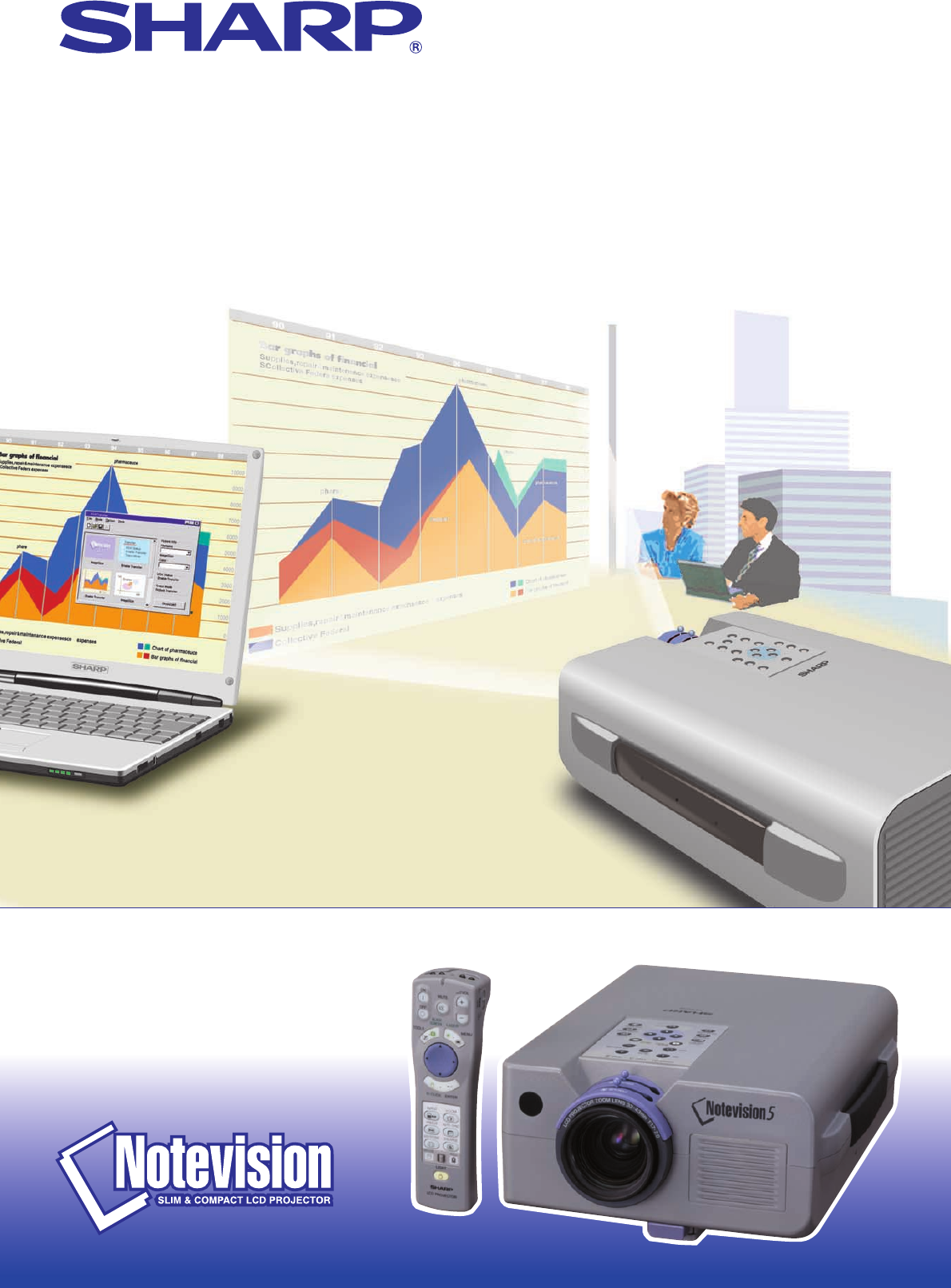
- LCD PROJECTOR 1
- OPERATION MANUAL ENGLISH 4
- Contents 5
- Important Safeguards 6
- Usage Guidelines 7
- Outstanding Features 8
- Accessing the PDF Manuals 9
- Supplied Accessories 10
- Part Names 11
- “Power” Remote Control 12
- Inserting the batteries 13
- Using the laser pointer 14
- Reversed Image Setup 15
- Ceiling-mount Setup 16
- Height of Image 16
- Using the Adjustment Foot 17
- Digital Keystone Correction 17
- Connecting the Projector 18
- “Plug and Play” Function 20
- 1 Connect the Power Cord 21
- 2 Turn on the Main Power 21
- 3 Turn on the Lamp Power 21
- 4 Adjusting Focus 21
- 5 Adjusting Zoom 21
- 7 Adjusting the Volume 22
- 8 Turning off the Power 22
- Operation 23
- Menu bar in COMPUTER mode 23
- Menu bar in VIDEO mode 23
- Items on the COMPUTER1 or 24
- COMPUTER2 Mode Menu Bar 24
- Picture Adjustments 27
- Audio Adjustments 28
- Computer Image Adjustments 29
- Auto Sync Adjustment 30
- Auto Sync Display Function 30
- Saving the adjustment setting 31
- Selecting a saved setting 31
- Dot by dot mode display 32
- Useful Features 33
- R-CLICK ENTER 34
- AUTO SYNC 34
- Freeze Function 36
- Selecting a Startup Image 36
- Reverse/Invert Image Function 37
- Air Filter Maintenance 40
- Lamp/Maintenance Indicators 41
- Using the Kensington Lock 42
- Troubleshooting 42
- Transporting the Projector 43
- Response code format 44
- Command format 44
- Commands 45
- RS-232C Port Specifications 45
- Appendix 46
- Specifications 47
- Dimensions 48
- Sans-serif 50
- Good Bad Good 51
- Glossary 53
- SHARP CORPORATION 55
Shrnutí obsahu
OPERATION MANUALMODELXG-NV51XELCD PROJECTOR
7ImportantInformationComputer cableQCNW-5108CEZZMacintosh adaptorQPLGJ1512CEZZMouse control cable for IBMPS/2QCNW-5113CEZZCarrying bagGCASN0001CESACD-
8ImportantInformationProjectorFront View1 POWER indicator [pp. 18, 19, 38]2 POWER buttons (ON/OFF)[pp. 18, 19, 38]3 BLACK SCREEN button [p. 30]4 INPUT
9ImportantInformationTop ViewopFront ViewSimple Presentation Remote ControlSide ViewFront ViewONMUTETOOLSR-CLICK ENTERINPUTMOUSELIGHTLCD PROJECTORADJ.
10ImportantInformation4 m30˚30˚30˚120˚Part NamesInserting the batteries13Press in and downwardon the arrow to removethe battery cover.2Insert four AA
11ImportantInformationOperating the Wireless Mouse from the “Power” Remote ControlThe “Power” remote control has the following three func-tions:• Oper
12Setup & ConnectionsSetting Up the Projector and ScreenPosition the projector perpendicular to the screen with all feet flat and level to achieve
13Setup & ConnectionsSetting Up the Projector and ScreenCeiling-mount Setup• Use the optional Sharp ceiling-mount bracket for this installation.•
14Setup & ConnectionsAdjusting the Height of the Image1 Press the foot release and lift the projector to thedesired angle.2 Remove your hand from
15Setup & ConnectionsConnecting the ProjectorConnecting the Projector to a ComputerYou can connect your projector to a computer for projection of
16Setup & ConnectionsConnecting the Projector1 Connecting an IBM-PC1. Plug one end of the supplied computer cable intothe COMPUTER INPUT port on t
This equipment complies with the requirements of Directives 89/336/EECand 73/23/EEC as amended by 93/68/EEC.Dieses Gerät entspricht den Anforderungen
17Setup & ConnectionsConnecting the Projector“Plug and Play” FunctionThis projector is compatible with VESA-standard DDC 1/DDC 2B. The projector a
18OperationBasic Operations1 Connect the Power CordPlug the supplied power cord into the AC socket on theback of the projector.2 Turn on the Main Powe
19OperationBasic Operations7 Adjusting the Volumea. Press VOLUME /VOLUME on the projectoror the “Power” remote control to adjust the volume.b. Pres
20OperationUsing the GUI (Graphical User Interface) Menu ScreensThis projector has two sets of menu screens (Computer/Video) that allow you to adjust
21OperationItems on the COMPUTER1 orCOMPUTER2 Mode Menu BarUsing the GUI (Graphical User Interface) Menu ScreensContrastPictureAuto SyncFine SyncAudio
22Operation• The IrCOM function can be used to wirelessly transferstill images from a computer, handheld P/C or digitalcamera to the projector via inf
23OperationSelecting the On-screen Display LanguageONMUTETOOLSR-CLICK ENTERINPUTIrCOMFREEZEAUTO SYNCMENULASERBLACKSCREENVOLOFF42, 31, 5Projector(GUI)
24OperationONMUTETOOLSR-CLICK ENTERINPUTIrCOMFREEZEAUTO SYNCMENULASERBLACKSCREENVOLOFF2, 31, 4Picture AdjustmentsYou can adjust the projector’s pictur
25OperationThis projector’s audio is factory preset to standardsettings. However, you can adjust it to suit your ownpreferences by adjusting the follo
26OperationComputer Image AdjustmentsWhen displaying computer patterns which are verydetailed (tiling, vertical stripes, etc.), interference mayoccur
SPECIAL NOTE FOR USERS IN THE U.K.The mains lead of this product is fitted with a non-rewireable (moulded) plug incorporating a 13A fuse. Shouldthe fu
27OperationAuto Sync Adjustment• Used to automatically adjust a computer image.• Auto Sync adjustment can be made manually bypressing AUTO SYNC on the
28OperationSaving and Selecting Adjustment SettingsThis projector allows you to store up to seven adjustmentsettings for use with various computers. O
29Useful FeaturesTOOLSR-CLICK ENTERINPUTMOUSELIGHTLCD PROJECTORADJ.IrCOMFREEZEAUTO SYNCKEYSTONEENLARGEMENULASERBLACKSCREENOFF21This function allows yo
30Useful FeaturesThis function can be used to superimpose a blackscreen over the projected image.Blacking out the Projected ImagePress BLACK SCREEN. “
31Useful FeaturesThis function can be used to expand or compressimages which are not native 4:3 aspect ratio (i.e. 1,280 1,024 resolution).(For use w
32Useful FeaturesChecking the Input Signal and Lamp Usage Time(For use with the “Power” remote control, slide theMOUSE/ADJUSTMENT switch to the ADJ. p
33Useful Features• This function allows you to specify the image to bedisplayed upon the projector’s startup.• A custom image (i.e. your company logo)
34Useful FeaturesReverse/Invert Image FunctionThis projector is equipped with a reverse/invert imagefunction which allows you to reverse or invert the
35Useful FeaturesThis projector is equipped with presentation tools, whichcan be accessed from the “Power” remote control.These will help you emphasis
36Useful FeaturesAutomatic Power Shutoff FunctionWhen no input signal is detected for more than 15minutes, the projector will automatically shut down.
1ImportantInformationIMPORTANTFor your assistance in reporting the loss or theft of yourColour LCD Projector, please record the Serial Numberlocated o
37Maintenance &TroubleshootingAir Filter Maintenance• This projector is equipped with three air filters to ensure the optimal operating condition
38Maintenance &TroubleshootingProblem• Blocked air intake.• Clogged air filter.• Cooling fan breakdown.• Internal circuit failure.• Burnt-out lamp
39Maintenance &TroubleshootingUsing the Kensington LockThis projector has a Kensington Security Standardconnector for use with a Kensington MicroS
40AppendixTransporting the ProjectorWhen transporting the projector, carry it by the carrying handle on the side. A soft-side carrying bag is alsoprov
41AppendixConnection Pin AssignmentsAnalog Computer 1 and 2 Signal InputPorts: 15-pin mini D-sub female connectorComputer InputAnalog1. Video input (r
42AppendixCommandsEXAMPLE• When “BRIGHT” of COMPUTER 1 IMAGE ADJUSTMENT is set to 10.→←RABR 1 0_ OKProjectorComputerRS-232C Port SpecificationsCONT
43AppendixThe computer output signal timing of different types of computer signals are shown below for reference.For IBM and compatiblesFor Macintosh
44AppendixSpecificationsProduct typeModelVideo systemDisplay methodLCD panelLensProjection lampContrast ratioVideo input signalS-video input signalHor
45AppendixDimensionsRear View26161142237.533.531025.41127.5346.461121128937724243.522925 1110.543 627077848422197259Front ViewSide ViewTop ViewUnits:
46AppendixGuide to Effective PresentationsElectronic presentations are one of the most effectivetools presenters can use to persuade an audience.There
2ImportantInformationMaintenance &TroubleshootingAppendixSetup & ConnectionsOperationUseful FeaturesImportant InformationContentsImportant Saf
47Appendix• Background colours can subconsciously affect theaudience:Red—increases viewers’ pulse and breathing andencourages risk taking but can also
48Appendixc. Set-UpWhen giving a presentation, you need to set the stage bothfiguratively and literally for success. The way you set up apresentation
49Appendixd.Rehearsing & Delivery• The best time to rehearse is the day or evening before,not a couple of hours before, and the best place torehea
Appendix50Aspect ratioWidth and height ratio of an image. The normal aspect ratio of a computer and video image is 4 : 3. There are also wide images w
Appendix51IndexLLAMP REPLACEMENT indicator ... 38Language selection ...
SHARP CORPORATIONOsaka, JapanSHARP ELECTRONICS (EUROPE) GmbHSonninstraße 3, 20097 Hamburg, GermanySHARP ELECTRONICS (U.K.) LTD.Manchester, U.K.Printed
3ImportantInformationImportant SafeguardsATTENTION: Please read all of these instructions before you operate your LCD Projectorfor the first time. Sav
4ImportantInformationUsage GuidelinesCautions Concerning the Setup of the Projector40˚C5˚C• The exhaust vent, the lamp cage cover and adjacent areas
5ImportantInformation1. WIRELESS PRESENTATIONS WITH IrCOMThe IrCOM function allows for wireless transmission of digital images via infrared communicat
6ImportantInformationHow to Access the PDF Operation Manuals (for Windows and Macintosh)PDF operation manuals in several languages are included in the
Související produkty a manuály pro ne Sharp XG-NV51XE
 (19 stránky)

 (2 stránky)
(16 stránky)
(13 stránky)
(2 stránky)
(16 stránky)
(13 stránky)
 (1 stránky)
(8 stránky)
(2 stránky)
(4 stránky)
(2 stránky)
(20 stránky)
(1 stránky)
(16 stránky)
(2 stránky)
(114 stránky)
(4 stránky)
(1 stránky)
(81 stránky)
(1 stránky)
(2 stránky)
(2 stránky)
(1 stránky)
(8 stránky)
(2 stránky)
(4 stránky)
(2 stránky)
(20 stránky)
(1 stránky)
(16 stránky)
(2 stránky)
(114 stránky)
(4 stránky)
(1 stránky)
(81 stránky)
(1 stránky)
(2 stránky)
(2 stránky)
© 2020, manymanuals.cz. Všechna práva vyhrazena. | 0.300 s |
 Manymanuals.com
 Manymanuals.de
 Manymanuals.fr
 Manymanuals.it
 Manymanuals.pl
 Manymanuals.cz
 Manymanuals.es
 Manymanuals-pt.com
Komentáře k této Příručce