Sharp UX- Printer, Specifikace Strana 116
- Strana / 140
- Tabulka s obsahem
- ŘEŠENÍ PROBLÉMŮ
- KNIHY

- FACSIMILE 1
- IMPORTANT 2
- Introduction 3
- Important safety information 5
- Table of Contents 7
- A Look at the Operation Panel 9
- Icons in the display 11
- Microphone location 11
- 1. Installation 12
- Attachments 13
- Connecting the handset 14
- Attaching the paper tray 15
- Loading Printing Paper 16
- Connecting the Power Cord 17
- Approx. 300 A4 pages 18
- : Approx. 200 A4 pages 18
- Approx. 600 A4 pages 18
- : Approx. 400 A4 pages 18
- 1. Installation 19
- Gold contact area 20
- Display when “NEW” 22
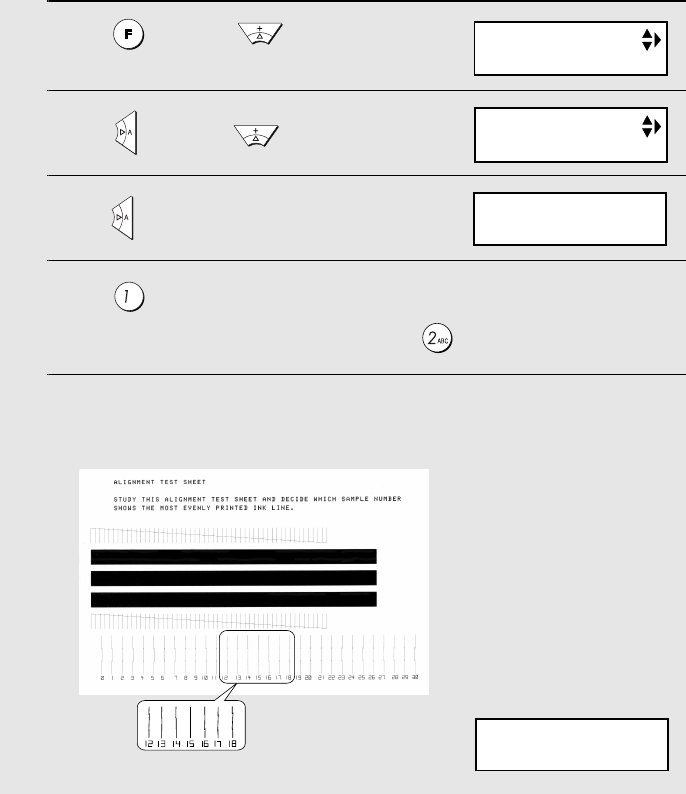
- After the alignment page is 22
- The display briefly shows 24
- Display: 24
- TEL.LINE 25
- DATE&TIME SET 28
- Setting the Date and Time 29
- Setting the Reception Mode 31
- Flash Select Setting for PBX 32
- Volume Adjustment 33
- Error beep off 35
- End beep off 35
- Key tone off 36
- 2. SMS Text Messaging 37
- Sending an SMS Message 40
- Receiving SMS Messages 43
- Viewing the Outbox 45
- Printing all messages 47
- Deleting all messages 47
- SMS Settings 48
- REC/MEMO 50
- 01-JAN 12:00 51
- Toll Saver Toll Saver 52
- PLAY/HOLD 53
- Erasing received messages 54
- Recording memos 54
- Setting ICM time 55
- FAX mode on A.M. failure 55
- OGM only mode 56
- Transfer Function 57
- Override Ringing 60
- Remote Operations 62
- Retrieving your messages 63
- Other remote operations 65
- Recording a memo 67
- 4. Sending Faxes 68
- Loading the Document 69
- Resolution settings 71
- Contrast settings 71
- RESOLUTION/ 72
- RECEPTION 72
- 4. Sending 73
- DELETEREPEAT 74
- 1=EDIT, 2=CLEAR 78
- <NEW NUMBER> 78
- 29-MAY 12:00 80
- READY TO SEND 80
- Error Correction Mode 83
- • Press the number keys 84
- Memory transmission 87
- If the memory becomes full 88
- Using TEL Mode 93
- Optional Reception Settings 95
- Reception Ratio 96
- 5. Receiving 97
- Copy Cut-off 99
- Making Copies 100
- 7. Special Functions 101
- How Caller ID operates 102
- Display messages 102
- Viewing the Caller ID list 103
- Priority Call 104
- Blocking voice calls 105
- ANTI JUNK # 106
- 1=SET, 2=CLEAR 106
- ENTRY MODE 106
- SPEAKERPHONE 107
- PBX operations 108
- 8. Printing Lists 109
- Telephone Number List 110
- Setup List 110
- Message List 110
- Caller-ID List 110
- Help List 110
- Transaction Report 111
- Printing Lists 112
- 9. Maintenance 113
- Maintenance 114
- Cleaning the housing 115
- Improving Print Quality 116
- Cleaning the cartridge holder 120
- 10. Troubleshooting 121
- Problems and Solutions 122
- General problems 124
- SMS messaging problems 125
- Messages and Signals 127
- Clearing Paper Jams 130
- Quick Reference Guide 132
- REMOTE OPERATION CARD 137
- REMOTE COMMANDS 138
- SHARP ELECTRONICS (UK) LTD 140
- SHARP CORPORATION 140
Související produkty a manuály pro Faxy Sharp UX- Printer,
 (36 stránky)
(2 stránky)
(136 stránky)
(291 stránky)
(36 stránky)
(2 stránky)
(136 stránky)
(291 stránky)
 (162 stránky)
(36 stránky)
(69 stránky)
(162 stránky)
(36 stránky)
(69 stránky)
 (162 stránky)
(152 stránky)
(76 stránky)
(6 stránky)
(98 stránky)
(162 stránky)
(152 stránky)
(76 stránky)
(6 stránky)
(98 stránky)

 (100 stránky)
(88 stránky)
(108 stránky)
(104 stránky)
(80 stránky)
(100 stránky)
(88 stránky)
(108 stránky)
(104 stránky)
(80 stránky)
 (130 stránky)
(287 stránky)
(120 stránky)
(130 stránky)
(287 stránky)
(120 stránky)
© 2020, manymanuals.cz. Všechna práva vyhrazena. | 0.037 s |
 Manymanuals.com
 Manymanuals.de
 Manymanuals.fr
 Manymanuals.it
 Manymanuals.pl
 Manymanuals.cz
 Manymanuals.es
 Manymanuals-pt.com
Komentáře k této Příručce