Sharp VL-NZ100E Specifikace Strana 1
Procházejte online nebo si stáhněte Specifikace pro Videokamery Sharp VL-NZ100E. Sharp VL-NZ100E Specifications Uživatelská příručka
- Strana / 97
- Tabulka s obsahem
- KNIHY

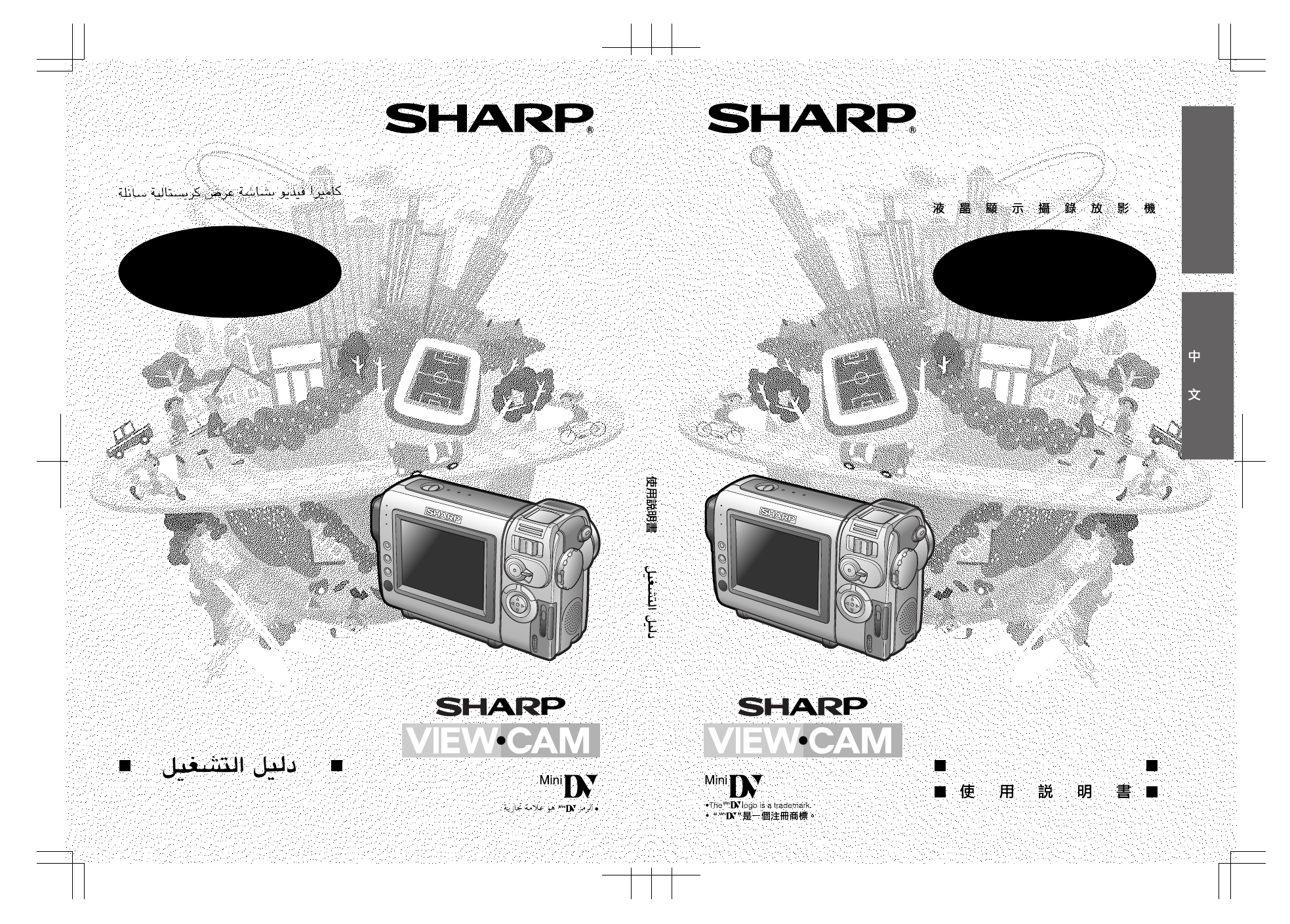
- VL-NZ100E 1
- OPERATION MANUAL 2
- WARNING: 3
- Quick Operation Guide 4
- Volume Control 6
- Lock button 7
- Image file name 7
- Supplied Accessories 8
- Optional Accessories 9
- Precautions 10
- Dew Formation 11
- 4 Remove the cleaning tape 12
- Contents 13
- Digital Still Camera 15
- Features 15
- Appendix 15
- Operation References 16
- On-screen Display Index 19
- Warning Indicators 22
- MEMORY CARD 23
- READ ERROR 23
- Preparation 24
- Extending battery pack life 25
- TAPE modes 25
- Inserting 27
- Removing 27
- Installing 29
- Using the Lens Cap 32
- Tips on Recording 33
- Positions 33
- Basic Operations 34
- To pause recording 35
- To turn the power off 35
- Auto Focus 36
- Macro Shots 36
- Remaining Battery 37
- Power Display 37
- Remaining Recording 37
- Time Display 37
- Searching for a Scene Near 39
- Playback 40
- Useful Features 41
- DGTL ZOOM 43
- WT 25DZOOM 43
- Gamma Brightness 44
- Compensation 44
- To obtain a brighter picture 45
- AU T OAUTO 46
- FAD E OU TOUTFADE 46
- Camera Recording 48
- To return to normal screen 49
- To cancel DIS function 49
- Self Recording 50
- 4 Begin recording 50
- TAPE SPEED 51
- AUD I O MODE 52
- To cancel Gamma Playback 55
- PIC. EFFECT 56
- Advanced Features 57
- EXPOSURE 58
- HITE BAL 59
- PI C. EFFECT 60
- SCENE MENU 61
- Cutting Unwanted Sequences 63
- To Record from an External 64
- ONANLG DGTL 65
- To Record to Video Equipment 66
- To Record from Video Equip 66
- Audio Dubbing Feature 68
- 12-bit audio recording 68
- 16-bit audio recording 68
- Audio Dubbing 69
- If you wish to change the 69
- Digital Still Camera Features 70
- REC MODE 71
- Card Recording 72
- To cancel the protection set 75
- Assigning Print Order to All 79
- System Requirements 80
- Installing the USB driver 80
- Image Folders and File Names 81
- Caution on transferring data 81
- Disconnecting the USB cable 81
- LCD BRI GHT 83
- LCD COLOUR 83
- Available modes: 84
- All modes 84
- Useful Information 85
- DV Technology 86
- SD Memory Card and 86
- MultiMediaCard 86
- Mini DV Cassette 87
- Copyright Protection 87
- SD Memory Card 89
- AC Adapter 89
- Replacing the Fluorescent 89
- Battery Pack 90
- Cleaning 91
- Using Your Camcorder Abroad 91
- D EMO MOD E 92
- Before Requesting Service 93
- Specifications 95
- SHARP CORPORATION 97
Shrnutí obsahu
LIQUID CRYSTAL DISPLAY CAMCORDERVL-NZ100EOPERATION MANUALOPERATION MANUALVL-NZ100E/hyou; 02/2/8/18:00VL-NZ100EVL-NZ100EENGLISH
viiPrecautions• When the camcorder is not in use, remem-ber to remove the cassette tape, turn offthe power, and disconnect the camcorderfrom the powe
viii Dew Formation• What is “dew formation”?When cold water is poured into a glass, dewdrops form on the glass. This clinging ofwater drops is called
ixDirty Video HeadsWhen the video heads have become cloggedwith dirt (dust and tape coating particles),• mosaic-like noise appears on the playbackpic
x ContentsAppendixPreparationUseful FeaturesOperation ReferencesBasic OperationsAdvanced FeaturesDigital Still CameraFeaturesPart Names ...
xiContentsUseful FeaturesStill Recording on Tape ... 33Attaching the Supplied Tripod Adapter ...
xii AppendixPreparationUseful FeaturesOperation ReferencesBasic OperationsAdvanced FeaturesDigital Still CameraFeaturesDigital Still CameraFeaturesCam
Operation ReferencesOperation References 1Operation ReferencesPart NamesFor details on the use of each part, refer to the page number indicated in bra
Operation References2 Rear viewUSB terminal[pp. 65, 66]DV terminal[pp. 50, 51]AV jack[pp. 25,48–50]Media Selectionswitch (TAPE/CARD selectionswitch) [
Operation ReferencesOperation References 3Rear viewBottom viewWrist strap loop[p. 16]Battery release [p. 9]Battery mounting surface[p. 9]Tripod adapte
Operation References4 On-screen Display IndexFor details on the use of each function, refer to the page number indicated.AUTO30minCLOCK SETDISPLAYRETU
Before using the camcorder, please read this operation manual carefully,especially page vii.ENGLISHOPERATION MANUALWARNINGTO PREVENT SHOCKHAZARD, DO N
Operation ReferencesOperation References 5AUTOLCD SETBACKL I GHTLCD BRIGHTLC D COLOURRETURNOTHERSBEEPREMOTERETURNCLOCK SETDISPLAYRETURNLCD SETBACKL I
Operation References6 Manual screensOn-screen indicators on/offEach time you press the MANUAL button, the screenchanges as shown below.Focus setting s
Operation ReferencesOperation References 7Warning IndicatorsIf a warning indicator appears on the screen, follow the specified instructions.Displayed
Operation References8 Note:• N indicates a flashing display.Displayed for5 secondsDescription of warningThe card is not inserted or is inserted improp
PreparationPreparation 9PreparationRemoving1 Make sure that the Power switch is setto OFF.2 Rotate the monitor section of thecamcorder (1), then press
Preparation10 Notes:• Charge the battery pack between 10°C and30°C. The battery pack may not chargeproperly at temperatures too low or too high.• The
PreparationPreparation 11Powering theCamcorder from an ACOutletYou can also power the camcorder from apower outlet by using the supplied AC adapter.Ca
Preparation12 Inserting and Removinga CassetteInserting1 Attach the power source to thecamcorder, then slide the cassettecompartment door release and
PreparationPreparation 13Inserting and Removinga CardYou can use an SD Memory Card or aMultiMediaCard for storing still images.Inserting1 Make sure th
Preparation14 Installing the LithiumBatteryInstallingThe supplied lithium battery is used to store thememory of the date and time settings.1 Slide the
WARNING:This Camcorder must be supplied only with DC 7.4 volts from a BT-L225 or BT-L445 battery or the AC adapter (UADP-0342TAZZ).CAUTION:As there ar
PreparationPreparation 151 Hold down the Lock buttonand set the Power switchto CAMERA.2 Press the MENU button until the menuscreen appears.3 Press the
Preparation16 Changing to the 12-hour TimeMode1 After performing step 8 above, press lor m to select “12H/24H”, then press theSET button.2 Press l or
PreparationPreparation 17Using the Lens CapAttach the strap to the lens cap as shownbelow.Attach the strap of the lens cap to the wriststrap as shown
Preparation18 Tips on RecordingPositionsHolding the camcorderPlace your right thumb close to the REC START/STOP button and Power Zoom control.Place yo
Basic OperationsPlaybackBasic Operations 19Basic OperationsCamera RecordingSelecting the Camcorder ModeThis camcorder includes functions for use as bo
Basic Operations20 Easy Camera Recordingon Tape in Full AutoModeAvailable mode:TAPE-CAMERA• Before you start recording, perform theoperations describe
Basic OperationsCamera RecordingBasic Operations 21ZoomingAvailable modes:TAPE-CAMERA, CARD-CAMERAZooming allows you to move visually closer toor fart
Basic Operations22 Remaining BatteryPower DisplayAvailable modes:All modesWhen using the camcorder with the batterypack as the power source, the remai
Basic OperationsCamera RecordingBasic Operations 23Tape PlaybackAvailable mode:TAPE-VCRThe LCD monitor screen functions as a handyplayback monitor. No
Basic Operations24 Video SearchAvailable mode:TAPE-VCRThe video search function makes it easy tosearch for a desired scene on the tape.Searching for a
iQuick Operation GuidePlease consult this operation manualfurther for details on these and otherfunctions of your camcorder.Attaching the BatteryPack
Basic OperationsPlaybackBasic Operations 25Watching Playback on aTVAvailable modes:TAPE-VCR, CARD-VCRYou can connect the camcorder to a TV toallow a l
Useful Features26 Useful FeaturesUsing the MenuScreensUse the menu screens to adjust the variouscamcorder settings.1 Set to the desiredcamcorder mode(
Useful FeaturesUseful featuresCamera Recording 27Useful FeaturesCamera RecordingDisplaying theRecording GuideAvailable modes:TAPE-CAMERA, CARD-CAMERA•
Useful Features28 Setting the DigitalZoomAvailable modes:TAPE-CAMERA, CARD-CAMERAYou can select three different zoom ranges: 1–10K (optical zoom), 10–
Useful FeaturesUseful featuresCamera Recording 29Gamma BrightnessCompensationAvailable modes:TAPE-CAMERA, CARD-CAMERAWhen the subject is backlit, the
Useful Features30 Gain-upAvailable modes:TAPE-CAMERA, CARD-CAMERAWhen you are recording in a dark or poorlyilluminated location, “LIGHT” is displayed
Useful FeaturesUseful FeaturesCamera Recording 31Fade In and Fade OutAvailable mode:TAPE-CAMERAThe fade function allows you to gradually bringthe imag
Useful Features32 Quick ReturnAvailable mode:TAPE-CAMERAIf while playing back your tape you want toquickly return to the last recorded scene andstart
Useful FeaturesUseful FeaturesCamera Recording 33Still Recording on TapeAvailable mode:TAPE-CAMERAYou can record continuous still images ofsubjects.1
Useful Features34 OFFONDGTL ZOOMTAPEDISSPEED16 9:AUDI O MODERETURNSETT I NG 2ON16 9:Wide Screen (16:9)Available mode:TAPE-CAMERAThe wide screen func
ii Erasure protect tabClipped cornerInserting a Cassette1Attach the power source to thecamcorder, then slide the cassettecompartment door release and
Useful FeaturesUseful FeaturesCamera Recording 35Self RecordingAvailable modes:TAPE-CAMERA, CARD-CAMERARotate the LCD monitor 180° vertically so thatt
Useful Features36 Recording in LP (LongPlay Recording) ModeAvailable mode:TAPE-CAMERAThis camcorder allows you to record in LP(Long Play Recording) mo
Useful FeaturesUseful FeaturesCamera Recording 37Selecting the 16-bitAudio Recording ModeAvailable mode:TAPE-CAMERAThe camcorder normally records audi
Useful Features38 Using the RemoteControlAvailable modes:TAPE-CAMERA, TAPE-VCRUse the remote control to operate thecamcorder from a distance, such as
Useful FeaturesPlaybackUseful Features 39Displaying the Date andTime of RecordingAvailable modes:All modesFollow the procedure below to display the da
Useful Features40 Gamma PlaybackAvailable mode:TAPE-VCRThe gamma playback function improves theplayback picture in TAPE-VCR mode byincreasing the brig
Useful FeaturesPlaybackUseful Features 41Picture Effect PlaybackAvailable modes:TAPE-VCR, CARD-VCRThese picture effects let you play back imageswith a
Advanced Features42 Manual focus indicatorAdvanced FeaturesCamera RecordingManual FocusAvailable modes:TAPE-CAMERA, CARD-CAMERAAuto Focus may not be a
Advanced FeaturesCamera RecordingAdvanced Features 43To return to Auto Exposure modePress the SET button while the exposure settingscreen is displayed
Advanced Features44 White Balance LockAvailable modes:TAPE-CAMERA, CARD-CAMERAThe colour of the subject on the screen looksdifferent depending on ligh
iiiQuick Operation GuideEasy Camera Recordingon Tape1 Insert a cassette into the camcorder.2 Set the Media Selectionswitch to TAPE.3 Hold down the Lo
Advanced FeaturesCamera RecordingAdvanced Features 45Digital Picture EffectsAvailable modes:TAPE-CAMERA, CARD-CAMERAThese digital picture effects let
Advanced Features46 Scene setting indicatorScene Menu(Program AE)Available modes:TAPE-CAMERA, CARD-CAMERAYou can set the camcorder to the shootingmode
Advanced FeaturesPlaybackAdvanced Features 47Using the Time CodeAvailable modes:TAPE-VCR, TAPE-CAMERAThe time code shows the hour, minute andsecond of
Advanced Features48 EditingAvailable mode:TAPE-VCRVideo editing lets you refine your videos byremoving unwanted sequences from your tape,or transposin
Advanced FeaturesPlaybackAdvanced Features 49Recording from anExternal SourceAvailable mode:TAPE-VCRYou can use this camcorder to record or editvideos
Advanced Features50 Using the Camcorder asa ConverterAvailable mode:TAPE-VCRYou can use this camcorder to convert fromanalog signal (e.g. video record
Advanced FeaturesPlaybackAdvanced Features 51Editing with the DVTerminal (IEEE1394)Available mode:TAPE-VCRThis camcorder enables you to perform digita
Advanced Features52 Selecting the AudioPlayback ModeAvailable mode:TAPE-VCRYou can select any of the following audioplayback modes.Audio 1+2• 12-bit r
Advanced FeaturesPlaybackAdvanced Features 53Audio Dubbing FeatureAvailable mode:TAPE-VCRYou can add narration to recordings made withthis camcorder,
Advanced Features54 Audio Dubbing1 Play back the recorded Mini DV cassetteand locate the tape position where youwish to start audio dubbing.2 Press m
iv Lock buttonLock buttonImage file nameCard Recording1Insert a card into the camcorder.2 Set the Media Selectionswitch to CARD.3 Hold down the Lock b
Digital Still Camera FeaturesCard RecordingDigital Still CameraFeatures 55Digital Still Camera FeaturesCamera RecordingCard RecordingAvailable mode:CA
Digital Still CameraFeatures56 Approximate number of record-able images with the suppliedcardSelecting the PictureQualityAvailable mode:CARD-CAMERAThe
Digital Still Camera FeaturesCard RecordingDigital Still CameraFeatures 57Recording with the Self-timerAvailable mode:CARD-CAMERAThe self-timer functi
Digital Still CameraFeatures58 Formatting a CardAvailable mode:CARD-CAMERABefore using a commercially available cardwith this camcorder, you must firs
Digital Still Camera FeaturesPlaybackDigital Still CameraFeatures 59Digital Still Camera FeaturesPlaybackCard PlaybackAvailable mode:CARD-VCRYou can p
Digital Still CameraFeatures60 Delete ProtectionAvailable mode:CARD-VCRYou can prevent your important imagesrecorded on the card from accidental erasu
Digital Still Camera FeaturesPlaybackDigital Still CameraFeatures 61Deleting Stored ImagesAvailable mode:CARD-VCRDeleting One Stored ImageYou can dele
Digital Still CameraFeatures62 Deleting All Stored ImagesYou can delete all stored images on a card inone operation.Notes:• Deleted images cannot be r
Digital Still Camera FeaturesPlaybackDigital Still CameraFeatures 63Print OrderAvailable mode:CARD-VCRThe print order function allows you to add print
Digital Still CameraFeatures64 To cancel the print order for an image1 Select the image for cancelling out ofprint order in step 5 above, then pressth
vSupplied AccessoriesBattery packBT-L225 Power cordAudio/video cable Lens capLens hood Wrist strap Tripod adapterUSB driver USB cableSD Memory Card(8
Digital Still Camera FeaturesPlaybackDigital Still CameraFeatures 65Transferring Data onCard to ComputerUsing the supplied USB cable, you cantransfer
Digital Still CameraFeatures66 Image Folders and File NamesStill images recorded using the camcorder arestored on a card as shown below.DCIM100SHARPDV
Digital Still Camera FeaturesPlaybackDigital Still CameraFeatures 67Slide Show PlaybackAvailable mode:CARD-VCRYou can automatically play back consecut
Appendix68 AppendixPicture/BacklightAdjustmentsAvailable modes:All modesIf the picture is difficult to see due to ambientlight or other factors, adjus
AppendixAppendix 69Turning off theConfirmation SoundAvailable modes:All modesA confirmation sound is made when you turnon or off the Power switch, pre
Appendix70 Position the subject inthe centre.Focus manually when youneed to position thesubject off centre (seepage 42).Light from behind Backlighting
AppendixAppendix 71DV TechnologyDigital video (DV) is a revolutionary technologythat enables recording and playback of highquality images with the use
Appendix72 Mini DV CassettePrecautions when using a Mini DVcassette• Be sure to use only Mini DV cassettes with thei mark.• This camcorder can record
AppendixAppendix 73MultiMediaCardImproper handling of the MultiMediaCard maycause damage to the card or images on thecard. Follow the instructions bel
Appendix74 SD Memory CardPrecautions on handling SD MemoryCards• After removing the card from the camcorder,be sure to immediately store it in the car
vi Optional AccessoriesNote:• Some of these accessories may not be available in selected areas.Standard-lifebattery packBT-L225Extended-lifebattery pa
AppendixAppendix 75Storage• Store the battery pack in a fully dischargedstate.• Store the battery pack in a dry, cool place.• When storing a fully cha
Appendix76 Cleaning• Many plastic parts are used in the camcordercasing. Do not use thinner, benzene or otherstrong chemical cleaners. These may cause
AppendixAppendix 77Demonstration ModeAvailable modes:TAPE-CAMERA, CARD-CAMERAYou can watch a brief demonstration of thespecial camcorder features in D
Appendix78 Before Requesting ServiceBefore calling for service, please check the following troubleshooting table.SymptomNo power.REC START/STOP button
AppendixAppendix 79Notes:• This unit is equipped with a microprocessor. Its performance could be adversely affected by externalelectrical noise or int
Appendix80 SpecificationsCamcorderSignal System: PAL standardRecording System: 2 rotary heads, helical scanning systemCassette: Digital VCR Mini DV vi
NoteVL-NZ100E-E-81(Note) 02.3.28, 9:16 AM81
SHARP CORPORATIONPrinted in JapanTINSLA009WJZZ02P04-JKGVL-NZ100E-E-hyou4 02.3.28, 9:02 AM1
Související produkty a manuály pro Videokamery Sharp VL-NZ100E
 (113 stránky)
 (74 stránky)
(91 stránky)
(127 stránky)
(19 stránky)
(129 stránky)
(74 stránky)
(91 stránky)
(127 stránky)
(19 stránky)
(129 stránky)
 (83 stránky)
(99 stránky)
(83 stránky)
(99 stránky)
 (111 stránky)
(3 stránky)
(92 stránky)
(116 stránky)
(112 stránky)
(2 stránky)
(58 stránky)
(42 stránky)
(139 stránky)
(97 stránky)
(148 stránky)
(117 stránky)
(111 stránky)
(3 stránky)
(92 stránky)
(116 stránky)
(112 stránky)
(2 stránky)
(58 stránky)
(42 stránky)
(139 stránky)
(97 stránky)
(148 stránky)
(117 stránky)
© 2020, manymanuals.cz. Všechna práva vyhrazena. | 0.032 s |
 Manymanuals.com
 Manymanuals.de
 Manymanuals.fr
 Manymanuals.it
 Manymanuals.pl
 Manymanuals.cz
 Manymanuals.es
 Manymanuals-pt.com
Komentáře k této Příručce