Sharp VL-Z7U Uživatelský manuál
Procházejte online nebo si stáhněte Uživatelský manuál pro Videokamery Sharp VL-Z7U. Sharp VL-Z7U User Manual Uživatelská příručka
- Strana / 140
- Tabulka s obsahem
- ŘEŠENÍ PROBLÉMŮ
- KNIHY

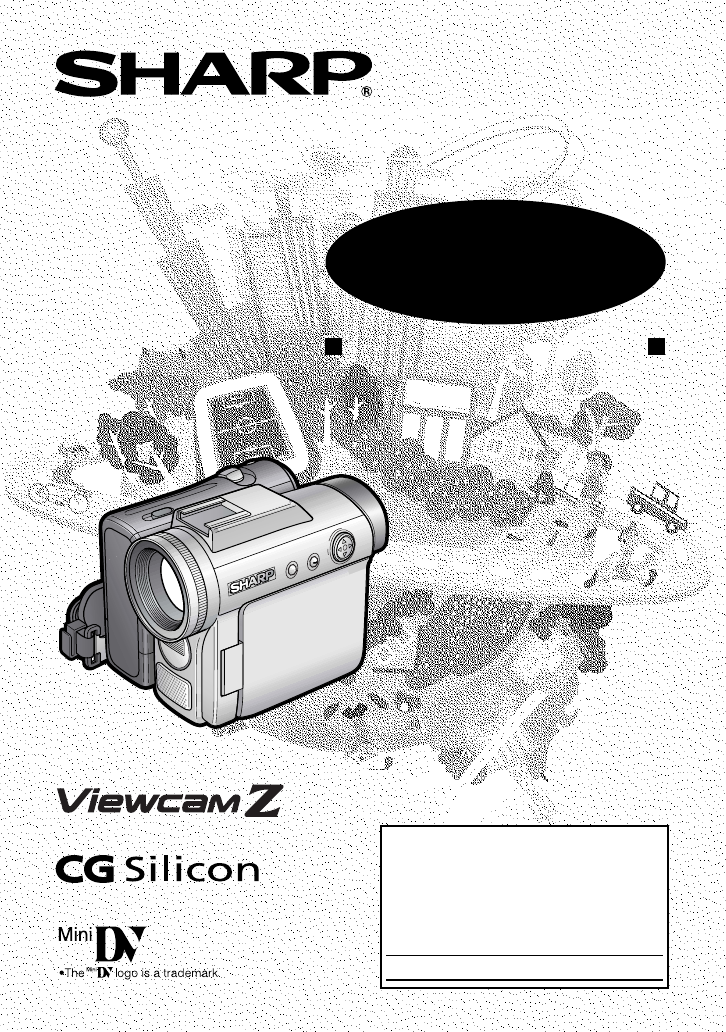
- OPERATION MANUAL 1
- WARNING: 2
- PRODUCT DISPOSAL 3
- BATTERY DISPOSAL 3
- IMPORTANT SAFEGUARDS 5
- Advance Features 9
- Contents 10
- Supplied Accessories 11
- Precautions 12
- Dew Formation 13
- 4 Remove the cleaning tape 14
- Operation References 15
- TAPE END 18
- Preparation 20
- 3 Take the battery pack out 21
- • The POWER/CHARGE (RED) 23
- Inserting 25
- Removing 25
- About the write-protect 25
- Installing the Battery to 27
- Remote Control 27
- 100030 AM 29
- SETT ING 29
- Using the Viewfinder 31
- 2 Hold down the Lock 31
- Detaching the Lens 31
- Using the LCD 33
- 3 Hold down the Lock 33
- Tips on Recording 34
- Positions 34
- Basic Operations 35
- To pause recording 37
- To turn the power off 37
- Power Standby Mode 38
- Turning on/off the 38
- Backlight 38
- Auto Focus 39
- Macro Shots 39
- Remaining Battery 40
- Power Display 40
- Remaining Recording 40
- Time Display 40
- PHONES VOL 43
- L-AUDIO-R(MONO) 44
- Useful Features 45
- 3 0min3 0min 48
- BLC /GAI N ON 49
- Camera Recording 50
- To cancel DIS function 53
- Self Recording 54
- 3 Set the Power switch to v 54
- 4 Begin recording 54
- Self recording with reversed 55
- Recording in LP (Long 57
- Play Recording) Mode 57
- Using the Zoom 58
- Microphone (Optional 58
- Accessory) 58
- TELEZOOM MIC 59
- Tape Playback 62
- Functions with the 62
- 1 During Tape Playback, press 62
- 2 Press the h (or j) 62
- DATE DISP. DATE 63
- To cancel Rotate Playback 65
- Advanced Features 67
- LOCK MODE 69
- HITE BAL 69
- Example of use 71
- SCENE MENU 73
- Cutting Unwanted Se 75
- Recording from an 76
- External Source 76
- To Record from an External 77
- Editing with the DV 78
- Terminal (IEEE1394) 78
- To Record from Video Equip 79
- Audio Dubbing 82
- If you wish to change the 83
- Selecting the Image Size 86
- Selecting the Flash 88
- CORRECTRED EYE 89
- Recording with the 90
- Self-timer 90
- Playback Zoom 94
- To cancel the protection 95
- Deleting All Stored Images 97
- Assigning Print Order to All 99
- 1 Turn on the PC 100
- To USB terminal 101
- USB cable (supplied) 101
- Digital Still Camera Features 102
- Playback 102
- To stop slide show playback 103
- Appendix 104
- Adjusting the Backlight 105
- Setting the 107
- Camcorder to 107
- Factory Presettings 107
- Useful Information 109
- Mini DV Cassette 110
- Erasure protect tab 110
- Copyright Protection 110
- SD\ Memory Card and 111
- MultiMediaCard\ 111
- Removable Storage Care 111
- AC Adapter 113
- Replacing the Fluorescent 113
- Cleaning 113
- Troubleshooting 115
- Specifications 119
- On-screen Display Index 120
- Tape Playback mode 121
- Card Playback mode 123
- PRECAUCION 124
- PARA IMPEDIR DESCARGAS 125
- ELÉCTRICAS, INTRODUZCA LA 125
- PATILLA ANCH 125
- (se aplica al adaptador de CA 125
- Precauciones 126
- Guía de operación rápida 130
- Inserción de un 131
- Inserción de una 132
- Sugerencias sobre 135
- AU T OAUTO 136
- Control de volumen 137
- Printed in Japan 140
- TINSEA044WJZZ 140
- 03P02-JWG 140
Shrnutí obsahu
LIQUID CRYSTAL DISPLAY CAMCORDEROPERATION MANUALMODELVL-Z7UImportantModel No.: Serial No.:Please read this operation manual carefully before using the
xAdvanced FeaturesPlaybackUsing the Time Code ...60Editing ...
86Digital Still Camera FeaturesPlaybackDigital Still Camera FeaturesTransferring Data on Card to ComputerUsing the supplied USB cable, you can transf
87Digital Still Camera Features3 Click the “USB driver” button.• Welcome screen appears.4 Click the “Next” button.• Information screen appears5 Click
88Digital Still Camera FeaturesPlaybackDigital Still Camera FeaturesSerial number(100 to 999)Sub-folder of stillimagesFolder of still image filesStil
89Digital Still Camera FeaturesSlide Show PlaybackAvailable mode:Card PlaybackYou can automatically play back consecu-tive still images recorded on a
90AppendixAppendixDarkerBrighterDecreaseDarkerIncreaseBrighter–+–+–+LCD BRIGHTLCD COLORVF BRIGHT6 Press j or k to adjust the item tothe desired settin
91AppendixAdjusting the Backlight1 Press the DISPLAY button until themode screen appears.2 Press l or m on the Operationbutton to select “MENU”, then
92AppendixAppendixInformation displayOTHERS 1BEEPREMOTEDEFAULTLANGUAGERETURNENGL I SHFRANÇAISESPAÑOLPHONES VOLDEMO MODELANGUEFRANÇAISAU TO4002.203MA:0
93AppendixSetting theCamcorder toFactory PresettingsAvailable modes:All modesYou can set the camcorder to the factorypresettings in one operation.• Th
94AppendixAppendixDemonstration ModeAvailable modes:Tape Camera, Card CameraYou can watch a brief demonstration of thespecial camcorder features in De
95AppendixPosition thesubject in thecenter.Focus manually whenyou need to positionthe subject off center(see page 53).Useful InformationHints for Bett
xiSupplied AccessoriesBattery packBT-L226U*AC adapterUADP-0339TAZZ*Audio/video/S-videocableQCNW-B173WJZZCR2025 typelithium batteryfor remote controlCR
96AppendixAppendixMini DV CassettePrecautions when using a Mini DVcassette• Be sure to use only Mini DV cassettes withthe i mark.• This camcorder can
97AppendixSD\ Memory Card andMultiMediaCard\SD (Secure Digital) Memory Cards andMultiMediaCards are small, handy and flexiblestorage media used in a v
98AppendixAppendixBattery PackThis camcorder uses a lithium-ion typebattery pack.Charging• Charge the battery pack immediately (or aday) before use. T
99AppendixWindow cleaning coverAC Adapter• The AC adapter may interfere withreception if used near a radio.• Prevent flammables, liquids, and metalobj
100AppendixAppendixA commercially availableAC plug adaptorAC 110–240 VUsing Your CamcorderAbroadTelevision signal standards and electricalvoltages and
101AppendixTroubleshootingBefore calling for service, please check the following troubleshooting table.SymptomNo power.Start/Stop buttondoes not work.
102AppendixAppendixSymptomNo image appearson connected TVscreen.No image from an ex-ternal source ap-pears on thecamcorder screen.Cannot rewind or fas
103AppendixSymptomCannot delete imageon card.Cannot format card.Battery pack is easilydepleted.Clock has been re-set.Cassette will noteject.No image o
104AppendixAppendixNotes:• This unit is equipped with a microprocessor. Its performance could be adversely affected byexternal electrical noise or int
105AppendixSpecificationsCamcorderSignal System: NTSC standardRecording System: 2 rotary heads, helical scanning systemCassette: Digital VCR Mini DV v
xiiPrecautions• Before recording an important scene,please perform the recording test, thenplayback to check if the scene was re-corded properly. If n
106AppendixAppendixOn-screen Display IndexAU TOAUTO4002.203MA:01JUN.3 0minAUTOAU TOAUTO3 0minAUTOSELECTSETBLC GAIN/OFFFADEMENUSCENEMENUFADEMENUSCENEME
107AppendixDISP.DUBEFFECT4002.203MA:01JUN.SELECT SETOFFOTHERS 1BEEPREMOTEDEFAULTRETURNLCD SETBACKL I GHTLCD BRI GHTLCD COLORRETURNVF BRIGHTDATE D I SP
108AppendixAppendixAU TOAUTO4002.203MA:01JUN.AUTOAU TOAUTOAUTOSELECT SETOFFMENUSCENEMENUSELF T IMERMENUSCENEMENUMANUALSELF T IMERSETFOCUSAUTO FOCUSDAT
109AppendixSELECT SETEXECUTELCD SETBACKL I GHTLCD BRI GHTLCD COLORRETURNVF BRIGHT0821][/0110OTHERSBEEPREMOTEDEFAULTRETURN0100-002/2PAGENORMAL1FULLSELE
110Guía de operación rápidaPRECAUCIONRIESGO DE SACUDIDA ELÉCTRICA. NO ABRIR.Información importante para losconsumidores de los EE.UU.ADVERTENCIA: PARA
111PRECAUCIONPARA IMPEDIR DESCARGASELÉCTRICAS, INTRODUZCA LAPATILLA ANCHA EN LA RANURAANCHA, E INTRODUZCACOMPLETAMENTE LA CLAVIJA.(se aplica al adapta
112• Antes de grabar una escena importante,realice una prueba de grabación, y luegoreproduzca para comprobar si la escenase grabó correctamente. Si se
113siguiendo las instrucciones delfabricante, y utilizando los accesoriosde montaje recomendado por él.9. La combinacióndel producto y uncarrito deber
11412. Puesta a tierra o polarización—Esteproducto puede estar equipado conuna clavija de alimentación decorriente alterna polarizada (unaclavija con
11519. Daños que requieren serreparados—Desenchufe esteproducto de la toma de corriente ysolicite las reparaciones al personalde servicio cualificado
xiiiDew Formation• What is “dew formation”?When cold water is poured into a glass,dew drops form on the glass. This clingingof water drops is called d
116Guía de operación rápida90˚Colocación de labatería1Asegúrese de que elinterruptor dealimentación esté enOFF.2 Abra el monitor LCD de manera queform
117SAVERECInserción de uncasete1 Coloque la fuente de alimentación enla videocámara, y luego deslice ysujete el dispositivo de abertura de lapuerta de
118Guía de operación rápidaInserción de unatarjetaPara almacenar imágenes fijas podráutilizar una tarjeta de memoria SD(suministrado) o una tarjeta Mu
119Ajuste de la correapara la mano1Abra la solapa de la correa para lamano (1) y la correa de empuñadura(2).2 Afloje la correa de empuñadura, pasesu m
120Guía de operación rápidaUtilización del visor1Saque completamente el visor.2 Mantenga pulsado elbotón de bloqueo yponga el interruptor dealimentaci
121Sugerencias sobrelas posiciones degrabaciónPara crear imágenes que puedan verse fácilmente durante la reproducción, intente grabarcon una postura e
122Guía de operación rápidaGrabación fácil conla videocámara enuna cinta1Inserte un casete en la videocámara.2 Ponga el conmutadorselector de medio en
123Reproducción decinta1Ponga el conmutadorselector de medio en V.2 Mantenga pulsado elbotón de bloqueo yponga el interruptor dealimentación en w.3 Pu
124Guía de operación rápidaGrabación con tarjeta1Inserte una tarjeta en la videocámara.2 Ponga el conmutador selector demedio en u.3 Mantenga pulsado
125Reproducción detarjeta1Ponga el conmutador selector demedio en u.2 Mantenga pulsado el botón debloqueo y ponga el interruptor dealimentación en w.•
xivDirty Video HeadsWhen the video heads have becomeclogged with dirt (dust and tape coatingparticles),• mosaic-like noise appears on theplayback pict
Valid for warranty service in the U.S. onlyCONSUMER LIMITED WARRANTYSHARP ELECTRONICS CORPORATION warrants to the first consumer purchaser that this S
1Operation ReferencesOperation ReferencesPart NamesFor details on the use of each part, refer to the page number indicated inparentheses.Front viewZoo
2Operation ReferencesOperation ReferencesLithium battery cover (p. 12)Tripod socket*Card slot cover (p. 11)Left viewDiopter adjustment dial (p. 18)Bat
3Operation ReferencesViewfinder (pp. 17, 18)Power Zoom Wide angle/Telephoto control (p. 23)/VOLume control (p. 28)Media Selectionswitch (V Tapemode/u
4Operation ReferencesOperation ReferencesWarning IndicatorsIf a warning indicator appears on the screen, follow the specified instructions.Displayed f
5Operation ReferencesNote:• N indicates a flashing display.Displayed for5 secondsDescription of warningThe card is not inserted or is inserted imprope
iiThank you for purchasing this camcorder from SHARP.The camcorder will enhance your home video enjoyment and allow you tocapture those special moment
6PreparationPreparationPreparationAttaching andRemoving the BatteryPackAttaching1 Make sure that the Powerswitch is set to OFF.2 Open the LCD monitor
7PreparationRemoving1 Make sure that the Power switch isset to OFF, then open the LCDmonitor to a 90° angle to thecamcorder body.90˚2 Slide the batter
8PreparationPreparationCharging the BatteryPack1Attach the battery pack on thecamcorder, and make sure that thePower switch is set to OFF.2 Open the D
9PreparationPowering theCamcorder from anAC OutletYou can also power the camcorder from apower outlet by using the supplied ACadapter.Note:• The suppl
10PreparationPreparationInserting andRemoving a CassetteInserting1 Attach the power source to thecamcorder, then slide and hold thecassette compartmen
11PreparationInserting andRemoving a CardYou can use an SD Memory Card (supplied)or a MultiMediaCard (commerciallyavailable) for storing still images.
12PreparationPreparationInstalling the LithiumBatteriesInstalling the Memory BatteryThe supplied CR 1216 type lithium battery isused to store the memo
13PreparationInstalling the Battery toRemote ControlThe supplied CR 2025 type lithiumbattery is used to power the remotecontrol unit.1 Hold the remote
14PreparationPreparation4 Press m or l to select “EXECUTE”,then press the center of the Operationbutton.5 Press the center of the Operationbutton.6 Pr
15PreparationChanging to the 24-hourTime Mode1 After performing step 10 above, pressl or m to select “12H/24H”, thenpress the center of the Operationb
iiiPRODUCT DISPOSALThis Product utilizes tin-lead solder, and a fluorescent lamp containing asmall amount of mercury. Disposal of these materials may
16PreparationPreparationAdjusting the HandStrap1Open the hand strap flap (1) and gripstrap (2).2 Loosen the grip strap, pass your righthand through th
17PreparationUsing the ViewfinderYou can record the subject using theelectronic viewfinder. You can also watchplayback through the viewfinder.1 Pull o
18PreparationPreparationClosing the viewfinderPush in the viewfinder completely.Notes:• Do not use excessive force when movingthe viewfinder.• Do not
19PreparationUsing the LCDMonitorYou can use the LCD monitor to play backrecordings that you have made or to watchthe subject during recording.1 Open
20PreparationPreparationTips on RecordingPositionsTurn the LCDmonitor so that thescreen facesupward.Balance yourweight on bothlegs.Turn the LCDmonitor
21Basic OperationsBasic OperationsCamera RecordingSelecting the Camcorder ModeThis camcorder includes functions for use as both avideo camera for reco
22Basic OperationsBasic OperationsCamera RecordingEasy CameraRecording on Tape inFull Auto ModeAvailable mode:Tape Camera• Before you start recording,
23Basic OperationsPAUSETo pause recordingPress the Start/Stop button again. Record-ing pauses, and the camcorder entersRecording Standby mode.To turn
24Basic OperationsBasic OperationsCamera RecordingPower Standby ModeAvailable mode:Tape CameraPower Standby mode allows you to preventaccidental recor
25Basic OperationsAuto FocusAvailable modes:Tape Camera, Card CameraThe camcorder is preset to Auto Focusmode, which is designed to focus on mosttypes
ivWARNINGCFCC Regulations state that any unauthorized changesor modifications to this equipment not expressly approved by the manu-facturer could void
26Basic OperationsBasic OperationsCamera Recording30minRemaining BatteryPower DisplayAvailable modes:All modesWhen using the camcorder with the batter
27Basic OperationsNote:• If you press the Start/Stop button in TapePlayback mode, the “g” mark appears andthe camcorder enters Recording Standbymode.
Basic OperationsPlayback28Basic OperationsVOLUMEVideo SearchAvailable mode:Tape PlaybackThe video search function makes it easy tosearch for a desired
29Basic OperationsOTHERS 1ENGL I SHEXECUTEONONOFF–+BEEPREMOTEDEFAULTPHONES VOLDEMO MODELANGUAGERETURN–+PHONES VOLUsing Earphones(CommerciallyAvailable
Basic OperationsPlayback30Basic OperationsWatching Playbackon a TVAvailable modes:Tape Playback, Card PlaybackYou can connect the camcorder to a TV to
31Useful FeaturesOperation buttonMedia Selection switchDISPLAY buttonPower switchInformationdisplay onMode screenInformationdisplay offExampleExampleU
32Useful FeaturesUseful FeaturesDISPLAY buttonOperation buttonMedia Selection switchPower switchExampleExampleExampleUsing the Menu ScreensUse the men
33Useful FeaturesPower ZoomcontrolDigital zoom indicatorUseful FeaturesCamera Recording5Press l or m to select “DGTLZOOM”, then press the center of th
34Useful FeaturesCamera RecordingUseful FeaturesBacklightCompensation (BLC)Available modes:Tape Camera, Card CameraWhen the subject is backlit, the im
35Useful FeaturesGain-upAvailable modes:Tape Camera, Card CameraWhen you are recording in a dark or poorlyilluminated location, “LIGHT” is displayedon
v9. A product andcart combinationshould bemoved with care.Quick stops,excessive force,and unevensurfaces may cause the productand cart combination to
36Useful FeaturesCamera RecordingUseful FeaturesFade In and Fade OutAvailable mode:Tape CameraThe fade function allows you to graduallybring the image
37Useful FeaturesQuick ReturnAvailable mode:Tape CameraIf while playing back your tape you want toquickly return to the last recorded sceneand start r
38Useful FeaturesCamera RecordingUseful FeaturesStill Recording onTapeAvailable mode:Tape CameraYou can record continuous still images ofsubjects.1 Se
39Useful FeaturesDigital ImageStabilization (DIS)Available mode:Tape CameraThe digital image stabilization (DIS) functionallows you to stabilize the i
40Useful FeaturesCamera RecordingUseful FeaturesSelf RecordingNormal self recordingAvailable modes:Tape Camera, Card CameraOpen the LCD monitor and ro
41Useful FeaturesSelf recording with reversedgripAvailable mode:Tape CameraRotate the grip 90° and the LCD monitor180° vertically so that you can reco
42Useful FeaturesCamera RecordingUseful FeaturesWide Screen (16:9)Available mode:Tape CameraThe wide screen function lets you recordscenes with the wi
43Useful FeaturesRecording in LP (LongPlay Recording) ModeAvailable mode:Tape CameraThis camcorder allows you to record in LP(Long Play Recording) mod
44Useful FeaturesCamera RecordingUseful FeaturesUsing the ZoomMicrophone (OptionalAccessory)Available mode:Tape CameraWith the optional zoom microphon
45Useful FeaturesWindbreakAvailable mode:Tape CameraThe windbreak function allows you toreduce annoying noise from strong windswhen recording.1 In Tap
vi12. Grounding or PolarizationCThisproduct may be equipped with apolarized alternating-current lineplug (a plug having one bladewider than the other)
46Useful FeaturesCamera RecordingUseful FeaturesSelecting the 16-bitAudio RecordingModeAvailable mode:Tape CameraThe camcorder normally records audio
47Useful FeaturesUsing the RemoteControlAvailable modes:All modesUse the remote control to operate thecamcorder from a distance, such as whenyou want
48Useful FeaturesPlaybackUseful FeaturesTape PlaybackFunctions with theRemote ControlAvailable mode:Tape PlaybackYou can use the following playbackfun
49Useful FeaturesSelecting the Dateand Time ofRecording DisplayAvailable modes:All modesFollow the procedure below to select thedate, or both the date
50Useful FeaturesPlaybackUseful FeaturesPicture EffectPlaybackAvailable modes:Tape Playback, Card PlaybackThese picture effects let you play backimage
51Useful FeaturesRotate PlaybackAvailable mode:Tape PlaybackThis function allows you to play backimages rotated 180°.1 In Tape Playback mode, press th
52Useful FeaturesPlaybackUseful FeaturesCopying an Imagefrom Tape to CardAvailable mode:Tape PlaybackYou can capture your favorite image framefrom a v
53Advanced FeaturesPower Zoom controlOperation buttonDISPLAY buttonManual focus indicatorManual FocusAvailable modes:Tape Camera, Card CameraAuto Focu
54Advanced FeaturesCamera RecordingAdvanced FeaturesDisplaying the ManualSetting ScreenAvailable modes:Tape Camera, Card CameraYou can manually adjust
55Advanced FeaturesWhite paper or white clothWhite Balance LockAvailable modes:Tape Camera, Card CameraThe color of the subject on the screen looksdif
vii19. Damage RequiringServiceCUnplug this product fromthe wall outlet and refer servicingto qualified service personnelunder the following conditions
56Advanced FeaturesCamera RecordingAdvanced FeaturesManual IrisAvailable modes:Tape Camera, Card CameraThe camcorder is preset to Auto Iris mode,which
57Advanced FeaturesManual GainAvailable modes:Tape Camera, Card CameraWhen recording in a dark or poorlyilluminated location with Auto Gain mode,the l
58Advanced FeaturesCamera RecordingAdvanced FeaturesSetting theCamcorder to FullAuto ModeAvailable modes:Tape Camera, Card CameraYou can set all manua
59Advanced FeaturesScene setting indicatorScene Menu(Program AE)Available modes:Tape Camera, Card CameraYou can set the camcorder to a shootingmode th
60Advanced FeaturesPlaybackAdvanced FeaturesUsing the Time CodeAvailable modes:Tape Camera, Tape PlaybackThe time code shows the hour, minute andsecon
61Advanced FeaturesEditingAvailable mode:Tape PlaybackVideo editing lets you refine your videos byremoving unwanted sequences from yourtape, or transp
62Advanced FeaturesPlaybackAdvanced FeaturesRecording from anExternal SourceAvailable mode:Tape PlaybackYou can use this camcorder to record oredit vi
63Advanced FeaturesTo Record from an ExternalSource1 In Tape Playback mode, press theDISPLAY button until the modescreen appears.2 Select “MENU”, then
64Advanced FeaturesPlaybackAdvanced FeaturesEditing with the DVTerminal (IEEE1394)Available mode:Tape PlaybackThis camcorder can be used as a digitalv
65Advanced FeaturesTo Record from Video Equip-ment1 Set the camcorder to Tape Playbackmode, and insert a Mini DV cassette.2 Begin playback on the vide
viiiPart Names ... 1Warning Indicators ...4Op
66Advanced FeaturesPlaybackAdvanced FeaturesAV-OUTVIDEOS-VIDEOL-AUDIO-R(MONO):Using the Camcorderas a ConverterAvailable mode:Tape PlaybackYou can use
67Advanced Features7 Press the DISPLAY button to turn offthe menu screen.8 Press the Play button on the analogequipment• Check the monitor on the digi
68Advanced FeaturesPlaybackAdvanced FeaturesAudio DubbingFeatureAvailable mode:Tape PlaybackYou can add narration to recordings madewith this camcorde
69Advanced FeaturesAudio Dubbing1 Play back the Mini DV cassetterecorded in SP mode and locate thetape position where you wish to startaudio dubbing.2
70Advanced FeaturesPlaybackAdvanced FeaturesSelecting the AudioPlayback ModeAvailable mode:Tape PlaybackYou can select any of the following audioplayb
71Digital Still Camera FeaturesLock buttonApproximate number of record-able images with the supplied 8MB SD memory cardSelecting the PictureQuality an
72Digital Still Camera FeaturesCamera RecordingDigital Still Camera FeaturesPicture quality indicatorImage size indicator3 Press l or m to select Y,
73Digital Still Camera FeaturesNumber of shots taken/remainingPower switchMedia Selection switchPHOTO buttonLock buttonPower Zoom controlCard Recordin
74Digital Still Camera FeaturesCamera RecordingDigital Still Camera FeaturesFlash indicatorFlash sensorFlashSelecting the FlashModeAvailable mode:Car
75Digital Still Camera FeaturesRed-eye indicatorRed-eye ReductionAvailable mode:Card CameraRed-eye reduction allows you to minimizethe camera flash ca
ixUseful FeaturesControl Buttons ...31Using the Mode Screens ...
76Digital Still Camera FeaturesCamera RecordingDigital Still Camera FeaturesSelf-timer operating indicatorRecording with theSelf-timerAvailable mode:
77Digital Still Camera FeaturesSELECTFORMATALL DATABENOYESERASED.WI LLSETFormatting a CardAvailable mode:Card CameraBefore using a commercially availa
78Digital Still Camera FeaturesCamera RecordingDigital Still Camera FeaturesSetting the FileNumbering MethodAvailable mode:Card CameraThe camcorder a
79Digital Still Camera FeaturesPlayback image number/number of recordingsLock buttonPage number/total thumbnail pagesMedia Selection switchOperation b
80Digital Still Camera FeaturesPlaybackDigital Still Camera FeaturesZOOM buttonPlayback zoom indicatorPlayback ZoomAvailable mode:Card PlaybackThe pl
81Digital Still Camera FeaturesDelete protection indicatorPROTECT indicatorDelete ProtectionAvailable mode:Card PlaybackYou can prevent your important
82Digital Still Camera FeaturesPlaybackDigital Still Camera FeaturesDELETE indicatorDeleting StoredImagesAvailable mode:Card PlaybackDeleting One Sto
83Digital Still Camera FeaturesDELETE ALL? indicatorDeleting All Stored ImagesYou can delete all stored images on a cardin one operation.Notes:• Delet
84Digital Still Camera FeaturesPlaybackDigital Still Camera FeaturesNumber of printoutsPRINT indicatorM indicatorPrint OrderAvailable mode:Card Playb
85Digital Still Camera FeaturesM indicatorTo cancel the print order for an image1 Select the image for canceling out ofprint order in step 6 above, th
Související produkty a manuály pro Videokamery Sharp VL-Z7U
 (123 stránky)
(76 stránky)
(92 stránky)
(103 stránky)
(72 stránky)
(88 stránky)
(84 stránky)
(112 stránky)
(72 stránky)
(111 stránky)
(63 stránky)
(124 stránky)
(123 stránky)
(76 stránky)
(92 stránky)
(103 stránky)
(72 stránky)
(88 stránky)
(84 stránky)
(112 stránky)
(72 stránky)
(111 stránky)
(63 stránky)
(124 stránky)
 (128 stránky)
(120 stránky)
(53 stránky)
(132 stránky)
(120 stránky)
(124 stránky)
(96 stránky)
(128 stránky)
(120 stránky)
(53 stránky)
(132 stránky)
(120 stránky)
(124 stránky)
(96 stránky)
© 2020, manymanuals.cz. Všechna práva vyhrazena. | 0.035 s |
 Manymanuals.com
 Manymanuals.de
 Manymanuals.fr
 Manymanuals.it
 Manymanuals.pl
 Manymanuals.cz
 Manymanuals.es
 Manymanuals-pt.com
Komentáře k této Příručce