Sharp VL-NZ150U Uživatelský manuál
Procházejte online nebo si stáhněte Uživatelský manuál pro Videokamery Sharp VL-NZ150U. Sharp VL-NZ150U User Manual Uživatelská příručka
- Strana / 112
- Tabulka s obsahem
- KNIHY
Hodnocené. / 5. Na základě hodnocení zákazníků

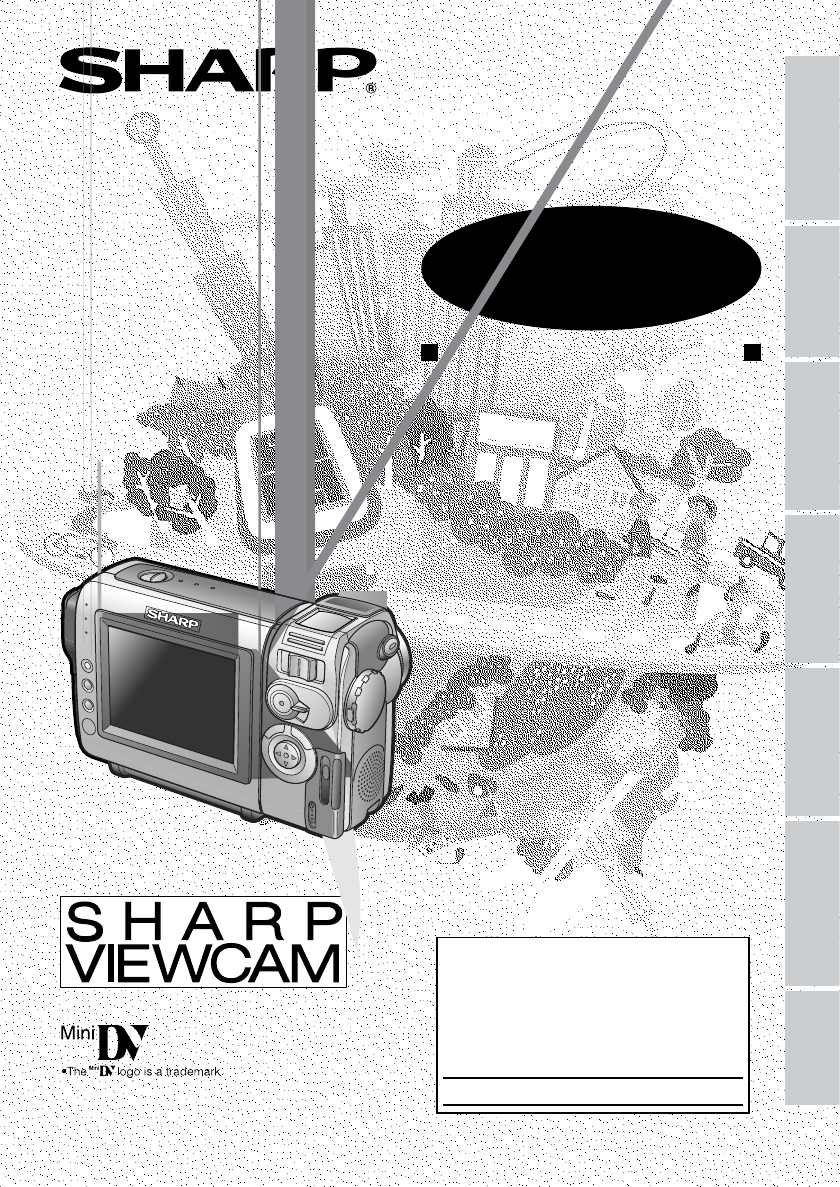
LIQUID CRYSTAL DISPLAY CAMCORDER
OPERATION MANUAL
MODEL
VL-NZ100U
VL-NZ150U
Important
Model No.:
Serial No.:
Please read this operation manual
carefully before using the camcorder.
For assistance in reporting the theft or
loss of
this product, record on the line
below the
model number and serial number which
are located on the bottom of the unit.
Please retain this information.
• See page 79 for use of Demo mode.
Appendix
Preparation
Useful Features
Operation References
Basic Operations
Advanced Features
Digital Still Camera
Features
- VL-NZ100U 1
- VL-NZ150U 1
- CAUTION: 2
- IMPORTANT SAFEGUARDS 4
- Quick Operation Guide 6
- Inserting a Cassette 7
- Volume Control 8
- Lock button 9
- Image file name 9
- Supplied Accessories 10
- Optional Accessories 11
- Precautions 12
- Contents 13
- Digital Still Camera 15
- Features 15
- Appendix 15
- Operation References 16
- On-screen Display Index 19
- Manual screens 21
- On-screen indicators on/off 21
- Displayed for 23
- 5 seconds 23
- Description of warning 23
- Preparation 24
- Charging the Battery 25
- Inserting 27
- Removing 27
- Installing 29
- Changing 30
- (10:30 AM) 31
- Changing to the 24-hour Time 32
- Tips on Recording 33
- Positions 33
- Basic Operations 34
- To pause recording 35
- To turn the power off 35
- Auto Focus 36
- Macro Shots 36
- Remaining Battery 37
- Power Display 37
- Searching for a Scene Near 39
- Playback 40
- DGTL ZOOM 41
- Useful features 42
- Camera Recording 42
- Selecting the recording guide 42
- WT25DZOOM 43
- Gamma Brightness 44
- Compensation 44
- To obtain a brighter picture 45
- Useful Features 46
- To use Fade Out only 46
- Still Recording on Tape 48
- 2 In Recording Standby mode 48
- 3 Press the REC START/ 48
- To return to normal screen 49
- To cancel DIS function 49
- Self Recording 50
- 4 Begin recording 50
- TAPE SPEED 51
- AUD IO MODE 52
- To cancel Gamma Playback 55
- PIC. EFFECT 56
- Advanced Features 57
- Manual Exposure 58
- White Balance Lock 59
- SCENE MENU 61
- TIME CODE 62
- Cutting Unwanted Sequences 63
- To Record from an External 64
- To Record to Video Equipment 66
- To Record from Video Equip 66
- AUDI OAUDIO 67
- Audio Dubbing Feature 68
- Audio Dubbing 69
- If you wish to change the 69
- Digital Still Camera Features 70
- REC MODE 71
- Card Recording 72
- Available Operations during 74
- Full-screen Display 74
- To cancel the protection set 75
- Deleting One Stored Image 76
- Deleting All Stored Images 77
- Assigning Print Order to an 78
- Assigning Print Order to All 79
- Transferring Data on 80
- Card to Computer 80
- Image Folders and File Names 81
- Caution on transferring data 81
- Disconnecting the USB cable 81
- BACKL IGHT 83
- Useful Information 85
- DV Technology 86
- SD Memory Card and 86
- MultiMediaCard 86
- Mini DV Cassette 87
- Copyright Protection 87
- SD Memory Card 89
- AC Adapter 89
- Replacing the Fluorescent 89
- Battery Pack 90
- Dew Formation 91
- Plastic bag 91
- 4 Remove the cleaning tape 92
- Cleaning 93
- Using Your Camcorder Abroad 93
- A commercially available 93
- AC plug adaptor 93
- AC 110–240 V 93
- DEMO MOD E 94
- Before Requesting Service 95
- Specifications 97
- PRECAUCION 98
- Guía de operación rápida 102
- Empleo del zoon 104
- Control de volumen 104
- Modo TAPE-CAMERA 106
- Modo TAPE-VCR 106
- Mode TAPE-VCR 108
- Mode TAPE-CAMERA 108
- OR CALL 1-800-BE-SHARP 112
- SHARP ELECTRONICS CORPORATION 112
- SHARP CORPORATION 112
Shrnutí obsahu
Strany 1 - VL-NZ150U
LIQUID CRYSTAL DISPLAY CAMCORDEROPERATION MANUALMODELVL-NZ100UVL-NZ150UImportantModel No.: Serial No.:Please read this operation manual carefully befo
Strany 2 - CAUTION:
ixSupplied AccessoriesStandard-lifebattery packBT-L225n*AC adapterUADP-0339TAZZ*Audio/video cableQCNW-1979TAZZLens capGCOVH1296TASALens hoodGCOVA1870T
Strany 3
85por lo tanto, éstas no deberán taparse. Lasaberturas no deberán taparse nuncacolocando el producto en una cama, sofá,alfombra u otras superficies si
Strany 4 - IMPORTANT SAFEGUARDS
86Notas acerca de la utilización de lapila de litioCAMBIE SÓLO LA PILA POR OTRA DEL TIPOCR2025 FABRICADA POR TOSHIBA,MATSUSHITA O HITACHI MAXELL. LAUT
Strany 5
87Interruptor de alimentaciónIndicador de cargaA una tomade corrienteToma de entrada de CCGuía de operación rápida
Strany 6 - Quick Operation Guide
88Control de abertura de lapuerta del compartimientodel caseteLengüeta de protección contra borradoControl de abertura de lacubierta de la ranura de t
Strany 7 - Inserting a Cassette
89Interruptor de alimentaciónBotón RECSTART/STOPControl de zoom motorizado/control de volumenBotón de operaciónBotón SETConmutador selector de medioBo
Strany 8 - Volume Control
90Número de tomas realizadas/restantesBotón debloqueoBotón debloqueoNúmero de página/páginas totalesde imágenes miniaturaNombre de archivo de imágenes
Strany 9 - Image file name
91Cuando se selecciona “ESPAÑOL” como idioma de la visualización en pantalla aparecen lassiguientes visualizaciones indicadas a continuación.Visualiza
Strany 11 - Optional Accessories
93Les affichages sur écran suivants apparaissent lorsque “FRANÇAIS” est sélectionné pour lalangue de l’affichage.Affichages sur écran en françaisAUTO3
Strany 12 - Precautions
94AUTONORMALCARTE/018070189
Strany 13 - Contents
xOptional AccessoriesNote:• The listed model names are for U.S. accessories.For optional and additional accessories, contact your local dealer, call t
Strany 14
Note
Strany 16 - Operation References
Valid for warranty service in the U.S. onlyCONSUMER LIMITED WARRANTYSHARP ELECTRONICS CORPORATION warrants to the first consumer purchaser that this S
Strany 17
xiPrecautions• When the camcorder is not in use, remem-ber to remove the cassette tape, turn offthe power, and disconnect the camcorderfrom the power
Strany 18
xiiPart Names ... 1On-screen Display Index ...
Strany 19 - On-screen Display Index
xiiiUseful FeaturesStill Recording on Tape ... 33Attaching the Supplied Tripod Adapter ...
Strany 20
xivAppendixPreparationUseful FeaturesOperation ReferencesBasic OperationsAdvanced FeaturesDigital Still CameraFeaturesDigital Still CameraFeaturesCame
Strany 21 - On-screen indicators on/off
Operation ReferencesOperation References1Operation ReferencesPart NamesFor details on the use of each part, refer to the page number indicated in brac
Strany 22
Operation References2Rear viewUSB terminal[pp. 65, 66]DV terminal[pp. 50, 51]AV jack[pp. 25, 48-50]Media Selectionswitch (TAPE/CARD selectionswitch) [
Strany 23 - Description of warning
Operation ReferencesOperation References3Rear viewBottom view
Strany 24 - Preparation
Operation References4On-screen Display IndexFor details on the use of each function, refer to the page number indicated.AUTO30minCLOCK SETDISPLAYRETUR
Strany 25 - Charging the Battery
iThank you for purchasing this camcorder from SHARP.The camcorder will enhance your home video enjoyment and allow you to capture thosespecial moments
Strany 26
Operation ReferencesOperation References5
Strany 27 - Removing
Operation References6Manual screensOn-screen indicators on/offEach time you press the MANUAL button, the screenchanges as shown below.Focus setting sc
Strany 28
Operation ReferencesOperation References7
Strany 29 - Installing
Operation References8Note:• N indicates a flashing display.Displayed for5 secondsDescription of warningThe card is not inserted or is inserted imprope
Strany 30 - Changing
PreparationPreparation9PreparationRemoving1 Make sure that the Power switch is setto OFF.2 Rotate the monitor section of thecamcorder (1), then press
Strany 31 - (10:30 AM)
Preparation10Charging the BatteryPack1 Attach the battery pack on thecamcorder, and make sure that thePower switch is set to OFF.2 Plug the AC adapter
Strany 32 - Changing to the 24-hour Time
PreparationPreparation11Powering theCamcorder from an ACOutletYou can also power the camcorder from apower outlet by using the supplied AC adapter.Cau
Strany 33 - Positions
Preparation12Inserting and Removinga CassetteInserting1 Attach the power source to thecamcorder, then slide the cassettecompartment door release and o
Strany 34 - Basic Operations
PreparationPreparation13Inserting and Removinga CardYou can use an SD Memory Card or aMultiMediaCard for storing still images.Inserting1 Make sure tha
Strany 35 - To turn the power off
Preparation14Installing the LithiumBatteryInstallingThe supplied lithium battery is used to store thememory of the date and time settings.1 Slide the
Strany 36 - Macro Shots
iiTrademarks• Microsoft and Windows are either registered trademarks or trademarks of Microsoft Corporationin the United States and/or other countries
Strany 37 - Power Display
PreparationPreparation15Selecting the Languagefor the On-screenDisplayAvailable modes:TAPE-CAMERA, CARD-CAMERAThis camcorder allows you to choose Engl
Strany 38
Preparation16Setting the Date andTimeAvailable modes:TAPE-CAMERA, CARD-CAMERAExample: Setting the date to June 2, 2003(JUN. 2. 2003) and the time to 1
Strany 39 - Searching for a Scene Near
PreparationPreparation17Changing to the 24-hour TimeMode1 After performing step 8 above, press lor m to select “12H/24H”, then press theSET button.2 P
Strany 40 - Playback
Preparation18Tips on RecordingPositionsTo create images that are easy to watch duringplayback, try to record with an upright postureand steady hand to
Strany 41 - DGTL ZOOM
Basic OperationsPlaybackBasic Operations19Basic OperationsCamera RecordingSelecting the Camcorder ModeThis camcorder includes functions for use as bot
Strany 42 - Selecting the recording guide
Basic Operations20Easy Camera Recordingon Tape in Full AutoModeAvailable mode:TAPE-CAMERA• Before you start recording, perform theoperations described
Strany 43 - WT25DZOOM
Basic OperationsCamera RecordingBasic Operations21ZoomingAvailable modes:TAPE-CAMERA, CARD-CAMERAZooming allows you to move visually closer toor farth
Strany 44 - Compensation
Basic Operations22Remaining BatteryPower DisplayAvailable modes:All modesWhen using the camcorder with the batterypack as the power source, the remain
Strany 45 - To obtain a brighter picture
Basic OperationsCamera RecordingBasic Operations23Tape PlaybackAvailable mode:TAPE-VCRThe LCD monitor screen functions as a handyplayback monitor. Not
Strany 46 - To use Fade Out only
Basic Operations24Video SearchAvailable mode:TAPE-VCRThe video search function makes it easy tosearch for a desired scene on the tape.Searching for a
Strany 47
iiishould never be blocked by placing theproduct on a bed, sofa, rug, or othersimilar surface. This product should notbe placed ina built-ininstallati
Strany 48 - 3 Press the REC START/
Basic OperationsPlaybackBasic Operations25Watching Playback on aTVAvailable modes:TAPE-VCR, CARD-VCRYou can connect the camcorder to a TV toallow a la
Strany 49 - To cancel DIS function
Useful Features26Using the MenuScreensUse the menu screens to adjust the variouscamcorder settings.1 Set to the desiredcamcorder mode(see page 19).• S
Strany 50 - 4 Begin recording
Useful FeaturesUseful featuresCamera Recording27Useful FeaturesCamera RecordingDisplaying theRecording GuideAvailable modes:TAPE-CAMERA, CARD-CAMERA•
Strany 51 - TAPE SPEED
Useful Features28Setting the DigitalZoomAvailable modes:TAPE-CAMERA, CARD-CAMERAYou can select three different zoom ranges: 1–10K (optical zoom), 10–4
Strany 52 - AUD IO MODE
Useful FeaturesUseful featuresCamera Recording29Gamma BrightnessCompensationAvailable modes:TAPE-CAMERA, CARD-CAMERAWhen the subject is backlit, the i
Strany 53
Useful Features30Gain-upAvailable modes:TAPE-CAMERA, CARD-CAMERAWhen you are recording in a dark or poorlyilluminated location, “LIGHT” is displayed o
Strany 54
31Useful FeaturesUseful FeaturesCamera RecordingFade In and Fade OutAvailable mode:TAPE-CAMERAThe fade function allows you to gradually bringthe image
Strany 55 - To cancel Gamma Playback
32Useful FeaturesQuick ReturnAvailable mode:TAPE-CAMERAIf while playing back your tape you want toquickly return to the last recorded scene andstart r
Strany 56 - PIC. EFFECT
33Useful FeaturesUseful FeaturesCamera RecordingStill Recording on TapeAvailable mode:TAPE-CAMERAYou can record continuous still images ofsubjects.1 S
Strany 57 - Advanced Features
34Useful FeaturesOFFONDGTL ZOOMTAPEDISSPEED16 9:AUDI O MODERETURNSETTING 2ON16 9:Wide Screen (16:9)Available mode:TAPE-CAMERAThe wide screen function
Strany 58 - Manual Exposure
iv15. Power LinesCAn outside antennasystem should not be located in thevicinity of overhead power lines or otherelectric light or power circuits, or w
Strany 59 - White Balance Lock
35Useful FeaturesUseful FeaturesCamera RecordingSelf RecordingAvailable modes:TAPE-CAMERA, CARD-CAMERARotate the LCD monitor 180° vertically so thatth
Strany 60
36Useful FeaturesRecording in LP (LongPlay Recording) ModeAvailable mode:TAPE-CAMERAThis camcorder allows you to record in LP(Long Play Recording) mod
Strany 61 - SCENE MENU
37Useful FeaturesUseful FeaturesCamera RecordingSelecting the 16-bitAudio Recording ModeAvailable mode:TAPE-CAMERAThe camcorder normally records audio
Strany 62 - TIME CODE
Useful Features38Using the RemoteControlAvailable modes:TAPE-CAMERA, TAPE-VCRUse the remote control to operate thecamcorder from a distance, such as w
Strany 63 - Cutting Unwanted Sequences
Useful FeaturesPlaybackUseful Features39Displaying the Date andTime of RecordingAvailable modes:All modesFollow the procedure below to display the dat
Strany 64 - To Record from an External
Useful Features40Gamma PlaybackAvailable mode:TAPE-VCRThe gamma playback function improves theplayback picture in TAPE-VCR mode byincreasing the brigh
Strany 65
Useful FeaturesPlaybackUseful Features41Picture Effect PlaybackAvailable modes:TAPE-VCR, CARD-VCRThese picture effects let you play back imageswith a
Strany 66 - To Record from Video Equip
Advanced Features42Manual FocusAvailable modes:TAPE-CAMERA, CARD-CAMERAAuto Focus may not be able to focus on thesubject in the situations shown below
Strany 67 - AUDI OAUDIO
Advanced FeaturesCamera RecordingAdvanced Features43To return to Auto Exposure modePress the SET button while the exposure settingscreen is displayed.
Strany 68 - Audio Dubbing Feature
Advanced Features44White Balance LockAvailable modes:TAPE-CAMERA, CARD-CAMERAThe color of the subject on the screen looksdifferent depending on lighti
Strany 69 - If you wish to change the
vQuick Operation Guide
Strany 70 - Digital Still Camera Features
Advanced FeaturesCamera RecordingAdvanced Features45Digital Picture EffectsAvailable modes:TAPE-CAMERA, CARD-CAMERAThese digital picture effects let y
Strany 71 - REC MODE
Advanced Features46Scene Menu(Program AE)Available modes:TAPE-CAMERA, CARD-CAMERAYou can set the camcorder to the shootingmode that will create the be
Strany 72 - Card Recording
Advanced FeaturesPlaybackAdvanced Features47Using the Time CodeAvailable modes:TAPE-VCR, TAPE-CAMERAThe time code shows the hour, minute andsecond of
Strany 73
Advanced Features48EditingAvailable mode:TAPE-VCRVideo editing lets you refine your videos byremoving unwanted sequences from your tape,or transposing
Strany 74 - Full-screen Display
Advanced FeaturesPlaybackAdvanced Features49Recording from anExternal SourceAvailable mode:TAPE-VCRYou can use this camcorder to record or editvideos
Strany 75 - To cancel the protection set
Advanced Features50Using the Camcorder asa ConverterAvailable mode:TAPE-VCRYou can use this camcorder to convert fromanalog signal (e.g. video recorde
Strany 76 - Deleting One Stored Image
Advanced FeaturesPlaybackAdvanced Features51Editing with the DVTerminal (IEEE1394)Available mode:TAPE-VCRThis camcorder enables you to perform digital
Strany 77 - Deleting All Stored Images
Advanced Features52Selecting the AudioPlayback ModeAvailable mode:TAPE-VCRYou can select any of the following audioplayback modes.Audio 1+2• 12-bit re
Strany 78 - Assigning Print Order to an
Advanced FeaturesPlaybackAdvanced Features53Audio Dubbing FeatureAvailable mode:TAPE-VCRYou can add narration to recordings made withthis camcorder, w
Strany 79 - Assigning Print Order to All
Advanced Features54Audio Dubbing1 Play back the recorded Mini DV cassetteand locate the tape position where youwish to start audio dubbing.2 Press m t
Strany 80 - Card to Computer
viInserting a Cassette1 Attach the power source to thecamcorder, then slide the cassettecompartment door release and open thecassette compartment door
Strany 81 - Disconnecting the USB cable
Digital Still Camera FeaturesCard RecordingDigital Still CameraFeatures55Digital Still Camera FeaturesCamera RecordingCard RecordingAvailable mode:CAR
Strany 82
Digital Still CameraFeatures56Approximate number of record-able images with the suppliedcardSelecting the PictureQualityAvailable mode:CARD-CAMERAThe
Strany 83 - BACKL IGHT
Digital Still Camera FeaturesCard RecordingDigital Still CameraFeatures57Recording with the Self-timerAvailable mode:CARD-CAMERAThe self-timer functio
Strany 84
Digital Still CameraFeatures58Formatting a CardAvailable mode:CARD-CAMERABefore using a commercially available cardwith this camcorder, you must first
Strany 85 - Useful Information
59Digital Still Camera FeaturesPlaybackDigital Still CameraFeaturesDigital Still Camera FeaturesPlaybackCard PlaybackAvailable mode:CARD-VCRYou can pl
Strany 86 - MultiMediaCard
60Digital Still CameraFeaturesDelete ProtectionAvailable mode:CARD-VCRYou can prevent your important imagesrecorded on the card from accidental erasur
Strany 87 - Copyright Protection
61Digital Still Camera FeaturesPlaybackDigital Still CameraFeaturesDeleting Stored ImagesAvailable mode:CARD-VCRDeleting One Stored ImageYou can delet
Strany 88
62Digital Still CameraFeaturesDeleting All Stored ImagesYou can delete all stored images on a card inone operation.Notes:• Deleted images cannot be re
Strany 89 - Replacing the Fluorescent
63Digital Still Camera FeaturesPlaybackDigital Still CameraFeaturesPrint OrderAvailable mode:CARD-VCRThe print order function allows you to add printi
Strany 90 - Battery Pack
64Digital Still CameraFeaturesTo cancel the print order for an image1 Select the image for canceling out ofprint order in step 5 above, then pressthe
Strany 91 - Plastic bag
viiQuick Operation GuideEasy Camera Recordingon Tape1 Insert a cassette into the camcorder.2 Set the Media Selectionswitch to TAPE.3 Hold down the Loc
Strany 92 - 4 Remove the cleaning tape
65Digital Still Camera FeaturesPlaybackDigital Still CameraFeaturesTransferring Data onCard to ComputerUsing the supplied USB cable, you cantransfer s
Strany 93 - AC 110–240 V
66Digital Still CameraFeaturesImage Folders and File NamesStill images recorded using the camcorder arestored on a card as shown below.DCIM100SHARPDVC
Strany 94 - DEMO MOD E
67Digital Still Camera FeaturesPlaybackDigital Still CameraFeaturesSlide Show PlaybackAvailable mode:CARD-VCRYou can automatically play back consecuti
Strany 95 - Before Requesting Service
68AppendixAppendixPicture/BacklightAdjustmentsAvailable modes:All modesIf the picture is difficult to see due to ambientlight or other factors, adjust
Strany 96
69AppendixAppendixTurning off theConfirmation SoundAvailable modes:All modesA confirmation sound is made when you turnon or off the Power switch, pres
Strany 97 - Specifications
70AppendixPosition the subject inthe center.Focus manually when youneed to position thesubject off center (seepage 42).Light from behind BacklightingU
Strany 98 - PRECAUCION
71AppendixAppendixDV TechnologyDigital video (DV) is a revolutionary technologythat enables recording and playback of highquality images with the use
Strany 99
72AppendixMini DV CassettePrecautions when using a Mini DVcassette• Be sure to use only Mini DV cassettes with thei mark.• This camcorder can record a
Strany 100
73AppendixAppendixMultiMediaCardImproper handling of the MultiMediaCard maycause damage to the card or images on thecard. Follow the instructions belo
Strany 101
74AppendixSD Memory CardPrecautions on handling SD MemoryCards• After removing the card from the camcorder,be sure to immediately store it in the card
Strany 102 - Guía de operación rápida
viiiCard Recording1 Insert a card into the camcorder.2 Set the Media Selectionswitch to CARD.3 Hold down the Lock button and set thePower switch to CA
Strany 103
75AppendixAppendixStorage• Store the battery pack in a fully dischargedstate.• Store the battery pack in a dry, cool place.• When storing a fully char
Strany 104 - Control de volumen
76AppendixDew Formation• What is “dew formation”?When cold water is poured into a glass, dewdrops form on the glass. This clinging ofwater drops is ca
Strany 105
77AppendixAppendixDirty Video HeadsWhen the video heads have become cloggedwith dirt (dust and tape coating particles),• mosaic-like noise appears on
Strany 106 - Modo TAPE-VCR
78AppendixCleaning• Many plastic parts are used in the camcordercasing. Do not use thinner, benzene or otherstrong chemical cleaners. These may caused
Strany 107
79AppendixAppendixDemonstration ModeAvailable modes:TAPE-CAMERA, CARD-CAMERAYou can watch a brief demonstration of thespecial camcorder features in De
Strany 108 - Mode TAPE-CAMERA
80AppendixBefore Requesting ServiceBefore calling for service, please check the following troubleshooting table.SymptomNo power.REC START/STOP buttond
Strany 109
81AppendixAppendixNotes:• This unit is equipped with a microprocessor. Its performance could be adversely affected by externalelectrical noise or inte
Strany 110
82AppendixSpecificationsCamcorderSignal System: NTSC standardRecording System: 2 rotary heads, helical scanning systemCassette: Digital VCR Mini DV vi
Strany 111
83PRECAUCIONRIESGO DE SACUDIDA ELÉCTRICA. NO ABRIR.Información importante para los consumidores de los EE.UU.ADVERTENCIA: PARA REDUCIR EL RIESGO DE CA
Související produkty a manuály pro Videokamery Sharp VL-NZ150U
Videokamery Sharp VL-A110U Uživatelský manuál
 (72 stránky)
(72 stránky)
Videokamery Sharp VL-NZ10S Uživatelský manuál
(111 stránky)
(111 stránky)
Videokamery Sharp VIEWCAM VL-A10H Uživatelský manuál
(63 stránky)
(63 stránky)
Videokamery Sharp VL-WD255U Uživatelský manuál
(124 stránky)
(124 stránky)
Videokamery Sharp VL-Z500S Uživatelský manuál
 (128 stránky)
(128 stránky)
Videokamery Sharp VL-Z5S Uživatelský manuál
(120 stránky)
(120 stránky)
Videokamery Sharp VL-E79E Uživatelský manuál
(53 stránky)
(53 stránky)
Videokamery Sharp VL-Z800S Uživatelský manuál
(132 stránky)
(132 stránky)
Videokamery Sharp VIEWCAM VL-WD650U Uživatelský manuál
(120 stránky)
(120 stránky)
Videokamery Sharp VL-Z7S Uživatelský manuál
(124 stránky)
(124 stránky)
Videokamery Sharp VL-Z300S Uživatelský manuál
(96 stránky)
(96 stránky)
Videokamery Sharp VL-E78E Uživatelský manuál
(30 stránky)
(30 stránky)
Videokamery Sharp VL-Z1S Uživatelský manuál
(87 stránky)
(87 stránky)
Videokamery Sharp VL-Z950S Uživatelský manuál
(136 stránky)
(136 stránky)
© 2020, manymanuals.cz. Všechna práva vyhrazena. | 0.033 s |
 Manymanuals.com
 Manymanuals.de
 Manymanuals.fr
 Manymanuals.it
 Manymanuals.pl
 Manymanuals.cz
 Manymanuals.es
 Manymanuals-pt.com
Komentáře k této Příručce