Sharp BD-HP50X Specifikace Strana 1
Procházejte online nebo si stáhněte Specifikace pro Blu-Ray přehrávače Sharp BD-HP50X. Sharp BD-HP50X Specifications Uživatelská příručka
- Strana / 48
- Tabulka s obsahem
- ŘEŠENÍ PROBLÉMŮ
- KNIHY

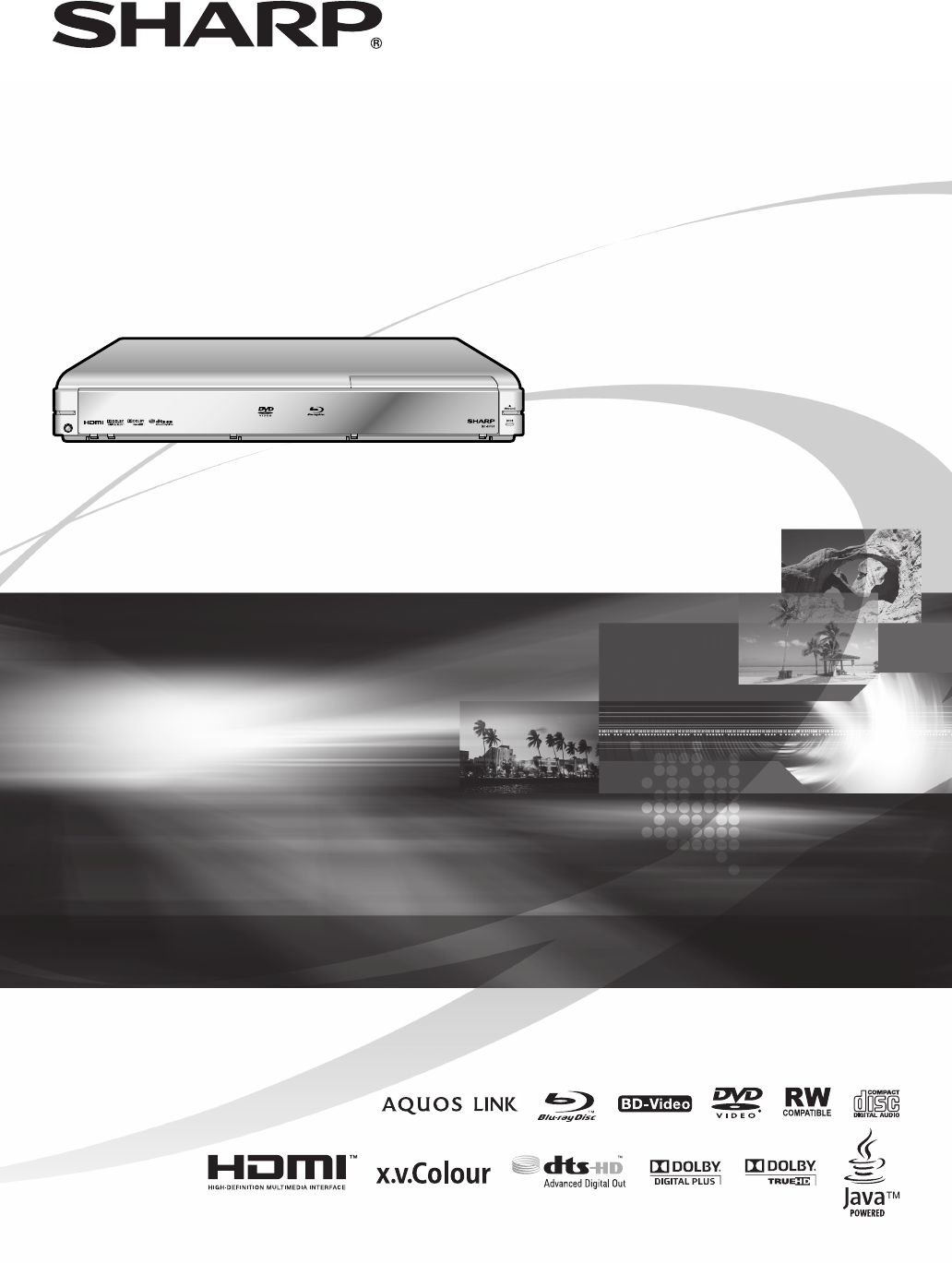
- BD-HP50X 1
- OPERATION MANUAL 3
- Contents 4
- BD/DVD/CD Playback (p. 24) 5
- About Discs (pp. 7-8) 5
- Video Connections (p. 15) 5
- DEAR SHARP CUSTOMER 6
- IMPORTANT SAFETY INSTRUCTIONS 6
- About Discs 10
- About Disc Contents 11
- Important Information 12
- Getting Started 13
- Major Components 14
- Introduction to Connections 16
- Video Connections 17
- Audio Connections 20
- Before Starting Playback 22
- Turning Off the LCD 25
- Backlight and Indications 25
- Using AQUOS LINK 25
- BD/DVD/CD Playback 26
- BONUSVIEW 27
- Virtual Package 27
- DVD-R/-RW Playback 28
- Audio CD Playback 29
- Playback Functions 30
- JPEG File Playback 33
- Settings During Playback 34
- SETTINGS 36
- USB MEMORY MANAGEMENT 40
- Troubleshooting 41
- On-screen Error Messages 42
- Glossary 43
- Specifications 45
Shrnutí obsahu
BLU-RAY DISC PLAYEROPERATION MANUALMODELPrinted in MalaysiaTINSEA153WJQZ08P09-MA-NGBD-HP50X
8About DiscsStructure of still images (JPEG) foldersYou can play still images (JPEG) with this unit by making folder on disc as shown below. *2 About
9IntroductionnIcons Used on DVD Video Disc CasesThe back of the case of a DVD that is commercially available usually contains various information abo
10Important InformationDisc PrecautionsBe Careful of Scratches and DustBD, DVD and CD discs are sensitive to dust, fingerprints and especially scratc
11IntroductionnStep 1: UnpackingMake sure the following accessories are provided with the product.Getting StartedRemote control unit“AAA” size batter
12POWER (p. 22)Front panel display (p. 22)Disc tray (p. 24)OPEN/CLOSE (p. 24)Remote control sensor (p. 20)Front panel door (p. 24)DOOR (open/close) (
13IntroductionnRemote Control UnitPOWER (p. 22)m OPEN/CLOSE (p. 24)TOP MENU, TITLE LIST (pp. 24, 26)DISPLAY (p. 21)Cursor buttons (a/b/c/d), ENTER (p
14Introduction to ConnectionsThis Player is equipped with the terminals/jacks listed below. Find the corresponding terminal/jack on your video equipm
15ConnectionoVideo ConnectionsConnecting to the HDMI TerminalYou can enjoy high quality digital picture and sound through the HDMI terminal.See page
16YPB(CB)PR(CR)COMPO-NENT INVideo ConnectionsConnecting to the Component JacksYou can enjoy accurate colour reproduction and high quality images thro
17ConnectionoVideo signal outputs: 576i 50Hz 480i 60Hz 576i: 576 interlace scan 480i: 480 interlace scanS-VIDEOVideo ConnectionsConnecting t
18Connecting to the Digital Audio Terminal or JackYou can connect audio equipment to the DIGITAL AUDIO OUT terminal or jack.See page 37 for informati
19ConnectionoAudio ConnectionsThis PlayerConnecting the Audio JacksYou can connect audio equipment or the TV to the 2CH AUDIO output jacks.•Audio equ
20Loading the Batteries in the Remote ControlPress down on the tab in the direction of the arrow to remove the battery cover.Load the two “AAA” size
21pDisc PlaybackOperating the TV of SHARP Using the Remote ControlThe Universal Remote Control may operate the basic functions of the TV of SHARP.TV
22Turning the Power OnTurning the power onPress POWER on the remote control or on the Player to turn on the power of the Player.Entering standbyPress
23pDisc PlaybackBefore Starting PlaybackTurning Off the LCD Backlight and IndicationsIf you feel that the indicators on the Player are too bright whe
24This section explains playback of commercially available BD Video and DVD Video discs (like movies), CDs, and recorded DVD-RW/R discs.Opening the f
25pDisc PlaybackUsing the disc menuDVD VIDEOExample: Select “SUBTITLE LANGUAGE”.Press POP-UP MENU.The disc menu screen is displayed.Press a/b to sele
26DVD-R/-RW PlaybackDVD-RDVD-RWYou can play back a recorded disc (finalised disc only).Playback from the beginningLoad a recorded disc.Press dPLAY.Pl
27pDisc PlaybackPlayback by selecting a PLAY LISTLoad a recorded disc.Press TOP MENU.The TITLE LIST screen is displayed.Press C (Yellow), then press
1SAFETY INFORMATIONPower Cord ProtectionTo avoid any malfunctions of the Player, and to protect against electric shock, fire or personal injury, plea
28BD VIDEO BD-R BD-REDVD VIDEODVD-RDVD-RWAUDIO CDNOTE Some operations in the following playback functions cannot be performed depending on the specif
29pDisc PlaybackPartial Repeat Playback (Repeat Playback of a Specified Part)DVD VIDEODVD-RDVD-RWAUDIO CDNOTE Some operations in the following playba
30Playback FunctionsSwitching the AngleIf multiple angles are recorded, you can switch between them.Press ANGLE during playback.The display indicates
31pDisc PlaybackCD-RJPEGCD-RWJPEGNOTE This Player can play still images (JPEG files) that have been recorded on CD-RW/R discs. For details on the sti
32Function ControlThis allows you to adjust various settings at once, like subtitles, angle settings and the title selection for Direct Playback. You
33pDisc PlaybackFunctions which can be setSettings During PlaybackShows the title number being played back. You can skip to the start of the title.To
34SETTINGSCommon operationsThe “MENU” enables various audio/visual settings and adjustments on the functions using the remote control unit. You need
35SettingsqSETTINGSAUDIO VIDEO SETTINGSTV ASPECT RATIOYou can set the screen aspect ratio of the connected TV, and adjust the video output.If you swi
36SETTINGSDYNAMIC RANGE CONTROLThis lets you adjust the range between the loudest and softest sounds (dynamic range) for playback at average volume.
37SettingsqSETTINGSFRONT DISPLAY/LEDIf you feel that the indicators on the Player are too bright when watching movies, you can turn them off except f
2ContentsIntroduction SAFETY INFORMATION ... 1Contents ... 2What would you
38SETTINGSUSB MEMORY MANAGEMENTThe following instructions explain how to delete data such as the Virtual Package data copied to a USB memory device.C
39AppendixrTroubleshootingThe Player power cannot be turned on.Is the power cord firmly plugged into the AC outlet?When the power cord is plugged int
40Left and right channels of audio are reversed, or sound comes out of only one side.Are left and right audio cables connected to the opposite termin
41AppendixrGlossaryBD-J applicationThe BD-ROM format supports Java for interactive functions. “BD-J” offers content providers almost unlimited functi
42Letter Box (LB 4:3) (page 35)A screen size with black bars on the top and bottom of the image to allow viewing of wide-screen (16:9) material on a
43AppendixrSpecificationsGeneralPower supply AC 100-240V, 50/60HzPower consumption (Normal) 27 WPower consumption (Standby) 0.5 W (When “QUICK START”
44MemoBD-HP50X_en.indd 44BD-HP50X_en.indd 44 2008/09/17 13:11:312008/09/17 13:11:31
BLU-RAY DISC PLAYEROPERATION MANUALMODELPrinted in MalaysiaTINSEA153WJQZ08P09-MA-NGBD-HP50X
3What would you like to do with this Player?Watching high quality movies on Blu-ray discs This Player offers full high-definition Blu-ray disc playba
4Electricity is used to perform many useful functions, but it can also cause personal injuries and property damage if improperly handled. This produc
5IntroductionnIMPORTANT SAFETY INSTRUCTIONSWater and Moisture — Do not use this product near water - for example, near a bath tub, wash bowl, kitchen
6IMPORTANT SAFETY INSTRUCTIONSTurn off the main power and unplug the AC cord from the wall outlet before handling.To clean the outer cabinet, periodi
7IntroductionnAbout DiscsBlu-ray DiscBlu-ray Disc is the ultimate next generation optical media format, offering the following key features:Largest c
Související produkty a manuály pro Blu-Ray přehrávače Sharp BD-HP50X
 (22 stránky)
(81 stránky)
(22 stránky)
(81 stránky)
 (2 stránky) (65 stránky)
 (2 stránky) (68 stránky)
(55 stránky)
(2 stránky) (68 stránky)
(55 stránky)
© 2020, manymanuals.cz. Všechna práva vyhrazena. | 0.098 s |
 Manymanuals.com
 Manymanuals.de
 Manymanuals.fr
 Manymanuals.it
 Manymanuals.pl
 Manymanuals.cz
 Manymanuals.es
 Manymanuals-pt.com
Komentáře k této Příručce